We ran a survey on Excel shortcuts. Here are the results, based on over 800 replies.
I’ve also compiled a list of the most 20 popular Excel shortcuts below. This is a tricky business, because people often don’t know what to call shortcuts, or how to refer to them. So I’ve had to “interpret” many of the shortcuts people mentioned. That said, the patterns are clear, and the best shortcuts naturally bubble up again and again. It’s a great list.
Dave
Survey Results
People think Excel Shortcuts are important
99% said Excel shortcuts are important, very important, or critical.
Wow. Although people who take a shortcut survey are naturally interested in shortcuts, this is surprising!
Most people don’t know many Excel shortcuts
There are over 200 shortcuts in Excel (over 400, if you count both Windows and Mac). How many do people think they know?
26% know 10 or less 61% know between 10 and 50 10% know between 50 and 100
I made a mistake with this question – I should have asked about 10-20. My guess is about half of the 61% above are in that range.
Top 5 reasons for learning Excel Shortcuts
- Work faster and more efficiently in Excel
- Easily manage huge amounts of data
- Maintain sanity when doing tedious work
- Maintain accuracy and consistency
- Better understanding of how Excel works
I actually think the last item has the most overall “punch”, since shortcuts can teach you how to solve complex problems with very elegant solutions that take advantage of Excel’s most powerful features. For example, rather than use a shortcut 100 times to do the same thing (quickly) on a large set of data, you might be able to complete all the work in just a few steps. Examples here , and here .
People have been using Excel for a long time
- 20% have been using Excel for between 3 and 5 years
- 73% have been using Excel for more than 5 years
- 52% have been using Excel for more than 10 years
20 Most popular shortcuts
- Cut, copy, paste - Ctrl X, C, V (Mac: you can also use Command). I guess this is expected, since other applications share the same shortcuts. And, of course, these are shortcuts you’ll use every day.
- Extend selection - Control Shift arrow keys (Mac: you can also use Command). These are absolutely critical shortcuts when you’re working with a large set of data and want to extend your selection to the bottom, or any edge.
- Paste Special - Control + Alt + V (Mac: Control + Command + V). Paste Special is extremely powerful. You can paste values, paste formulas, paste formatting, and even paste column widths!
- Fill down - Control D. An excellent way to copy values from the cell above without copying and pasting. Several people also mentioned Fill right, Control + R
- Toggle formula references - F4 (Mac: Command Shift T). Who likes to type $ signs in a formula? No one. Use this shortcut to quickly rotate through all absolute and relative formula reference options (i.e. A1, $A$1, $A1, A$1).
- Autosum - Alt = (Mac: Command + T). A classic “magic” shortcut to automatically insert a sum function. You can use autosum to sum rows, columns, or even an entire table in one step (more details here ; autosum demo here ).
- Toggle filters - Control + Shift + L (Mac: Command + Shift + F). An excellent shortcut to apply and clear all filters. It’s a very handy way to “reset” a table with many filters applied…just use it twice.
- Current date and time - Control + ; (date) Control + Shift + : (time). If you need a date or time stamp, it’s magic.
- Select all - Control A (Mac: you can also use Command). This shortcut will select all data in the “same region”. Use it whenever you want to select an entire table.
- Go to first cell / last cell - Control + Home, Control + End. (Mac: fn + Control + left arrow, fn + Control + right arrow. Very satisfying when you want to go instantly to the first cell or last cell of a worksheet, no matter where you are. Bonus: add the shift key to select everything on the way.
- Repeat last action - F4 or Control Y (Mac: Command + Y). Did you know that many commands can be repeated? You can use this for things like applying the same borders, format, or even to insert a worksheet again. (Note: on Macs up to 2011, this shortcut is not as robust).
- Data navigation - Control + arrow key(s) (Mac: you can also use Command). These shortcuts are “must-know” if you work with large sets of data. They let you move to the edges of the data instantly, without tedious scrolling.
- Fill handle - double click that little square at the bottom right of any selection. While not a keyboard shortcut, it’s still one of the most powerful features in Excel, because it will copy a formula (or a pattern) down a column to the bottom of a table in one click.
- Insert / delete columns and rows - To insert: with an entire row or column selected, use Control+ Shift ++ (Mac: Control + I, but in 2016, same as Win). To delete: with an entire row or column selected, use Control + - .
- Edit cell - F2 (Mac: control + U) to enter “edit mode” for the active cell without taking your hands off the keyboard.
- Enter multiple cells - Control + Enter. Whenever you want to enter the same value or formula in more than one cell at a time. You’ll be surprised how often you use it once you understand how it works.
- Format cells - Control + 1 (Command + 1). Most people know this as the shortcut for the Format Cells dialog, but you can also use it to format almost anything in Excel, without care about the state of the ribbon. Try it.
- Select visible cells only - Alt + ; (Mac: command + shift + Z). The trick to copying only what you see. Priceless when you’re manually hiding rows and columns.
- New Table - Control + T. Very handy when you want to convert a set of data to a “proper” Excel table with filters and formatting. Tables are a powerful and convenient way to handle lots of data easily.
- Toggle formulas on and off - Control + `. A very fast way to (temporarily) reveal all formulas in a worksheet. Use it again to turn formulas off again.
More resources for Excel shortcuts
- 200 Excel shortcuts for Win and Mac (online list)
- Laminated shortcut cards (old school)
- Excel shortcuts on a Mac (article)
- Excel shortcuts course (video training)
What is Scroll Lock?
Usually, the arrow keys will move you one cell at a time in whatever direction you wish. However, when Scroll Lock is enabled, the worksheet is “scrolled” instead. The up and down arrow keys scroll one row up and down, and the right and left arrow keys scroll one column right and left. The active cell never changes.
If you don’t understand what’s going on, this can be quite distressing :)

Fortunately, the Scroll Lock setting is a toggle, much like Caps Lock. If you have a Scroll Lock key on your keyboard, just press it to toggle Scroll Lock off. Done.
No key for Scroll Lock?
Unfortunately, it’s harder to disable Scroll Lock if your keyboard doesn’t have a Scroll Lock key. How can you press a key you don’t have?
The “trick” is to figure out how to send the equivalent of the Scroll Lock keystroke to Excel. The rest of this article explains how to do that on both Mac and Windows.
Is Scroll Lock really on?
First, make sure Scroll Lock is really enabled. You can do this by working with the status bar , the name for the bottom edge of the Excel Window, which displays various information about the state of the current worksheet.
On Windows , the status bar will display Scroll Lock if Scroll Lock is toggled on, and if the Scroll Lock status is enabled in the status bar. If Scroll Lock status is not enabled in the status bar, it might be toggled on and you’ll never see it.
Right-click the status bar to make sure Scroll Lock status is enabled:

The Scroll Lock setting here doesn’t control Scroll Lock, it only displays Scroll Lock status.
Once you make sure that the Scroll Lock status is on, look for the Scroll Lock message in the lower left.
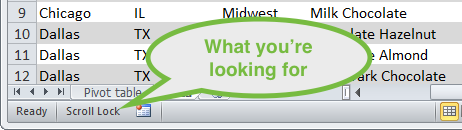
Yes, Scroll Lock is turned on.
On a Mac , as far as I know, Scroll Lock status will not appear in the status bar of Excel 2011. (I haven’t checked Excel 2016 yet). The only way I know to verify the Scroll Lock state is to use the arrow keys and observe behavior. Try moving around with the arrow keys and watch the address in the name box (directly left of the formula bar). If the address doesn’t change, Scroll Lock is probably turned on.

Mac Excel 2011 doesn’t show scroll lock status anywhere.
How to disable Scroll Lock on Windows
If you’re using a full keyboard in Windows – one that has a Scroll Lock key – simply press the key to disable it. You should see the Scroll Lock message disappear from the status bar and then be able to move around normally.
If your keyboard does not have a Scroll Lock key, you can access a virtual keyboard in Windows via Start > All Programs > Accessories > Ease of Access > On-Screen Keyboard.

The On-Screen Keyboard in Windows, Scroll Lock key in white
Once the keyboard is displayed, make sure Excel is the active application and click the ScrLk key. That should do it.
How to disable Scroll Lock on a Mac
The official Microsoft shortcut for Scroll Lock is Shift + F14. If you have an extended keyboard with an F14 key, try that first.

A Mac Extended Keyboard has an F14 key (click to enlarge)
If you have a MacBook Pro, or other machine with a smaller keyboard that does not have extended keys, you’ll have to go a little deeper. You’d think that you could go to System Preferences > Keyboard, then enable an extended virtual keyboard, then use that to press F14. But, after an hour or so of fiddling around, I couldn’t get it to work, and I’m not sure it can be done.
It seems that the Mac is “aware” of the keyboard currently attached, and uses this information to display the virtual keyboard. If you know a way to enable an extended virtual keyboard (on a Mac that doesn’t have one attached), please let me know.
Virtual Keyboard , a commercial freeware utility by Corallo Software (14-day trial) seems to work, but I did very little testing.
AppleScript to the rescue
On Macs, AppleScript is a built-in scripting language that can be used to automate applications and other general tasks. One of the things you can do with AppleScript is send keystrokes to an application.
While researching this problem, I ran into a nice AppleScript by Damien Clark here . However, I couldn’t get the script work like I expected. I could enable Scroll Lock with the script. But when I ran the script again, Scroll Lock wasn’t disabled .
At least not without checking the “use all F1, F2, etc keys as standard function keys setting” checkbox in the Mac’s keyboard preferences…which made the process pretty confusing.
-- Workaround to enable and disable Scroll Lock in Excel on the Mac
-- For Macs that don't have an F14 key available
-- Tested on 2015 MBP running Mac OS 10.10.5 and Excel 2011 (14.5.8)
-- Dave Bruns, December 10, 2015

activate application "Microsoft Excel"
delay 0.5 -- time to release modifier keys
tell application "System Events"
    key code 63 -- fn key
    key code 107 using {shift down}
end tell
To use this script, run the AppleScript Editor, create a new file, and paste in the code above. Then compile the script (Command + K), and run it (play button, or Command + R).
If Scroll Lock is currently on, it should be disabled.
Caution: if Scroll Lock is not currently enabled, it will be enabled, so you’ll need to run the script again to toggle it off again.
