One thing you might have noticed about pivot tables is that almost all the examples you see are based on sales data. This makes sense in a way: sales is where the money is, and companies always have sales data in one form or another. However, pivot tables can handle a lot more than just sales. Any time you need to work with data, you should be thinking about pivot tables.
To illustrate how flexible and useful pivot tables are, here are five interesting examples you probably haven’t seen before. I’m not going to explain how to create each pivot table in this article (I’ll leave that for another day). I just want to give you some ideas about how you can use pivot tables with your own data.
Time tracking
Imagine you need to log time for different clients and projects and periodically report your time by client and project. There are of course many applications dedicated to time-tracking, but you can easily create your own flexible system using Pivot Tables.
At a minimum, what you need to record is a date, the time you spent, the client name, and the project. So, after you enter the data consistently, you might end up with source data that looks something like this:

Note that there are no blank lines - you just need to enter the data as you go.
Now the summaries. First, you might want an overview of your time by week. Here we are using the week numbers provided by Excel’s WEEKNUM function (see column C of the source data):

You might also want to arrange the pivot table to show a more traditional timesheet layout, with days of the week across the top:
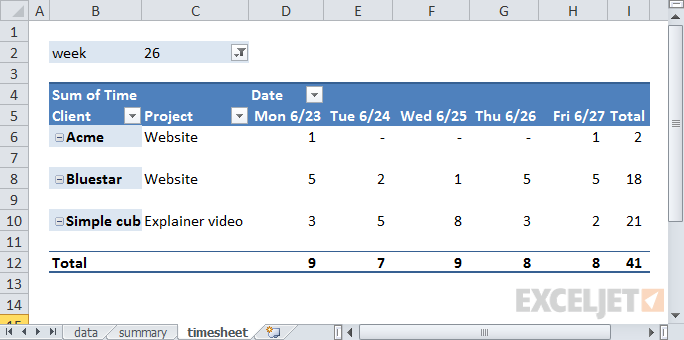
Each time you filter on a different week number, your pivot table will build a new time sheet that displays the dates that belong to the week. Note that by adding a column for Name to the data, you could track and report time for multiple people. You could also add a rate column to the data and use a pivot table to summarize the cost or billing rate of time logged.
We also have video training for Pivot Tables
User activity in a web portal

Lots of user data. Emails are fictitious, of course!
Your boss wants to know some basic information: how many users are currently active? How many users are being created each month? What partners have the most user accounts, and so on? Also, she’s meeting the CEO at lunch. Can you get that info to her in the next hour? Gulp.
Before you panic and break out heavy-duty functions like COUNTIF, SUMIF, INDEX, and so on, take a deep breath. This kind of data is perfect for pivot tables, which will crunch through it quickly and still leave you time for a cup of coffee. First, active vs. inactive users. This kind of summary is a piece of cake with pivot tables, even with huge data sets:

Interesting. Some users are “suspended”. Who knew?
Next, the top 10 partners by number of active users. This is easily done by using the pivot tables built-in “Top 10” value filter.

And finally, by grouping user creation dates by year and month, you can easily show the complete history of user creation:

There must have been an import back in December 2009 .
Class list
In this example, you’re helping to coordinate sign-ups for a class that’s offered on Mondays, Wednesdays, and Fridays. Each day during the sign-up period, you get a set of data that looks like this:

Note the data is formatted as a Table; important for updating later
Your job is to send a simple report to the instructor at the start of each day that shows current registrations. There’s not a lot of data here, but if you create the report manually, you’ll need to use some combination of filtering, sorting, copying, and pasting, and you’ll have to repeat the process each day.
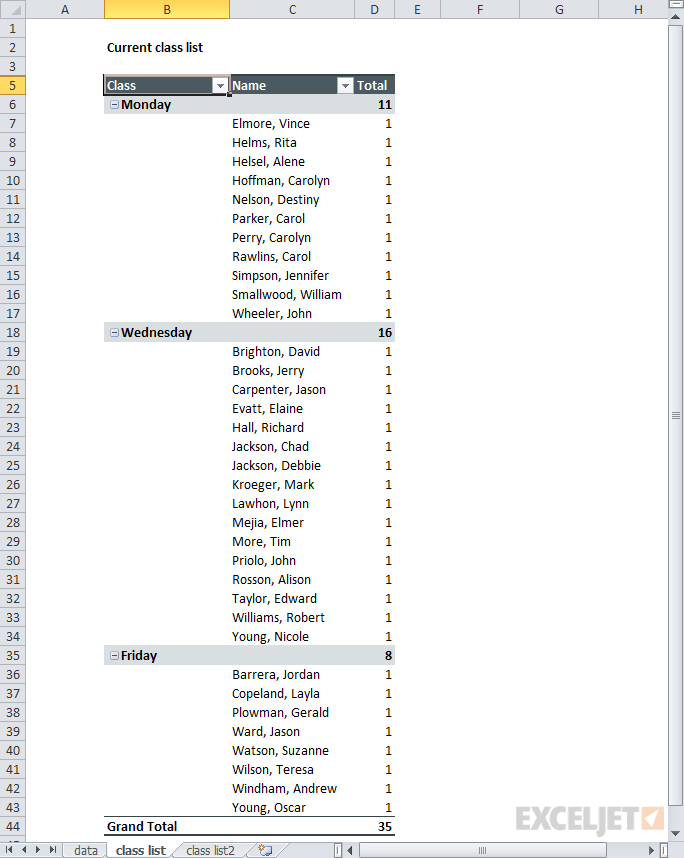
Once again, this is an easy job for a pivot table. Just build a simple pivot table that summarizes by class day:

35 people have registered so far. Only 8 for the Friday class.
By adding names, you can quickly create a full class list.
By moving the Class field into the column labels area, you can create a report that keeps all students together in alphabetical order.
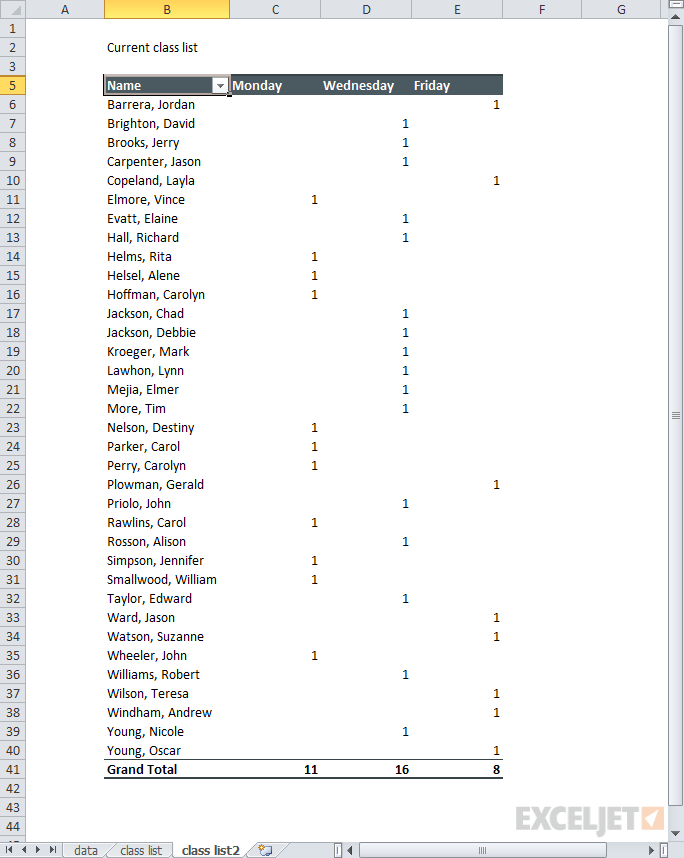
One Pivot Table quirk is a tendency to want to count everything .
Now that you’ve got a report layout you like, how do you update the report each day? Simple. Just paste in the latest data, (overwriting the existing data) and refresh the pivot table(s). This should take less than a minute, with no busy work.
Instrument measurements
You’ve got measurement data from a system that records the temperature, relative humidity, and dew point in a greenhouse every two minutes. The data looks like this:

What you need is a quick breakdown that shows the average reading per hour. Yes, you could create formulas to do this, but it will be a lot of work. By flowing the data through a pivot table, you can simply add each measurement as a value, and change the display to show average instead of sum. This will give you a tidy summary that shows the average of each reading by hour:

Average readings per hour in less than 5 minutes
Email signups
You’re working with a client who is tracking email signups on their website. The client is planning a new marketing campaign and wants to know which day of the week is best for signups, based on the data they have so far. The day of the week is a little tricky since it doesn’t appear anywhere in the data, but you can easily add it to the data using the WEEKDAY function . Your data now looks like this:

And the initial summary looks like this:

Every email sign-up to date in one tidy little pivot table
Looking at the data, you realize it would be more useful to show the total signups as a percentage rather than an absolute number. By setting the email count to display a percentage of row, the pivot table will show a breakdown by day of the week. In addition, you add conditional formatting to make the higher and lower percentages stand out. Below, we’ve used green for higher percentages, and blue for lower percentages.

Now it’s clear: most sign-ups are on weekdays. Tuesdays and Wednesdays are especially good days.
Summary
Hopefully, this short tour of “unconventional” Pivot Tables has inspired you to try some new pivot tables on your data. You don’t need to have a huge set of data to see the benefit of using a pivot table. Pivot tables will save you time and energy whenever you need to create a report based on data, especially a report you’ll need to update again in the future. Here are a few more helpful links and resources:
- Pivot table example: Instrument readings (video)
- Pivot table example: movie data (video)
- Pivot table example: voting results (video)
- Core Pivot (video course)
Overview | Why Pivot? | Story | Examples
This article is for those of you who don’t get pivot tables. Maybe you tried pivot tables once, and didn’t see what the big deal was, or maybe you got frustrated when a pivot table wouldn’t behave. They can be that way.
I’m not going to mince words. If you use Excel on a regular basis, you need to know how to use pivot tables. Period. I’ll get to some good reasons below, but first, a quick story.
When I first learned pivot tables in the late 1990s, I was working as a manager for a medium sized (US $50M) company in the translation industry that was going through a major restructuring. My boss, who had hired me 3 months earlier, had done his part in the restructuring, personally laying off about 30 people one dark week in November. A big wig from Singapore was in town, and they actually sat together in the main conference room and called people up over the PA system. It was brutal. All week, people filed past my office to the conference room, and came back stunned and upset, many in tears.
At the end of the week, the company repaid my boss for handling that miserable job by laying him off too. You gotta love corporate America.
Looking for good tips? See 23 things you should know about pivot tables .
What’s this got to do with pivot tables?
Yes, let’s get to that. The upshot of my boss being suddenly sacked was that I was “promoted” to a new role, running an office with about $10M of annual revenue running through it, with less than half the original staff, most of whom were now supposed to play different roles in the company (with no job descriptions, naturally). The remaining staff were not, as you might expect, completely trusting of the company at that point. Beyond ordinary chaos, there was a deep current of fear running through the office. People thought it was just a matter of time before the axe dropped on them.
More on that in a minute…
In the meantime, of course, there was work to do. We had sales people selling new jobs, we were just starting the largest project we’d ever tackled: a 25-language job for a large computer company with a budget well over $1M. And we had lots of jobs already in progress.
As the manager, I was responsible for submitting sales forecasts, recognizing revenue on existing projects, estimating invoicing, knowing what jobs were won and lost, knowing who my top customers were, and making sure existing projects came out ok.
We had no integrated systems of any kind. No CRM system, no way to forecast sales, no project tracking app, nothing.
Luckily, I had my trusty Toshiba laptop (a brick, but running NT, thankfully, not Windows 95), and I had just discovered pivot tables. After a few very frustrating early weeks (pivot tables were quite delicate at the time and fell apart at the slightest provocation), I realized that if I could just get together the right data, I could use pivot tables to generate any report I needed for myself or my management. And, a few months later, that’s just what I did.
Pivot tables give you answers
At the most basic level, pivot tables answer important questions. For example, assume you’re working with a company that sells chocolate to retailers and have some sales data that looks something like this:
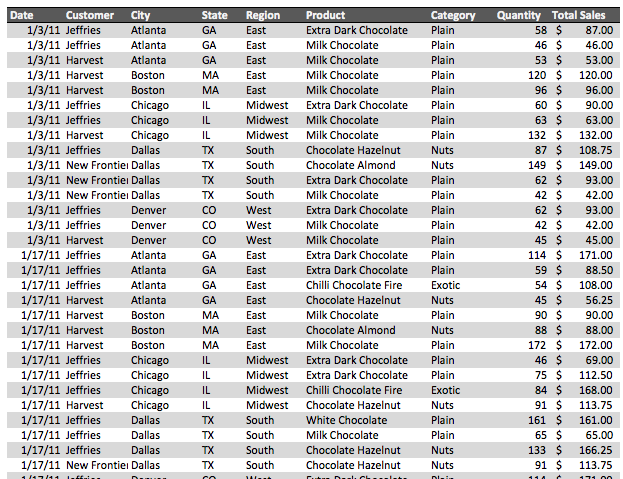
Here are some questions that might be going through your mind:
- What are my best-selling products?
- Who are my biggest customers?
- Where are my sales coming from?
- What are product sales by year?
- What are customer sales by year?
In about 5 minutes, here are the answers a pivot table can give you:
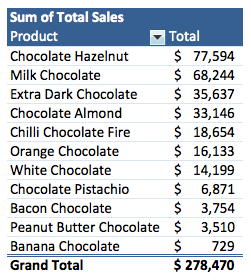
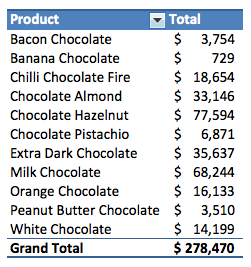
Your top selling products
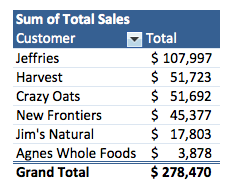
Your biggest customers
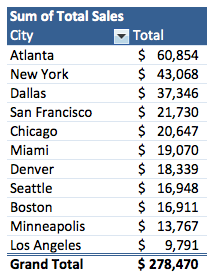
Where sales are coming from
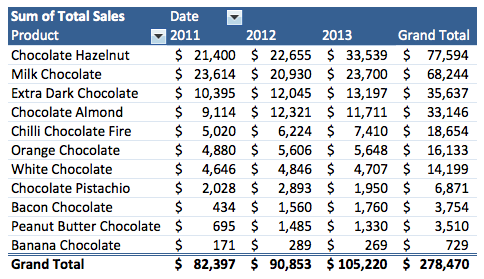
Product sales by year
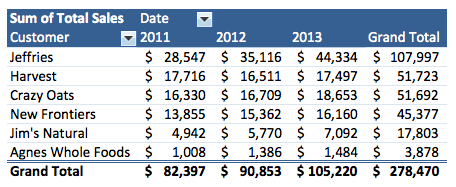
Customer sales by year
Notice that total sales ($278,470) is the same in all pivot tables. Each table presents a different view of the same data, so they all sum to the same number.
So, first and foremost, a pivot table can help you answer questions you have about your data. And in Excel, there is no better tool for this job.
Pivot tables are incredibly fast
Some of you might be thinking: “I could build that summary myself, without pivot tables”. Yes, it’s true. If you have the formula chops to do it, you could create those same reports manually. However, it’s going to take you a lot more time.
In his book, Excel 2013 Pivot Table Data Crunching , Mr. Excel Bill Jelen looks at this very question in detail with one pivot table. With expert skills, he manually builds a basic summary of product sales by region. He concludes:
It took 77 clicks or keystrokes. If you could pull all this off in 5 or 10 minutes, you would probably be fairly proud of your Excel prowess — there were some good tricks among those 77 operations.
Then, he contrasts this with a pivot table approach: a few clicks and done. Watch the video below to see a side-by-side demo of formulas versus pivot tables. No matter how fast you are in Excel, a pivot table will beat you every time.
Video: Formulas vs. Pivot Tables
Pivot tables don’t require formulas
That’s right. Pivot tables don’t require any formulas at all. Not just a few formulas, but zero formulas. Basically, if you can click and drag with a mouse, you can build a pivot table.
To illustrate how truly powerful this is, let’s do something really hard with our pivot table. Let’s group all the orders in the sales data we just looked at into buckets according to the size of the order. That is, we want to see a breakdown of all sales small and large orders.
In a couple of minutes, we have a breakdown of orders by order total. This is cool, but useless, because there’s way too much data here:

However, using the built-in group by feature, we can ask Excel to group the orders into buckets of $100. When we click OK, we have a new layout that does this grouping for us perfectly:
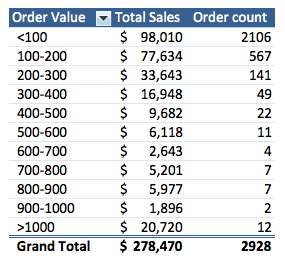
This summary tells us that out of almost 3000 orders, 2106 orders are less than $100, and only 12 orders are greater than $1,000.
Now, consider the formulas it would take to create this kind of report manually. Believe me, they aren’t going to be pretty. Even if you eventually work it out, you won’t understand what they do after a few weeks.
Which brings us to our next point.
Pivot tables don’t make mistakes

Have you ever felt the stress of worrying that your worksheet might contain errors? Maybe you’ve had the unpleasant experience of presenting a report to your management only to have someone find a simple mistake in one of your formulas, casting a shadow on the entire worksheet (and you)?
If so, you’re not alone. These kinds of errors happen all the time, even to pros. Perhaps you read about the spreadsheet mistake that may have impacted the global economy ? It was a basic error. A formula that was supposed to average values for twenty countries only averaged values in 15 countries. So, instead of AVERAGE(L30:L49), the formula said AVERAGE(L30:L44). This is the kind of “silent” problem that can come back to haunt the author of a spreadsheet.
So, how does this relate back to pivot tables? Like this: because pivot tables don’t require you to write formulas, there’s no chance to mess one up. Your only job is to make sure the source data is correct. The pivot table takes care of the rest.
When you work with pivot tables, Excel handles 100% of the calculations and formatting for you. Whether you’re working with 100, 1,000, or 100,000 rows of data, you know the results will be accurate.
Pivot tables make you look good
You’ve probably noticed by now that formatting things in Excel to look good is tricky and time-consuming. And when your boss or client wants to see the report configured differently, you’re back to square one, clearing and re-applying formatting.
Pivot tables are different. All of the formatting they apply is clean and automatic.
For example, let’s look at this plain pivot table with minimal formatting:
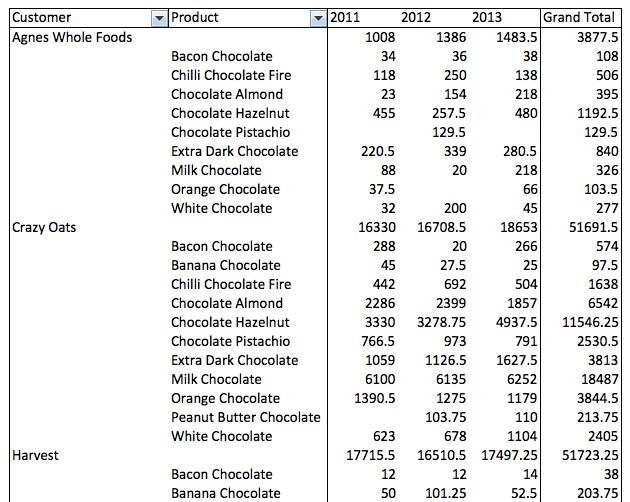
A plain pivot table without formatting
With a few clicks, we can transform the entire table into a pro-level report:
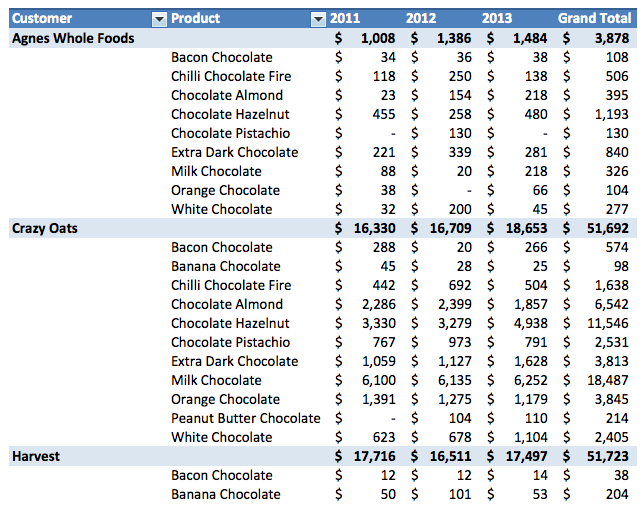
The same pivot table after applying a built-in style
Now, if you need to rearrange the table to show cities instead of products, that’s no problem. Excel automatically clears and replies formatting each time it’s changed, without any effort by you:
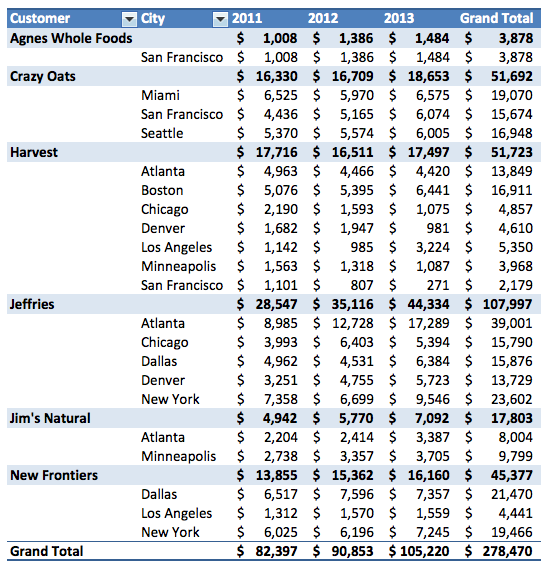
A new layout, but all formatting is automatically applied
When you use pivot tables, you get a perfectly formatted report every time.
Pivot tables are a great tool for prototyping
Sometimes, you don’t know exactly what you need, given the data you’ve got to work with. A pivot table allows you to experiment fluidly. You can quickly try out different layouts until you find what you need. In fact, for just this reason, pivot tables are an awesome prototyping tool.
For example, maybe you’re supposed to tell IT what kind of report your boss needs for quarterly sales because they need to code it into a web app they manage. Using a pivot table and some sample data, you start off by adding the product and sales to your pivot table:
Next you add in the date, then group by year and quarter:
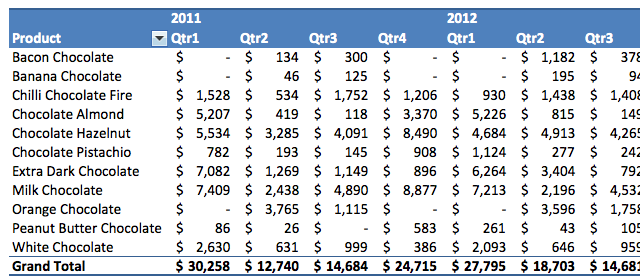
Not bad, but this report is too wide. Maybe quarters would work better in rows?
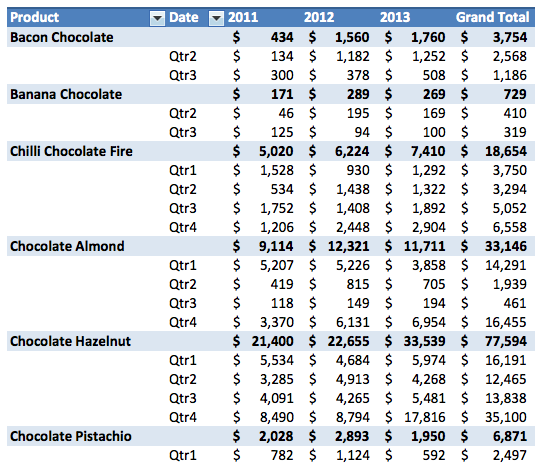
This will work. Now you have something you can send to the IT guys to show them exactly what they need to build.
Pivot tables are an excellent prototyping tool. They help you understand what data you need to collect and how to present it effectively without long delays and expensive development costs.
Pivot tables can analyze all kinds of data, not just sales data
If you look at the pivot table examples on the web, you’d think that the only thing a pivot table is good for is sales data. Not true. You can use a pivot table to analyze any kind of tabular data.
For example, Let’s say you just got an employee list from HR and need to create a simple breakdown by department. Here’s the data:
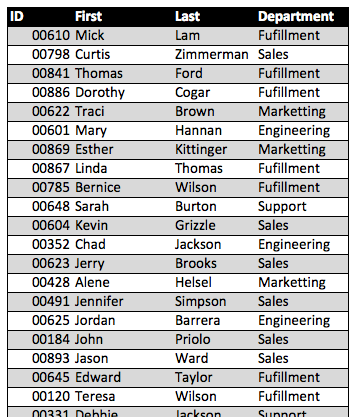
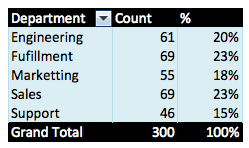
You look at it and realize you can just push it through a pivot table. A minute later, here’s your breakdown by department.
Let’s look at another example. Maybe you work in residential real estate and export a list of 200 properties in a certain location. The data looks like this:
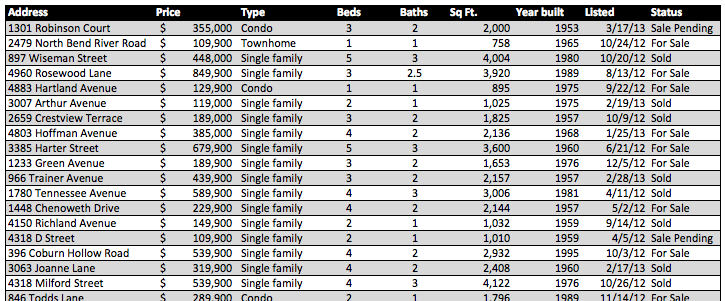
What you want to see is the number of properties that are sold, pending, and for sale. You also want to see the total value of these properties.
30 seconds later, you’ve got your summary:
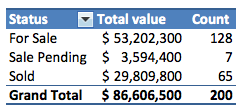
Do you see the pattern? You start off with raw data, most likely collected by a system of some kind. You pour it into a pivot table, Excel crunches through the data in about, oh, 1 second, and out jumps the essential truths about the data, i.e. the things you need to know.
Pivot tables are easy to update
In the real world, data is always changing.
Unlike most other tools in Excel, pivot tables do not update automatically. This sometimes puzzles new users. They make a change in the source data, check the pivot table, and…nothing. To update a pivot table, you need to refresh the data. Once you start to “get” pivot tables, you’ll realize that refreshing the data is the best part about pivot tables, because it’s the moment when Excel does a lot of work for you.
To illustrate, let’s go back to the property-listing example. You have your summary of 200 properties, but you adjust your search a month later, run another data export, and end up with a bigger list that contains 281 properties.
To update your report, here’s what you do. First, you paste over the data you collected previously. Because the data sits in an Excel table, the table range automatically adjusts to include the 81 new properties. Next, you refresh your pivot table, and you’re done. Here’s the result:
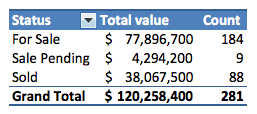
Once you’ve set up a pivot table, you can easily update the data at any time. All changes in the data will be reflected in the pivot table, without any work on your part.
Summary
Hopefully, I’ve managed to convince you that pivot tables are a skill you need to know. As the single most powerful feature in Excel, they help you do the following:
- Answer key questions
- Work incredibly fast
- Avoid mistakes
- Build beautiful reports
- Quickly prototype reports
- Handle changes with grace
- Keep your job
Oh yeah. You probably want to know how the restructuring turned out :)
So, in the end the restructuring was a disaster. Senior management “bet the farm” on a radical idea inspired by the frothy internet start-ups of that era, and they lost, big-time. It took a couple of years, but eventually they ran the company out of money and up on the rocks. During that time, I had to downsize almost every quarter. Finally, a competitor in the UK bought our company at a fire-sale price and initiated their own brutal restructuring (but with a pleasant English accent). By the time that was done, I was the last person from the original office still around.
I won’t say that pivot tables saved my job. It’s not quite that simple. But I do think they played a big role. Because I had key business information for the office in a collection of pivot table reports, I could review these reports with my team, and management at any time. The pivot tables were honestly the only way I was able to understand and communicate what was going on during that crazy period of my career. Without them, I couldn’t have done it.
Want to learn more about pivot tables? We have video training .
