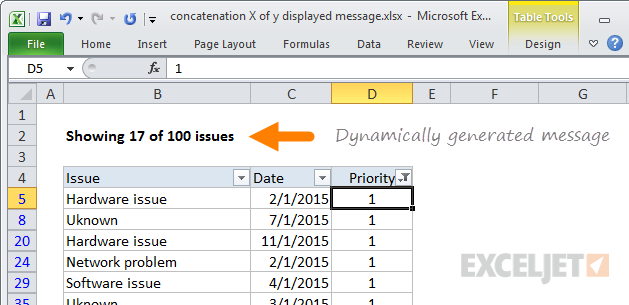
One of the many cool things about Excel is that you can use formulas to display useful, dynamic messages directly on the worksheet. Dynamic messages give your spreadsheets a nice polish. Because they respond instantly to user input, the effect is friendly and professional:
A key tool in building friendly messages is concatenation . Concatenation sounds complicated, but it’s a really simple and useful formula technique you can learn in a few minutes. You’ll find many opportunities to use concatenation in your spreadsheets.
Caution: When people see messages like this in a worksheet you built, they’ll assume you’re some kind of Excel genius, so be warned :)
A basic example
You can assemble messages with nothing more than a simple formula and a technique called “concatenation”. Don’t be alarmed by this fancy-sounding word. Concatenation simply means “join together”. In Excel, this generally means joining text with a value from a cell, or with the result of a function. For example, with the number 10 in cell B4, you can write a formula like this:
=B4&" apples"
Which displays this message: 10 apples
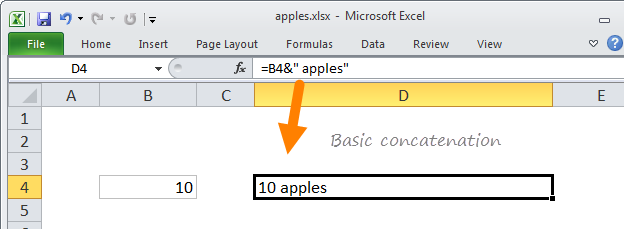
Note: text is fully enclosed in double quotes, and must include required spaces.
Here, the ampersand character (&) is used to join a text string with the value in cell A1. The ampersand is the “concatenation operator” in Excel, just like the asterisk (*) is the multiplication operator, the plus symbol (+) is the addition operator, and so on.
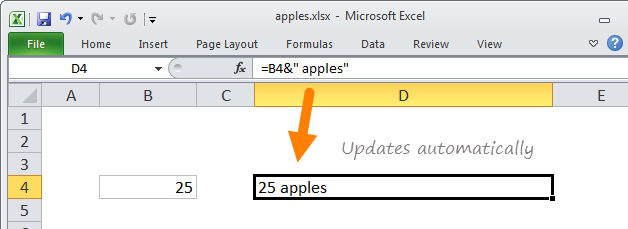
If a user updates cell B4 to contain 25, the message updates instantly:
Embedding a value in the middle
You don’t have to concatenate only at the beginning or end of a text string, you can use multiple ampersands to embed values anywhere you like in a string. Taking the example above another step, you can use two ampersands to create a full sentence with a value in the middle:
="There are "&B4&" apples."
Which returns: There are 25 apples.
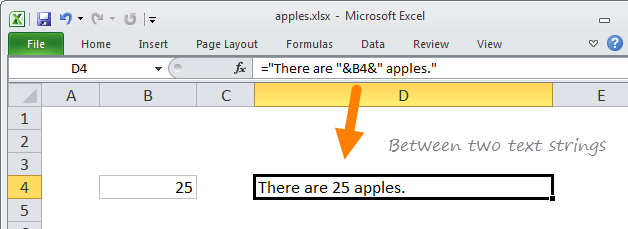
Again note: all text must be enclosed in double quotes. If you forget to do this, Excel won’t let you enter the formula.
Concatenation with other functions
Once you get the basic idea of concatenation, you’ll quickly see how you can use the results of other formulas or functions in your messages. For example, perhaps you maintain data in a filtered table. You often use one or more filters to narrow down data in the table, and you’d like to know how many records you’re viewing at any given time, and how many records are in the table total.
Building on the examples above, you can use concatenation, together with the row and subtotal functions to build a message like this: “Displaying x of y records”. Here, x represents the total record count, and y is the number of records currently visible, as seen below:
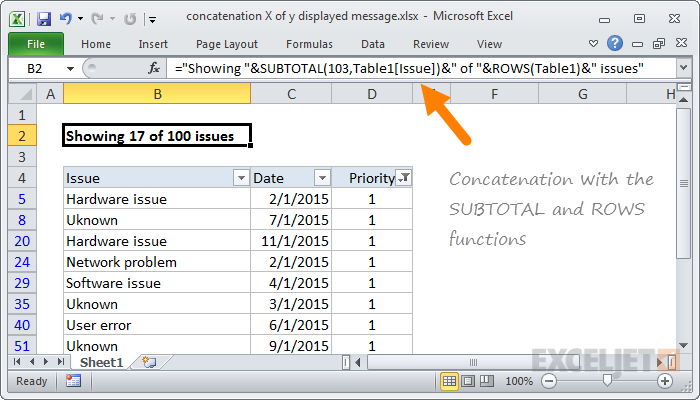
The formula used is:
="Showing "&SUBTOTAL(103,Table1[Issue])&" of "&ROWS(Table1)&" issues"
Video: How to count items in a filtered list
Concatenation with number formatting
Once you get comfortable with concatenation, you’ll start to notice many opportunities to concatenate values into more meaningful messages. Then, one of the first problems you’ll likely run into is losing the formatting of numeric values you include in a message.
For example, let’s say you have a due date in cell C4, and you want to display a message like “The project is due August 15, 2017”.
So, you start off with this formula:
="The project is due on "&C2
However, when you hit enter you see: The project is due on 42962
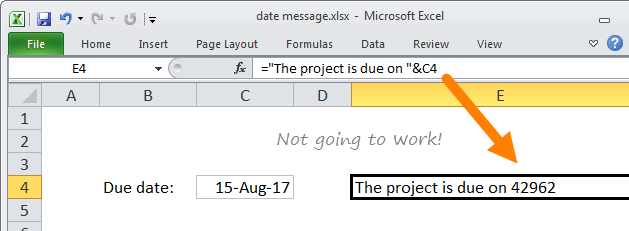
It’s kind of cool to see the underlying value, but most people don’t know that August 15, 2017 is the 42962-th day in Excel’s date numbering system, so not especially useful :)
To fix this problem, use the TEXT function to apply the formatting of your choice:
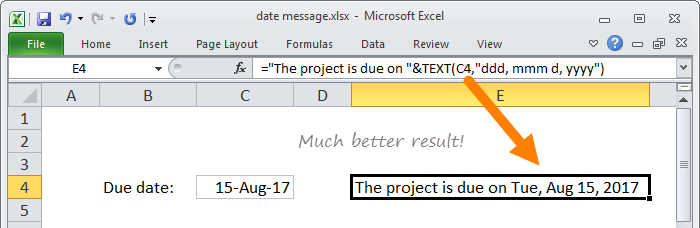
The improved version uses this formula:
="The project is due on "&TEXT(C2,"ddd, mmm d, yyyy")
The TEXT function is a handy function you can use whenever you want to apply formatting to a numeric value and up with text. You can use it for all number formatting, including percentage, currency, dates, times, and custom formats.
The video below shows how to use the TEXT function to increment a padded number (i.e. 0001, 00123, etc.)
Video: How to combine functions in a formula
Clarify assumptions with concatenation
Another cool use of concatenation is to make assumptions clear in a model that requires specific user inputs or variables.
This video below shows how concatenation can be used to “expose” several assumptions directly on the worksheet by concatenating variable inputs directly to calculation labels.
Video: How to clarify assumptions with concatenation
Excel concatenation functions
Excel contains three functions you can also use for concatenation: the CONCATENATE function , the CONCAT function , and the TEXTJOIN function . CONCAT and TEXTJOIN are new functions available in Office 365 and Excel 2019.
I’m not a fan of CONCATENATE, since it doesn’t do anything you can’t do with the regular old ampersand (&), which is much shorter, and more flexible to boot.
But CONCAT will let you join ranges, which is a new feature, and TEXTJOIN goes one step further and lets you join ranges with a delimiter of your choice. They are worth a look if you are using a newer version of Excel. This article discusses both functions in more detail: CONCAT and TEXTJOIN .
The EOMONTH function is one of those little gems in Excel that can save you a lot of trouble. It’s a simple function that does just one thing: given a date, it returns the last day of a month.
This may seem a little silly — how hard can it be to figure out the last day of a month? — but it’s actually a bit tricky, since each month has a different numbers of days, and February changes in leap years.
Enter the EOMONTH function
EOMONTH takes two arguments: a start date, and months. Months represents the number of months to move in the future or past. So, for example, with May 12, 2017 in cell B5:
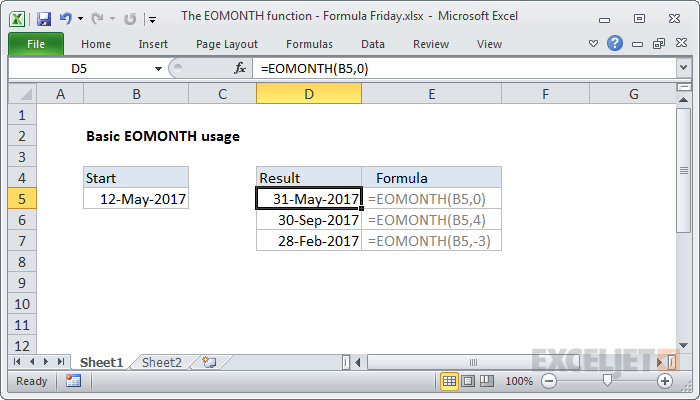
=EOMONTH(B5,0) returns May 31, 2017
=EOMONTH(B5,4) returns Sep 30, 2017
=EOMONTH(B5,-3) returns Feb 28, 2017
You can easily use EOMONTH to move through years as well:
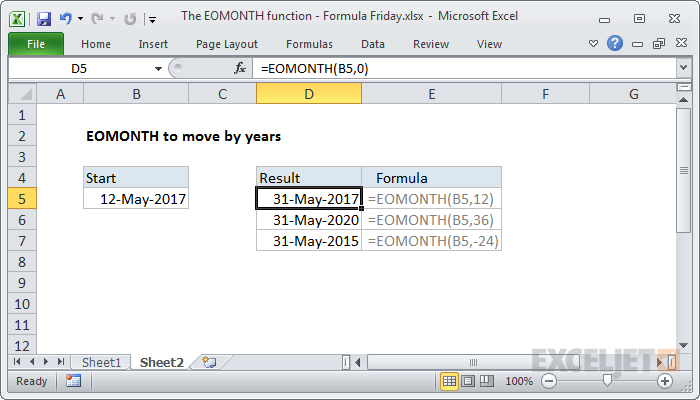
=EOMONTH(B5,12) returns May 31, 2018
=EOMONTH(B5,36) returns May 31, 2020
=EOMONTH(B5,-24) returns May 31, 2015
You can also use EOMONTH to easily get the first day of the next month:
=EOMONTH(B5,0)+1 returns Jun 1, 2017
Notes on using EOMONTH
- Make sure you give EOMONTH a proper date to start. You can use the DATE function if you need to assemble a date from scratch.
- Make sure you apply date formatting to the result of EOMONTH, otherwise you may see just a big number.
- If you want to move to the same date in past or future months, use the EDATE function .
Example formulas built on EOMONTH
Building on EOMONTH’s simple utility, you can build all kinds of useful formulas. Here are a few examples to give you some inspiration:
- Sum by month
- Days in month
- Get last working day in month
- Calculate retirement date
- Get first day of previous month
More formulas
We have more than 500 formulas examples , and high-quality video training if you like learning with a structured program.
