Explanation
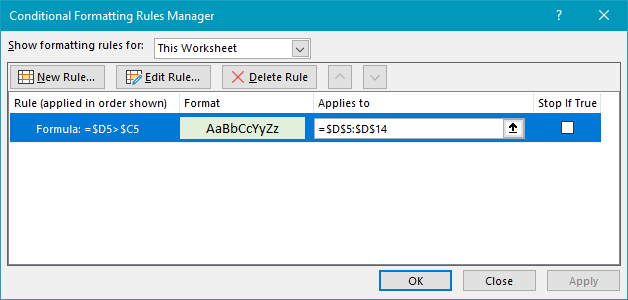
In this example, a conditional formatting rule highlights cells in the range D5:D14 when the value is greater than corresponding values in C5:C14. The formula used to create the rule is:
=$D5>$C5
The rule is applied to the entire range D5:G14. The formula uses the greater than operator (>) to evaluate each cell in D5:D14 against the corresponding cell in C5:C14. When the formula returns TRUE, the rule is triggered and the highlighting is applied.
Mixed references
The mixed references used in this formula ($D5, $C5) make this rule portable. You could use the same formula to highlight cells in B5:B14 instead of D5:D14, or even to highlight entire rows based on the same logic.
Explanation
When conditional formatting is applied with a formula, the formula is evaluated relative to the active cell in the selection at the time the rule is created. In this case, the active cell when the rule is created is assumed to be cell E5, with the range E5:E14 selected.
As the formula is evaluated, formula references change so that the rule is testing for blank values in the correct row for each of the 10 cells in the range:
=OR(B5="",C5="", D5="") // E5
=OR(B6="",C6="", D6="") // E6
=OR(B7="",C7="", D7="") // E7
etc.
If any cell in a corresponding row in column B, C, or D is blank, OR function returns TRUE and the rule is triggered and the green fill is applied. When all tests return FALSE, the OR function returns FALSE and no conditional formatting is applied.
With ISBLANK
of testing for an empty string (="") directly you can use the ISBLANK function in an equivalent formula like this:
=OR(ISBLANK(B5),ISBLANK(C5),ISBLANK(D5))
AND, OR, NOT
Other logical tests can be constructed using combinations of AND, OR, and NOT. For example, to test for a blank cell in column B and column D, you could use a formula like this:
=AND(B5="",D5="")
This will trigger conditional formatting only when the column B and D are blank.
For more information on building formula criteria, see 50+ formula criteria examples .
