Explanation
In this example, the goal is to convert an ordinary number into a column reference expressed in letters. For example, the number 1 should return “A”, the number 2 should return “B”, the number 26 should return “Z”, etc. The challenge is that Excel can handle over 16,000 columns, so the number of letter combinations is large. One way to solve this problem is to construct a valid address with the number and extract just the column from the address. This is the approach explained below. For reference, the formula in C5 is:
=SUBSTITUTE(ADDRESS(1,B5,4),"1","")
ADDRESS function
Working from the inside out, the first step is to construct an address that contains the correct column reference. We can do this with the ADDRESS function , which will return the address for a cell based on a given row and column number. For example:
=ADDRESS(1,1) // returns "$A$1"
=ADDRESS(1,2) // returns "$B$1"
=ADDRESS(1,26) // returns "$Z$1"
By providing 4 for the optional abs_num argument , we can get a relative reference:
=ADDRESS(1,1,4) // returns "A1"
=ADDRESS(1,2,4) // returns "B1"
=ADDRESS(1,26,4) // returns "Z1"
Note the result from ADDRESS is always a text string . We don’t particularly care about the row number, we only care about the column number, so we use 1 for row_num in all cases. In the worksheet shown, we get the column number from column B and use 1 for the row number like this:
ADDRESS(1,B5,4)
As the formula is copied down, ADDRESS creates a valid address using each number in column B. The maximum number of columns in an Excel worksheet is 16,384, so the final column in a worksheet is “XFD”.
SUBSTITUTE function
Now that we have an address with the column reference we want, we simply need to remove the row number. One way to do this is with the SUBSTITUTE function . For example, assuming we have an address like “A1”, we can use SUBSTITUTE like this:
=SUBSTITUTE("A1","1","") // returns "A"
We are telling SUBSTITUTE to look for “1” and replace it with an empty string (""). We can confidently do this in all cases because we’ve hardcoded the row number as 1 inside the ADDRESS function. The final formula in C5 is:
=SUBSTITUTE(ADDRESS(1,B5,4),"1","")
In brief, ADDRESS creates the cell reference and returns the result to SUBSTITUTE, which removes the “1”.
TEXTBEFORE function
A cleaner way to extract the column reference from the address is to use the TEXTBEFORE function like this:
=TEXTBEFORE(ADDRESS(1,B5,4),"1")
Here, we treat “1” as a delimiter and ask TEXTBEFORE for all text before the delimiter. The result from this formula is the same as above, but the configuration is a bit simpler.
Explanation
To convert an expense in one time unit (i.e. daily, weekly, monthly, etc.) to other time units, you can use a two-way INDEX and MATCH formula. In the example shown, the formula in E5 (copied across and down) is :
=$C5*INDEX(data,MATCH($D5,vunits,0),MATCH(F$4,hunits,0))
This formula uses a lookup table with named ranges as shown below:
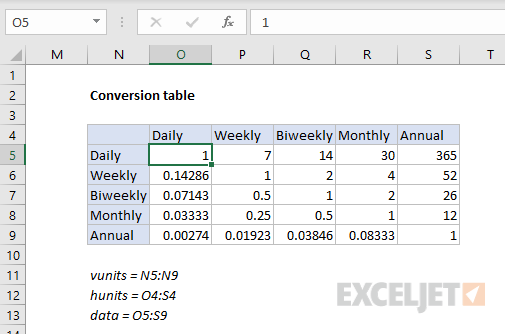
Named ranges: data (O5:S9), vunits (N5:N9), and hunits (O4:S4).
Introduction
The goal is to convert an expense in one time unit, to an equivalent expense in other time units. For example, if we have a monthly expense of $30, we want to calculate an annual expense of $360, a weekly expense of $7.50, etc.
Like so many challenges in Excel, much depends on how you approach the problem. You might first be tempted to consider a chain of nested IF formulas. This can be done, but you’ll end up with a long and complicated formula.
A cleaner approach is to build a lookup table that contains conversion factors for all possible conversions, then use a two-way INDEX and MATCH formula to retrieve the required value for a given conversion. Once you have the value, you can simply multiply by the original amount.
The conversion table
The conversion table has the same values for both vertical and horizontal labels: daily, weekly, biweekly, monthly, and annual. The “from” units are listed vertically, and the “to” units are listed horizontally. For the purposes of this example, we want to match the row first, then the column. So, if we want to convert a monthly expense to an annual expense, we match the “monthly” row, and the “annual” column, and return 12.

To populate the table itself, we use a mix of simple formulas and constants:

Note: Customize conversion values to meet your specific needs. Entering a value as =1/7 is an easy way to avoid entering long decimal values.
The lookup formula
Since we need to locate a conversion value based on two inputs, a “from” time unit and a “to” time unit, we need a two-way lookup formula. INDEX and MATCH provides a nice solution. In the example shown, the formula in E5 is:
=$C5*INDEX(data,MATCH($D5,vunits,0),MATCH(F$4,hunits,0))
Working from the inside out, the first MATCH function locates the correct row:
MATCH($D5,vunits,0) // find row, returns 4
We pull the original “from” time unit from column D, which we use to find the right row in the named range vunits (N5:N9). Note $D5 is a mixed reference with the column locked, so the formula can be copied across.
The second MATCH function locates the column:
MATCH(F$4,hunits,0) // find column, returns 5
Here, we get the lookup value from the column header in row 4, and use this to find the right “to” column in the named range hunits (O4:S4). Again, note F$4 is a mixed reference with the row locked, so the formula can be copied down.
After both MATCH formulas return results to INDEX, we have:
=$C5*INDEX(data,4,5)
The array provided to INDEX is the named range data , (O5:S9). With a row of 4 and column of 5, INDEX returns 12, so we get a final result of 12000 like this:
=$C5*INDEX(data,4,5)
=1000*12
=12000
