Explanation
In this example, the goal is to count cells in a range that are blank. Counting blank cells in Excel can be tricky because cells can look blank even when they are not actually empty. The article below explains three different approaches.
COUNTBLANK function
The simplest way to count empty cells in a range is to use the COUNTBLANK function . In the example shown, the formula in F6 is:
=COUNTBLANK(C5:C16) // returns 3
Because there are three empty cells in the range C5:C16 , COUNTBLANK returns 3. COUNTBLANK is fully automatic, so there is nothing to configure.
COUNTIFS function
You can also use the COUNTIFS function to count empty cells by passing in an empty string ("") as criteria like this:
=COUNTIFS(C5:C16,"") // returns 3
COUNTIF returns the same result as COUNTBLANK: 3.
Because COUNTIFS can handle multiple criteria , you can easily extend this formula to count empty cells in Group “A” like this:
=COUNTIFS(B5:B16,"A",C5:C16,"") // returns 2
The first range/criteria pair selects cells that are in Group A only. The second range/criteria pair selects empty cells. The result from COUNTIFS is 2, since there are two empty cells in Group A. You can swap the order of the range/criteria pairs with the same result.
SUMPRODUCT function
Another way to count blank cells is with the SUMPRODUCT function. You can use the SUMPRODUCT function to count empty cells like this:
=SUMPRODUCT(--(C5:C16=""))
The expression C5:C16="" returns an array that contains 12 TRUE and FALSE values, and the double negative (–) converts the TRUE and FALSE values to 1s and 0s:
{0;0;1;0;0;1;0;0;0;1;0;0} // returns 3
The result is 3 as before.
You can extend the logic used in SUMPRODUCT with other functions as needed. For example, the variant below uses the LEN function to count cells that have a length equal to zero:
=SUMPRODUCT(--(LEN(C5:C16)=0)) // returns 3
You can adapt this formula to count empty cells in Group A like this:
=SUMPRODUCT((LEN(C5:C16)=0)*(B5:B16="A"))
This is an example of using Boolean algebra in a formula. The double negative (–) is no longer needed in this case because the math operation of multiplying the two arrays together automatically converts the TRUE and FALSE values to 1s and 0s:
=SUMPRODUCT({0;0;1;0;0;1;0;0;0;0;0;0}) // returns 2
The final result is 2, since there are two empty cells in Group A.
Explanation
In this example, the goal is to count cells in a range that are not blank (i.e. not empty). There are several ways to go about this task, depending on your needs. The article below explains different approaches.
COUNTA function
While the COUNT function only counts numbers, the COUNTA function counts both numbers and text. This means you can use COUNTA as a simple way to count cells that are not blank. In the example shown, the formula in F6 uses COUNTA like this:
=COUNTA(C5:C16) // returns 9
Since there are nine cells in the range C5:C16 that contain values, COUNTA returns 9. COUNTA is fully automatic, so there is nothing to configure.
COUNTIFS function
You can also use the COUNTIFS function to count cells that are not blank like this:
=COUNTIFS(C5:C16,"<>") // returns 9
The “<>” operator means “not equal to” in Excel, so this formula literally means count cells not equal to nothing . Because COUNTIFS can handle multiple criteria , we can easily extend this formula to count cells that are not empty in Group “A” like this:
=COUNTIFS(B5:B16,"A",C5:C16,"<>") // returns 4
The first range/criteria pair selects cells that are in Group A only. The second range/criteria pair selects cells that are not empty. The result from COUNTIFS is 4, since there are 4 cells in Group A that are not empty. You can swap the order of the range/criteria pairs with the same result.
Counting empty strings ("")
One problem with COUNTA and COUNTIFS is that they will also count empty strings ("") returned by formulas as not blank , even though these cells are intended to be blank. For example, if A1 contains 21, this formula in B1 will return an empty string:
=IF(A1>30,"Overdue","")
However, COUNTA and COUNTIFS will still count B1 as not empty . If you run into this problem, you can use the SUMPRODUCT function to count cells that are not blank like this:
=SUMPRODUCT(--(C5:C16<>""))
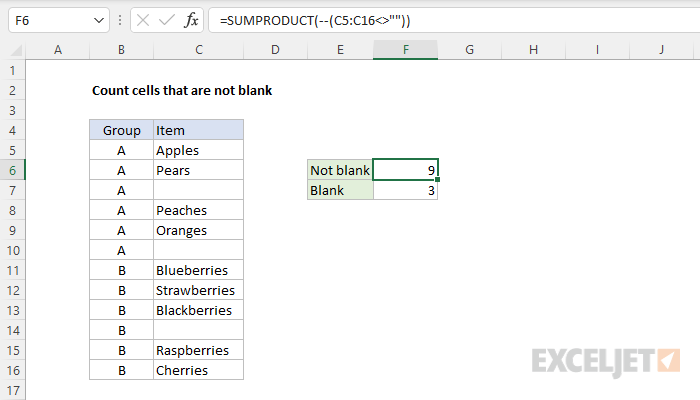
The expression C5:C16<>"" returns an array that contains 12 TRUE and FALSE values, and the double negative (–) converts the TRUE and FALSE values to 1s and 0s:
=SUMPRODUCT({1;1;0;1;1;0;1;1;1;0;1;1}) // returns 9
The result is 9 as before. But this formula will ignore empty strings ("") returned by formulas.
You can easily adjust the logic used in SUMPRODUCT with other functions as needed. For example, the variant below uses the LEN function to count cells that have a length greater than zero:
=SUMPRODUCT(--(LEN(C5:C16)>0)) // returns 9
You can extend the formula to count cells that are not blank in Group A like this:
=SUMPRODUCT((LEN(C5:C16)>0)*(B5:B16="A"))
This is an example of using Boolean algebra in a formula. The double negative is no longer needed in this case because the math operation of multiplying the two arrays together automatically converts the TRUE and FALSE values to 1s and 0s:
=SUMPRODUCT({1;1;0;1;1;0;0;0;0;0;0;0}) // returns 4
The final result is 4, since there are four cells in Group A that are not blank in C5:C16.
