Explanation
In this example, the goal is to count the maximum number of consecutive monthly orders. That is, we want to count consecutive monthly orders greater than zero. This is a tricky formula to understand, so buckle up!
They key to the formula is knowing that the FREQUENCY function gathers numbers into “bins” in a particular way. Each bin represents an upper limit, and contains a count of all numbers in the data set that are less than or equal to the upper limit, and greater than the previous bin number. The trick then is to create the data_array argument using the condition you want to test for (order count greater than zero in this case), and the bins_array using the opposite condition.
To create the data_array bin we use the following code:
IF(C5:H5>0,COLUMN(C5:H5))
Here, we use the IF function to test the order count in each month to see if it’s greater than zero. If so, IF returns the column number using the COLUMN function . The result from IF is an array like this:
{3,FALSE,FALSE,6,7,8}
Notice that only columns where order count > 0 make it into this array. Those columns where the count is zero become FALSE.
The bins_array is generated with this snippet:
IF(C5:H5=0,COLUMN(C5:H5))
Here the IF function is used again to test the order count in each column, but this time the logic is reversed. Only column numbers where the count is zero make it into the array returned by IF, which looks like this:
{FALSE,4,5,FALSE,FALSE,FALSE}
Per standard FREQUENCY behavior, the numbers in the bins_array become the functional bins that tally non-zero orders. Months where orders are greater than zero are translated to FALSE and don’t collect any numbers from the data array, since FALSE values are ignored. The result is that the surviving bins count the number of consecutive non-zero orders up to that point, but excluding those previously counted. This all works because of the incrementing nature of rows and columns – you can be certain that the “next” number is always greater than the previous number.
With the data array and bin arrays as shown above, FREQUENCY returns a count per bin in an array like this:
{1;0;3}
The FREQUENCY function always returns an array with one more item than bins in the bins_array . This is by design, to catch any values greater than the largest value in the bins_array . This array is returned directly to the MAX function , with returns the largest number in the array:
=MAX({1;0;3}) // returns 3
Other consecutive values
To count consecutive occurrences of other values, just adjust the logic as needed following the same pattern: the first condition tests for the thing you want to count, the second condition tests for the opposite.
Explanation
This formula counts how many values are not in range of a fixed tolerance. The variation of each value is calculated with this:
ABS(data-target)
Because the named range “data” contains 10 values, subtracting the target value in F4 will created an array with 10 results:
{0.001;-0.002;-0.01;0.003;0.008;0;-0.003;-0.01;0.002;-0.006}
The ABS function changes any negative values to positive:
{0.001;0.002;0.01;0.003;0.008;0;0.003;0.01;0.002;0.006}
This array is compared to the fixed tolerance in F5:
ABS(data-target)>tolerance
The result is an array or TRUE FALSE values, and the double negative changes these to ones and zeros. Inside SUMPRODUCT, the final array looks like this:
{0;0;1;0;1;0;0;1;0;1}
where zeros represent values within tolerance, and 1s represent values out of tolerance. SUMPRODUCT then sums the items in the array, and returns a final result, 4.
All values within tolerance
To return “Yes” if all values in a data range are within a given tolerance, and “No” if not, you can adapt the formula like this:
=IF(SUMPRODUCT(--(ABS(data-target)>tolerance)),"Yes","No")
If SUMPRODUCT returns any number greater than zero, IF will evaluate the logical test as TRUE. A zero result will be evaluated as FALSE.
Highlight values out of tolerance
You can highlight values out of tolerance with a conditional formatting rule based on a formula like this:
=ABS(B5-target)>tolerance
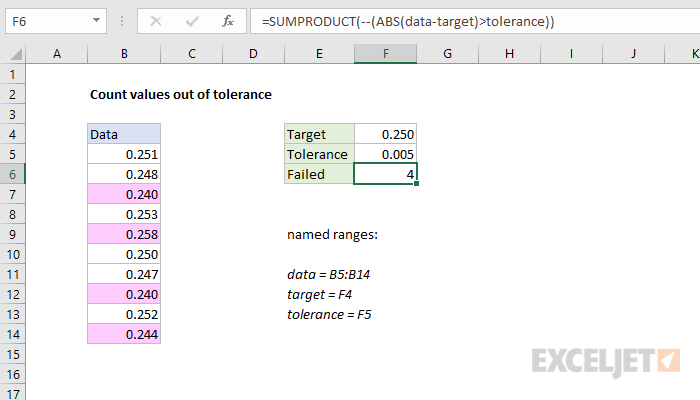
This page lists more examples of conditional formatting with formulas.
