Explanation
One of the trickier problems in Excel is to count rows in a set of data with “OR logic”. There are two basic scenarios: (1) you want to count rows where a value in a column is “x” OR “y” (2) you want to count rows where a value, “x”, exists in one column OR another.
In this example, the goal is to count rows where group = “a” AND Color1 OR Color2 are “red”. This means we are working with scenario 2 above.
With COUNTIFS
You might at first reach for the COUNTIFS function , which handles multiple criteria natively. However, the COUNTIFS function joins conditions with AND logic, so all criteria must be TRUE to be included in the count:
=COUNTIFS(group,"a",color1,"red",color2,"red") // returns 1
This makes COUNTIFS unworkable, unless we use multiple instances of COUNTIFS:
=COUNTIFS(group,"a",color1,"red")+COUNTIFS(group,"a",color2,"red")-COUNTIFS(group,"a",color1,"red",color2,"red")
Translation: count rows where group is “a” and color1 is “red” + count rows where group is “a” and color2 is “red”. Then subtract the count of rows where group is “a” and color1 is “red” and color2 is “red” (to avoid double counting).
This works, but you can see this is a somewhat complicated and redundant formula.
With Boolean logic
A better solution is to use Boolean logic , and process the result with the SUMPRODUCT function . (If you need a primer on Boolean algebra, this video provides an introduction .) In the example shown, the formula in G6 is:
=SUMPRODUCT((group="a")*((color1="red")+(color2="red")>0))
where group (B5:B15), color1 (C5:C15), and color2 (D5:D15) are named ranges .
The first part of the problem is to test for group = “a” which we do like this:
(group="a")
Because the range B5:B15 contains 11 cells, this expression returns an array of 11 TRUE and FALSE values like this:
{TRUE;FALSE;FALSE;FALSE;TRUE;FALSE;FALSE;FALSE;TRUE;FALSE;FALSE}
Each TRUE represents a row where the group is “A”.
Next, we need to check for the value “red” in either color1 or color2. We do this with two expressions joined by addition (+), since addition corresponds with OR logic in Boolean algebra:
(color1="red")+(color2="red")
Excel automatically evaluates TRUE and FALSE values as 1s and 0s during any math operation, so the result from the above expression is an array like this:
{2;0;0;1;1;0;1;0;0;0;1}
The first number in the array is 2, because both Color1 and Color2 are “red” in the first row. For reasons explained below, we need to guard against this situation by checking for values greater than zero:
({2;0;0;1;1;0;1;0;0;0;1})>0
Now we again have an array of TRUE and FALSE values:
{TRUE;FALSE;FALSE;TRUE;TRUE;FALSE;TRUE;FALSE;FALSE;FALSE;TRUE}
The table below summarizes how Excel evaluates the color logic explained above:

At this point, we have results from testing Group =“a” in one array:
{TRUE;FALSE;FALSE;FALSE;TRUE;FALSE;FALSE;FALSE;TRUE;FALSE;FALSE}
And results from testing “red” in Color1 or Color2 in another array:
{TRUE;FALSE;FALSE;TRUE;TRUE;FALSE;TRUE;FALSE;FALSE;FALSE;TRUE}
The next step is to bring these two arrays together with “AND logic”. To do this, we use multiplication (*), since multiplication corresponds to AND logic in Boolean algebra.
After multiplying the two arrays together, we have a single array of 1s and 0s, which is delivered directly to the SUMPRODUCT function:
=SUMPRODUCT({1;0;0;0;1;0;0;0;0;0;0})
The SUMPRODUCT function returns the sum of numbers, 2, as a final result. This is the count of rows where group = “a” AND Color1 OR Color2 are “red”.
To avoid double counting
We don’t want to double count rows where both Color1 and Color2 are “red”. This is why we check the results from ( color1 =“red”)+( color2 =“red”) for values greater than zero in the code below:
((color1="red")+(color2="red"))>0
Without this check, the 2 from the first row in the data would show up in the final array, and cause the formula to incorrectly return 3 as the final count.
FILTER option
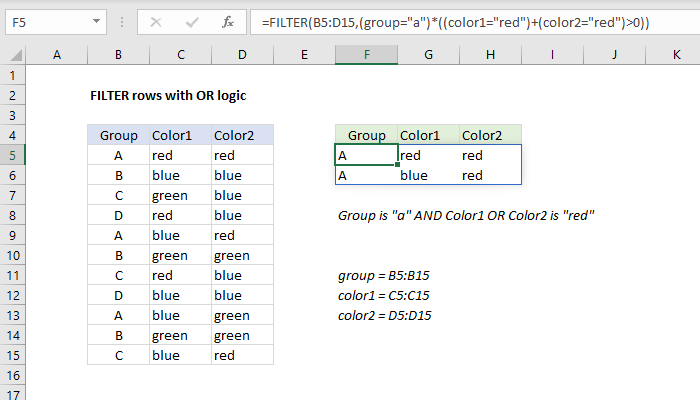
One nice thing about Boolean logic is that it works perfectly with Excel’s newest functions , like XLOOKUP and FILTER . For example, the FILTER function can use exactly the same logic explained above to extract matching rows:
=FILTER(B5:D15,(group="a")*((color1="red")+(color2="red")>0))
The result from FILTER is the two rows that meet criteria, as seen below:
Explanation
In this example, the goal is to count the number of items sold and remaining, based on the data visible in columns B and C. The ID column holds unique ids, and the Sold column is used to record a sale. An “x” in the Sold column indicates the item has been sold. As is typical in Excel, there are several ways to solve this problem. The article below explains two approaches.
COUNTA function
The COUNTA function counts non-blank cells in a range. Unlike the COUNT function, which only counts numeric values, COUNTA will count any value in a cell, including numbers and text. The first formula in F5 counts the total items available:
=COUNTA(B5:B16) // returns 12
The result is 12 since there are 12 values in the ID column. The second formula counts the number of items that have been sold:
=COUNTA(C5:C16) // returns 7
The result is 7 since there are 7 values in the Sold column. Note that COUNTA doesn’t care what value is in a cell. In the example shown, we are using an “x” to indicate sold items, but COUNTA would count “y” or “z” in the same way. The last formula counts the number of remaining items:
=COUNTA(B5:B16)-COUNTA(C5:C16) // returns 5
The result is 5 since 12 minus 7 equals 5. In this example, last formula above is an all-in-one formula, to provide more detail. However, in this particular case, the best practice would be to write the last formula like this:
=F5-F6 // use existing values
In other words, we simply re-use existing results. This minimizes the number of calculations performed and reduces errors.
COUNTIF function
The COUNTIF function counts values in a range based on supplied criteria . With COUNTIF the problem can be solved a bit differently. To count total items, you can use COUNTIF like this:
=COUNTIF(B5:B16,"<>") // count not blank
To count sold items you can use either of these formulas:
=COUNTIF(C5:C16,"x") // count equal to "x"
=COUNTIF(C5:C16,"<>") // count not blank
To count items not sold, you can use COUNTIF like this:
=COUNTIF(C5:C16,"") // count blank
Match test
=SUMPRODUCT(--(B5:B11=C5:C11))
For more information about how this formula works, see this explanation .
