The acronym “CSE” stands for “Control + Shift + Enter”. A CSE formula in Excel is an array formula that must be entered with control + shift + enter. When a formula is entered with CSE, Excel automatically wraps the formula in curly braces {}.
In the example shown, the formula in F5 is:
{=SUM(C5:C14*D5:D14)}
This array formula provides “total sales” in one cell, without a separate column and formula to multiply quantity times price. The curly braces are a clear indication that the formula was entered with CSE. If the same formula is entered without CSE, the result is incorrect.
Not all array formulas require CSE
Not all array formulas need to be entered with CSE. Entering a formula with CSE explicitly disables a behavior in Excel called " implicit intersection “, but some functions do this natively. For example, in the example shown, the SUMPRODUCT function can be used instead of SUM without CSE:
=SUMPRODUCT(C5:C14*D5:D14)
The SUMPRODUCT formula returns the same result but does not require CSE.
Data Types are a special kind of data in Excel with properties that can be accessed like fields. Example Data Types include Stocks, Geography, and Currency. A “linked” Data Type refers to a data type that is linked to an online data source. Linked data types retrieve data from an external source and can be refreshed to show the latest available information.
Available Data Types
You can find a list of supported data types on the Data tab of the ribbon. The screen below shows the data types available in Excel 365 as of January 2022:

Using Data Types
To use Data Types, first enter values in one or more cells. These should be values Excel can recognize as potential Data Types. Then select one or more cells, and choose an appropriate data type from the options on the Data tab of the Ribbon:
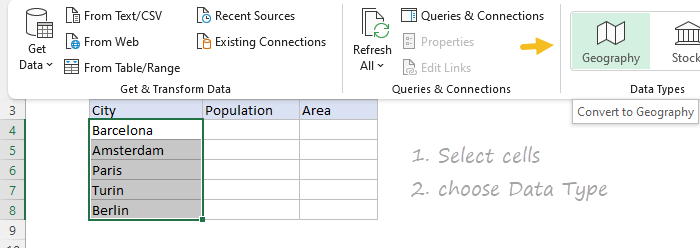
Note: Excel may ask you to confirm specific values that have more than one possibility.
Next, select or type the fields you want to display. This can be done by referencing a cell that contains a Data Type in a formula, as shown below:
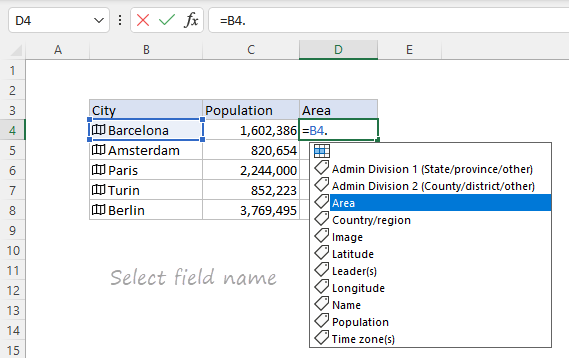
Note the “dot” syntax used in the formula that separates the Data Type in cell B4 from the field name:
=B4.Population // fetch population
=B4.area // fetch area
Field names that include spaces must be wrapped in square brackets:
=B4.[Time zone(s)]
You can also use the FIELDVALUE function to retrieve a field value from a Data Type:
=FIELDVALUE(B4,"area") // fetch area
Note the field values available for a given data type vary according to the kind of information it represents. In the example above, we selected the “Geography” Data Type. Another option is to use the “Cities” Data Type. The fields available for each of these Data Types are different.
