Explanation
The Excel TRUNC function does no rounding, it just returns a truncated number. It has an optional second argument (num_digits) to specify precision. When num_digits is not provided, it defaults to zero. In this formula for data validation, we use TRUNC to get the non-decimal part of a percentage, after we multiply the percentage by 100.
For example, if a user inputs 15%:
=TRUNC(.15*100)=(.15*100)
=TRUNC(15)=(15)
=15=15
=TRUE
If a user enters 15.5%, the formula evaluates like this
=TRUNC(.155*100)=(.155*100)
=TRUNC(15.5)=(15.5)
=15=15.5
=FALSE
This formula doesn’t validate anything else, for example, that percentages are less than 100%. Additional conditions can be added with the AND function.
Notes: Data validation rules are triggered when a user adds or changes a cell value. Cell references in data validation formulas are relative to the upper left cell in the range selected when the validation rule is defined, in this case, B5.
Data Validation Guide | Data Validation Formulas | Dependent Dropdown Lists
Explanation
Data validation rules are triggered when a user adds or changes a cell value. This formula takes advantage of this behavior to provide a clever way for the user to switch between a short list of cities and a longer list of cities. In the worksheet shown, the data validation applied to C4 looks like this:
=IF(C4="See full list",long_list,short_list)
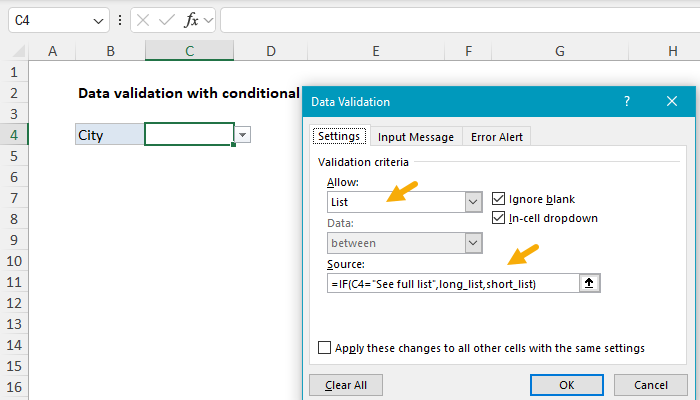
The IF function is configured to test the value in cell C4. When C4 contains the text “See full list”, IF returns the named range long_list. When C4 is empty or contains any other value IF returns the named range short_list.
Behavior
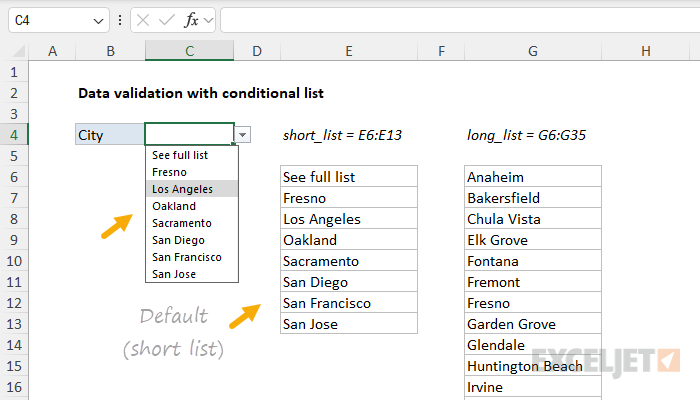
The user starts with the values in E6:E13 as seen below:
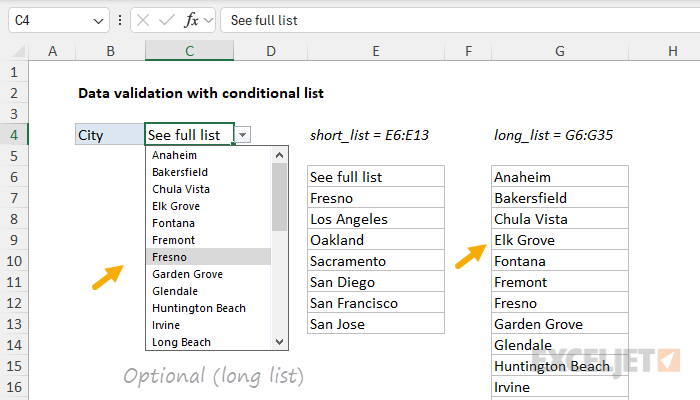
When the user selects “See full list”, they can select from the longer list of cities in G6:G35:
The named ranges used in the formula are not required, but they make the formula easier to read. If you are new to named ranges, this page provides a good overview .
Dependent dropdown lists
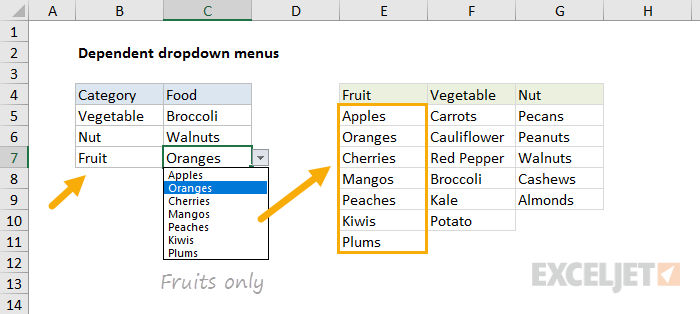
Expanding on the example above, you can create multiple dependent dropdown lists. For example, a user selects an item type of “fruit”, so they next see a list of fruits to select. If they first select “vegetable” they then see a list of vegetables. Click the image below for instructions and examples:
Data Validation Guide | Data Validation Formulas | Dependent Dropdown Lists
