Purpose
Return value
Syntax
=DATE(year,month,day)
- year - Number for year.
- month - Number for month.
- day - Number for day.
Using the DATE function
The DATE function creates a date using individual year, month, and day arguments . Each argument is provided as a number, and the result is a serial number that represents a valid Excel date. Apply a date number format to display the output from the DATE function as a date.
In general, the DATE function is the safest way to create a date in an Excel formula, because year, month, and day values are numeric and unambiguous, in contrast to text representations of dates which can be misinterpreted.
Note: to move an existing date forward or backward in time, see the EDATE and EOMONTH .
Example #1 - hard-coded numbers
For example, you can use the DATE function to create the dates January 1, 1999, and June 1, 2010, with the following syntax:
=DATE(1999,1,1) // returns Jan 1, 1999
=DATE(2010,6,1) // returns Jun 1, 2010
Example #2 - cell reference
The DATE function is useful for assembling dates that need to change dynamically based on other inputs in a worksheet. For example, with 2018 in cell A1, the formula below returns the date April 15, 2018:
=DATE(A1,4,15) // Apr 15, 2018
If A1 is then changed to 2019, the DATE function will return a date for April 15, 2019.
Example #3 - with SUMIFS, COUNTIFS
The DATE function can be used to supply dates as inputs to other functions like SUMIFS or COUNTIFS , since you can easily assemble a date using year, month, and day values that come from a cell reference or formula result. For example, to count dates greater than January 1, 2019, in a worksheet where A1, B1, and C1 contain year, month, and day values (respectively), you can use a formula like this:
=COUNTIF(range,">"&DATE(A1,B1,C1))
The result of COUNTIF will update dynamically when A1, B1, or C1 are changed.
Example #4 - the first day of the current year
To return the first day of the current year, you can use the DATE function like this:
=DATE(YEAR(TODAY()),1,1) // first of year
This is an example of nesting . The TODAY function returns the current date to the YEAR function . The YEAR function extracts the year and returns the result to the DATE function as the year argument. The month and day arguments are hard-coded as 1. The result is the first day of the current year, a date like “January 1, 2021”.
Note: the DATE function actually returns a serial number and not a formatted date. In Excel’s date system, dates are serial numbers . January 1, 1900, is number 1 and later dates are larger numbers. To display date values in a human-readable date format, apply the number format of your choice.
Notes
- The DATE function returns a serial number that corresponds to an Excel date.
- Excel dates begin in the year 1900. If the year is between zero and 1900, Excel will add 1900.
- The DATE function accepts numeric input only and will return #VALUE if given text.
Purpose
Return value
Syntax
=DATEDIF(start_date,end_date,unit)
- start_date - Start date in Excel date serial number format.
- end_date - End date in Excel date serial number format.
- unit - The time unit to use (years, months, or days).
Using the DATEDIF function
The DATEDIF function is designed to calculate the difference between two date values in years, months, or days. The result from DATEDIF is a number that corresponds to the time unit requested. DATEDIF is a versatile function that can be used in financial analysis, project planning, age calculation, and other scenarios that need to calculate time intervals in days, months, or years.
The status of DATEDIF in Excel is somewhat mysterious. DATEDIF (Date + Dif) is a “compatibility” function that comes from Lotus 1-2-3 way back in the 1990s. Although it’s available in all Excel versions since that time, it will not autocomplete in the formula bar, and Excel will not help you fill in arguments for DATEDIF like other functions. In the immortal words of the late, great Chip Pearson: DATEDIF is treated as the drunk cousin of the Formula family. Excel knows it lives a happy and useful life, but will not speak of it in polite conversation. Yet DATEDIF remains an important function for problems that involve calculating the time between two dates.
DATEDIF and time units
The DATEDIF function can calculate the time between a start date and an end date in years, months, or days. The desired interval is specified with the unit argument, which is supplied as text. The table below shows the available unit values and the results for each. Time units can be provided in upper or lower case (i.e. “ym” is equivalent to “YM”).
| Unit | Result |
|---|---|
| “y” | Difference in complete years |
| “m” | Difference in complete months |
| “d” | Difference in days |
| “md” | Difference in days, ignoring months and years |
| “ym” | Difference in months, ignoring years |
| “yd” | Difference in days, ignoring years |
Example 1 - Basic usage
The basic syntax for DATEDIF looks like this:
=DATEDIF(start_date,end_date,unit)
The formulas below show how to use DATEDIF to calculate complete years, months, and days between January 1, 2022, and March 1, 2024. Notice the formulas are the same except for the unit:
=DATEDIF("1-Jan-2022","1-Mar-2024","y") // returns 2
=DATEDIF("1-Jan-2022","1-Mar-2024","m") // returns 26
=DATEDIF("1-Jan-2022","1-Mar-2024","d")// returns 790
The results are as follows:
- There are 2 complete years between the dates. Although there are 26 months between the two dates, DATEDIF ignores the extra 2 months since it’s not a complete year.
- There are 26 months between the dates. DATEDIF will always round down to the nearest whole month but in this case, the day is the same in the start and end dates, so no rounding occurs.
- There are 790 days between the dates.
DATEDIF requires the start date followed by the end date. If you reverse the dates, DATEDIF returns a #NUM! error.
Example 2 - Difference in days
The DATEDIF function can calculate the difference between dates in days in three different ways: (1) total days, (2) days ignoring years, and (3) days ignoring months and years. The screenshot below shows all three methods, with a start date of June 15, 2015, and an end date of September 15, 2021:

The formulas used for these calculations are as follows:
=DATEDIF(B5,C5,"d") // total days
=DATEDIF(B6,C6,"yd") // days ignoring years
=DATEDIF(B7,C7,"md") // days ignoring months and years
Note that because Excel dates are just large serial numbers , the first formula does not need DATEDIF and could be written as simply the end date minus the start date:
=C5-B5 // end-start = total days
Note: You could also use the newer DAYS function to calculate a difference in days.
Example 3 - Difference in months
The DATEDIF function can calculate the difference between dates in months in two different ways: (1) total complete months, (2) complete months ignoring years. The screenshot below shows both methods, with a start date of June 15, 2015, and an end date of September 15, 2021:

=DATEDIF(B5,C5,"m") // complete months
=DATEDIF(B6,C6,"ym") // complete months ignoring years
DATEDIF always rounds months down to the nearest whole month. This means DATEDIF will round months down even when it is very close to the next whole month. In addition, DATEDIF may not work as expected when start and end dates land a the end of a month. For a detailed explanation of calculating months between dates with several alternative formulas, see this example .
Example 4 - Difference in years
The DATEDIF function can calculate the difference between dates in complete years with just one method, shown below:

=DATEDIF(B5,C5,"y") // complete years
=DATEDIF(B6,C6,"y") // complete years
=YEARFRAC(B7,C7) // fractional  years with YEARFRAC
Notice in row 6 that the difference is almost 6 years, but not quite. Because DATEDIF only calculates complete years, the result is still 5. In row 7 we use the YEARFRAC function to calculate a more accurate result.
Example 5 - Age from birthday
The DATEDIF function can be used together with the TODAY function to calculate a current age from a birth date. With a birth date in A1, the generic formula is:
=DATEDIF(A1,TODAY(),"y")
You can see this formula implemented in the worksheet below:

Note: The screen above was created on November 24, 2020, so the calculated ages will seem too young over time. However, because we are using the TODAY function, this formula will recalculate and the ages will be correct each time the workbook is opened. Download the workbook and read a complete explanation on this page .
Example 6 - years, months, and days between dates
You can use the DATEDIF function to calculate the years, months, and days between dates, as seen in the workbook below. The formula in cell E5, copied down, looks like this:
=DATEDIF(B5,C5,"y")&" years, "&DATEDIF(B5,C5,"ym")&" months, " &DATEDIF(B5,C5,"md")&" days"
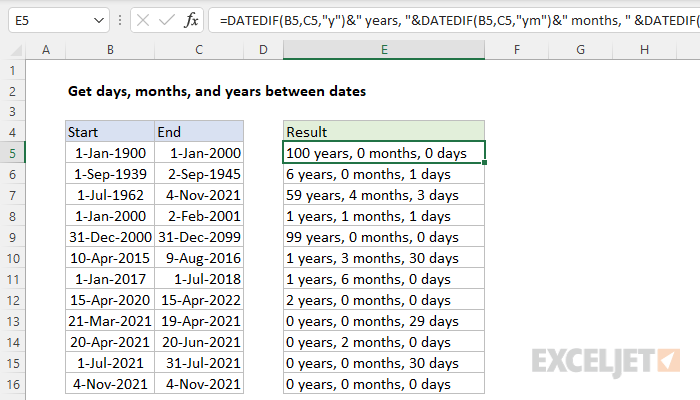
This is a good example of how DATEDIF’s ability to calculate months ignoring years and days ignoring years and months can be useful. You can find a full explanation and download the workbook on this page .
Notes
- Excel will not help you fill in the DATEDIF function like other functions.
- DATEDIF will throw a #NUM error if start_date is greater than the end_date . If you are working with a more complex formula where start dates and end dates may be unknown, or out of bounds, you can trap the error with the IFERROR function .
- Microsoft recommends not using the “MD” value for unit because it “may result in a negative number, a zero, or an inaccurate result”.
