Purpose
Return value
Syntax
=DAY(date)
- date - A valid Excel date.
Using the DAY function
The DAY function extracts the day component from any valid Excel date. For example, DAY returns 15 from the date January 15, 2024. This is useful when you need to work with the day of a date separately, for calculations, comparisons, or building new dates.
The DAY function returns a number . If you need a day’s name , use the TEXT function as shown below .
Note: The DAYS function has a similar name but serves a different purpose: it calculates the number of days between two dates.
Key features
Returns a number between 1 and 31
Works with any valid Excel date
Often combined with YEAR, MONTH, and DATE for date manipulation
Returns a number, not text
Can extract day from dates entered as text (but this is not recommended)
Basic usage
Get day from date
Get first day of month
Days in month
Get day name from date
Add years to date
Notes
Basic usage
The DAY function requires just one argument, a valid Excel date . When given a valid date, it returns the day of the month:
=DAY("15-Jan-2024") // returns 15
=DAY(TODAY()) // returns today's day number
=DAY(A1) // returns day from date in A1
=DAY("7-Aug-2025") // returns 7
=DAY("31-Dec-2024") // returns 31
Using text strings for dates (like “1/15/2024”) can cause problems due to regional date format differences. A better approach is to create the date with the DATE function or to refer to a cell that already contains a valid date.
A common pattern is to use DAY together with YEAR, MONTH, and DATE to modify dates. For example, to change only the year of a date while keeping the month and day the same, you can “take apart” the date with YEAR, MONTH, and DAY, then reassemble it with DATE:
=DATE(2025,MONTH(A1),DAY(A1))
This returns a new date with the year 2025, but the original month and day from A1.
Get day from date
In the worksheet below, the goal is to extract the day number from dates in column B. The formula in C5 is:
=DAY(B5)
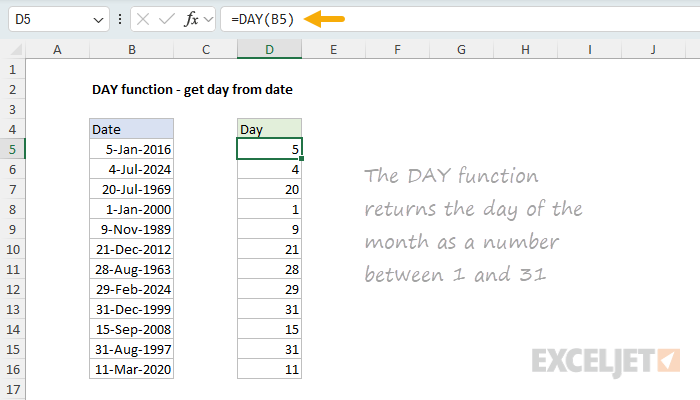
The DAY function takes just one argument: the date from which you want to extract the day. In this example, B5 contains the date January 5, 2016, so DAY returns 5.
You can use DAY to extract the day from a date entered as text (e.g., =DAY(“1/5/2016”) ), but this can produce unpredictable results on computers using different regional date settings. It’s better to reference a cell containing a valid date value.
For more details, see Get day from date .
Get first day of month
Before the EOMONTH function was introduced, the DAY function was the standard way to get the first day of a month. In the worksheet below, the goal is to find the first day of the month for each date in column B. The formula in C5 is:
=B5-DAY(B5)+1
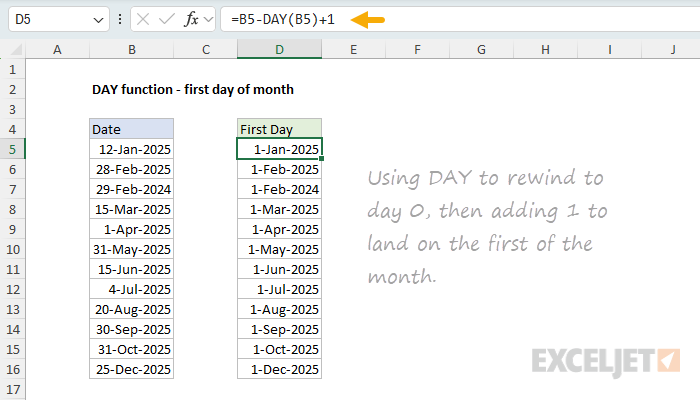
This formula works in three steps:
- Get the day number from the date with DAY(B5)
- Subtract the day from the date (rewinding to day 0, which is the last day of the previous month)
- Add 1 to land on the first day of the current month
For example, with the date January 12, 2025 in B5:
=B5-DAY(B5)+1
="12-Jan-2025"-12+1
="31-Dec-2024"+1
="1-Jan-2025"
Note: The formula =EOMONTH(B5,-1)+1 provides a more intuitive way to get the first day of a month. See Get first day of month for details on both approaches.
Days in month
Since the last day of any month equals the total number of days in that month, you can combine DAY with EOMONTH to count days in a month. In the worksheet below, the goal is to get the total number of days in the month for each date in column B. The formula in C5 is:
=DAY(EOMONTH(B5,0))
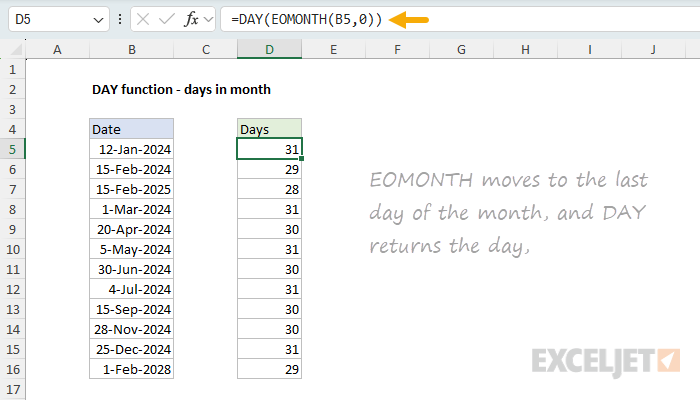
Working from the inside out:
- EOMONTH returns the last day of the month (with 0 as the second argument, it stays in the same month)
- DAY extracts the day number from that end-of-month date
For January 12, 2024:
=DAY(EOMONTH("12-Jan-2024",0))
=DAY("31-Jan-2024")
=31
This correctly handles months with different lengths, including February in leap years (returning 29) and non-leap years (returning 28).
For more details, see Days in month .
Get day name from date
The DAY function returns a number (1-31), not a day name. To get the day name (like “Monday” or “Tuesday”) from a date, use the TEXT function with a day name format code. In the worksheet below, the goal is to return the full day name for each date in column B. The formula in C5 is:
=TEXT(B5,"dddd")
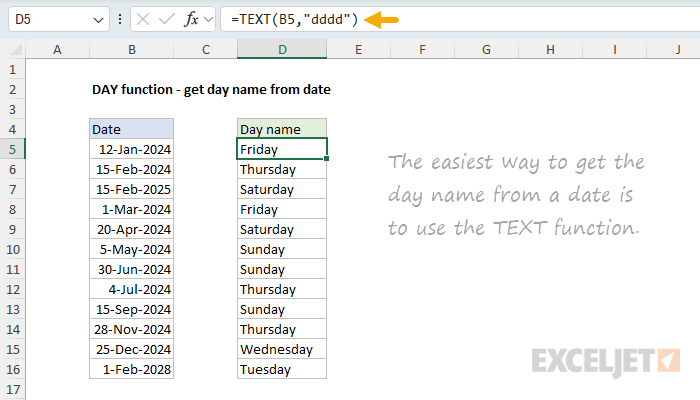
The TEXT function formats a value using a custom format code. The format code “dddd” returns the full day name. You can also use:
=TEXT(B5,"ddd")  // abbreviated day name (Mon, Tue, Wed...)
=TEXT(B5,"dddd") // full day name (Monday, Tuesday, Wednesday...)
Tip: If you only need to display a day name without converting to text, apply a custom number format like “dddd” directly to the cell containing the date.
Add years to date
The DAY function is essential when you need to add years to a date while preserving the month and day. In the worksheet below, the goal is to add the number of years in column C to each date in column B. The formula in D5 is:
=DATE(YEAR(B5)+C5,MONTH(B5),DAY(B5))
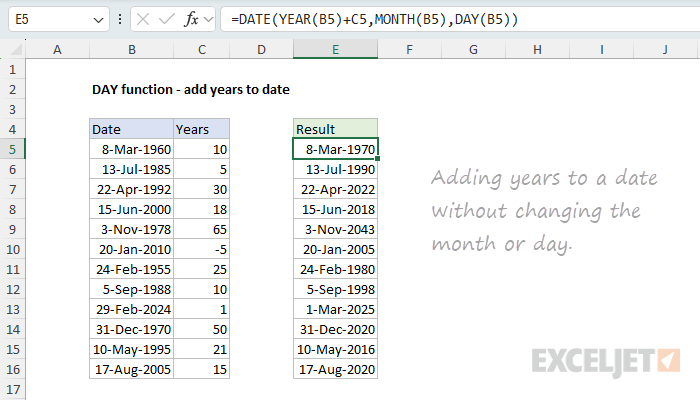
This formula works by taking apart the date and reassembling it:
- YEAR, MONTH, and DAY extract the individual components
- The years value (C5) is added to the year
- DATE reassembles everything into a new date
For the date March 8, 1960, with 10 years to add:
=DATE(YEAR(B5)+C5,MONTH(B5),DAY(B5))
=DATE(1960+10,3,8)
=DATE(1970,3,8)
Note: The EDATE function provides a simpler way to add years: =EDATE(B5,C5*12) . EDATE also handles leap year edge cases better when the start date is February 29.
For more details, see Add years to date .
Notes
- The DAY function returns a #VALUE! error if the date argument is not a valid Excel date.
- If the result displays as a date (like 1/1/1900) instead of a number, the cell is formatted as a date. Change the format to General or Number.
- When dates are entered as text, regional date format differences can cause DAY to misinterpret the day and month. For example, “5/6/2024” means May 6 in the US but June 5 in many other countries.
- Dates before January 1, 1900, are not supported in Excel’s standard date system.
Purpose
Return value
Syntax
=DAYS(end_date,start_date)
- end_date - The end date.
- start_date - The start date.
Using the DAYS function
The DAYS function returns the number of days between two dates. Both dates must be valid Excel dates or text values that can be coerced to dates. The DAYS function only works with whole numbers, fractional time values that might be part of a date are ignored. If start and end dates are reversed, DAYS returns a negative number. The DAYS function returns all days between two dates, to calculate working days between dates, see the NETWORKDAYS function .
Examples
With a start date in A1 and end date in A2:
=DAYS(A2,A1)
Will return the same result as:
=A2-A1
Unlike the simple formula above, the DAYS function can also handle dates in text format, as long as the date is recognized by Excel. For example:
=DAYS("7/15/2016","7/1/2016") // returns 14
The DAYS function returns the number of days between two dates. For example:
=DAYS("1-Mar-21","2-Mar-21") // returns 1
To include the end date in the count, add 1 to the result:
=DAYS("1-Mar-21","2-Mar-21")+1 // returns 2
Storing and parsing text values that represent dates should be avoided, because it can introduce errors and parsing problems. Working with native Excel dates (which are numbers) is a better approach. To create a numeric date from scratch in a formula, use the DATE function .
Notes
- The DAYS function only works with whole numbers and ignores time.
- If dates are not recognized, DAYS returns the #VALUE! error.
- If dates are out of range, DAYS returns the #NUM! error.
