Explanation
To include double quotes inside a formula, you can use additional double quotes as escape characters . By escaping a character, you are telling Excel to treat the " character as literal text. You’ll also need to include double quotes wherever you would normally in a formula.
For example, if cell A1 contains the text: The Graduate and you want wrap that text inside double quotes (""), you can use this formula:
=""""&A1&""""
Because the text on either side of A1 consists of only of a double quote, you need """" . The outer quotes (1 & 4) tell Excel this is text, the 2nd quote tells Excel to escape the next character, and the 3rd quote is displayed.
If you want to add the movie to other text to create, you can concatenate the movie title inside double quotes with a formula like this:
="The 1960's movie """ &A1&""" is famous"
The result: The 1960’s movie “The Graduate” is famous
Working with extra double quotes can get confusing fast, so another way to do the same thing is to use the CHAR function with the number 34:
="The 1960's movie "&CHAR(34)&A1&CHAR(34)&" is famous"
In this case, CHAR(34) returns the double quote character (") which is included in the result as literal text.
CHAR is handy for adding other text that is hard to work with in a formula as well. You can use CHAR(10) to insert a line break character into a formula on Windows. On a Mac, use CHAR(13):
=CHAR(10) // win line break
=CHAR(13) // mac line break
Explanation
In this example, the goal is to convert a space-separated sequence of Unicode code points into a readable text string. We can solve this using several Excel functions working together to split, convert, and reconstruct the text. This is the reverse operation of this formula that converts text into Unicode sequence.
The formula explained
The formula processes the Unicode sequence through several steps:
=TEXTJOIN("",,UNICHAR(HEX2DEC(TEXTSPLIT("0061 0070 0070 006C 0065"," "))))
Working from the inside out:
- TEXTSPLIT(“0061 0070 0070 006C 0065”," “) - Splits the sequence string by spaces {“0061”;“0070”;“0070”;“006C”;“0065”}
- HEX2DEC(TEXTSPLIT(…)) - Converts each hexadecimal value to decimal {97;112;112;108;101}
- UNICHAR(HEX2DEC(…)) - Converts each decimal number to its corresponding character {“a”;“p”;“p”;“l”;“e”}
- TEXTJOIN(”",, …) - Joins all characters together without separators
The advantage of this formula over the standard UNICHAR function is that it processes an entire Unicode sequence and returns the complete reconstructed string. This makes it perfect for converting Unicode sequences back to their original text form.
For example, the standard UNICHAR function only converts a single Unicode code point:
=UNICHAR(97) // returns "a"
While this formula processes the complete Unicode sequence:
=TEXTJOIN("",,UNICHAR(HEX2DEC(TEXTSPLIT("0061 0070 0070 006C 0065"," ")))) // returns "apple"
This is especially useful for more complicated Unicode sequences like those that contain special characters or combining characters.
Example #1 - Basic examples
Here are some examples of Unicode sequences and their corresponding text strings:
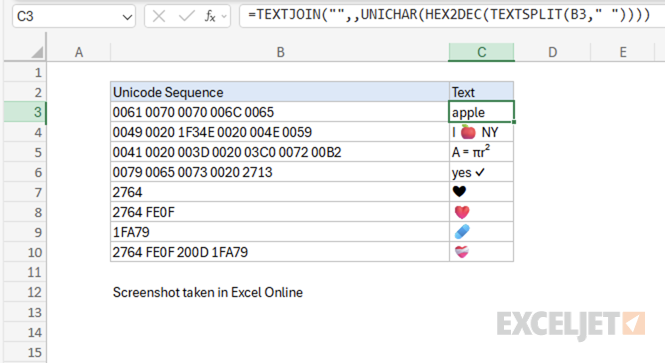
Note: As of this writing in October 2025, emojis in Excel Online (i.e. the web app) appear in color, but emojis in the desktop version of Excel appear in black and white only.
Example #2 - Text with special characters
A practical use-case of this formula is to encode a Unicode sequence that contains special characters back into its corresponding text string.
For example, consider the Unicode sequence “0041 0020 003D 0020 03C0 0072 00B2” that represents the mathematical formula “A = πr²”. Using the formula, we can encode the Unicode sequence to text:
=TEXTJOIN("",,UNICHAR(HEX2DEC(TEXTSPLIT("0041 0020 003D 0020 03C0 0072 00B2"," ")))) // returns "A = πr²"
Breaking down the Unicode sequence the formula processes:
- 0041 - “A” (Latin capital letter A)
- 0020 - " " (space)
- 003D - “=” (equals sign)
- 0020 - " " (space)
- 03C0 - “π” (Greek small letter pi - U+03C0)
- 0072 - “r” (Latin small letter r)
- 00B2 - “²” (superscript two - U+00B2)
This is particularly useful when you have a Unicode sequence from an external source and need to convert it back to readable text.
Example #3 - Text with combining characters
The formula can also handle Unicode sequences that contain combining characters, such as emojis with variation selectors.
For example, the Unicode sequence “2764 FE0F” represents the heart emoji “❤️”. It’s a combination of the basic heart symbol “❤” (U+2764) plus a variation selector (U+FE0F) that tells the system to display it as an emoji rather than a text symbol.
=TEXTJOIN("",,UNICHAR(HEX2DEC(TEXTSPLIT("2764 FE0F"," ")))) // returns "❤️"
For an even more complex example, consider the mending heart emoji “❤️🩹”. It’s a combination of the basic heart symbol “❤” (U+2764) plus a variation selector (U+FE0F) plus a zero-width joiner (U+200D) plus the mending heart symbol “🩹” (U+1FA79). Putting this all together, the Unicode sequence “2764 FE0F 200D 1FA79” represents the mending heart emoji “❤️🩹”.
=TEXTJOIN("",,UNICHAR(HEX2DEC(TEXTSPLIT("2764 FE0F 200D 1FA79"," ")))) // returns "❤️🩹"
For a list of all emojis and their corresponding Unicode sequences, see the Emoji Wizard .
