Explanation
Note: This example assumes the start date will be provided as the first of the month. See below for a formula that will dynamically return the first day of the current month.
With the layout of the grid as shown, the main problem is to calculate the date in the first cell in the calendar (B6). This is done with this formula:
=start-CHOOSE(WEEKDAY(start),0,1,2,3,4,5,6)
This formula figures out the Sunday before the first day of the month by using the CHOOSE function to “roll back” the right number of days to the previous Sunday. CHOOSE works perfectly in this situation, because it allows arbitrary values for each day of the week. We use this feature to roll back zero days when the first day of the month is a Sunday. More details about this problem are provided here .
With the first day established in B6, the other formulas in the grid simply increment the previous date by one, beginning with the formula in C6:
=IF(B6<>"",B6,$H5)+1
This formula tests the cell immediately to the left for a value. If no value is found, it pulls a value from column H in the row above. Note that $H5 is a mixed reference , to lock the column as the formula is copied throughout the grid. The same formula is used in all cells except B6.
Conditional formatting rules
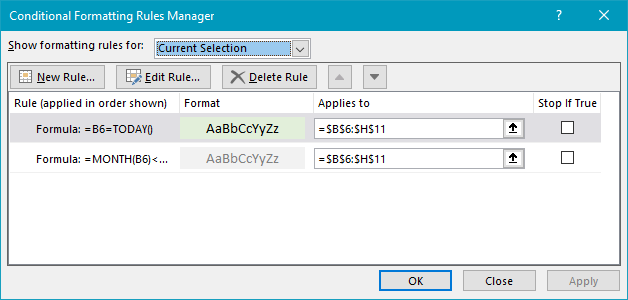
The calendar uses conditional formatting formulas to change formatting to shade previous and future months and to highlight the current day. Both rules are applied to the entire grid. For the previous and next months, the formula is:
=MONTH(B6)<>MONTH(start)
For the current day, the formula is:
=B6=TODAY()
For more details, see: Conditional formatting with formulas (10 examples)
Calendar heading
The calendar title – month and year – are calculated with this formula in cell B4:
=start
Formatted with the custom number format “mmmm yyyy”. To center the title above the calendar, the range B4:H4 has horizontal alignment set to “center across selection”. This is a better option than merging cells since it doesn’t alter the grid structure in the worksheet.
Perpetual calendar with current date
To create a calendar that updates automatically based on the current date, you can use a formula like this in K5:
=EOMONTH(TODAY(),-1)+1
This formula gets the current date with the TODAY function and then gets the first day of the current month using the EOMONTH function. Replace TODAY() with any given date to build a calendar in a different month. More details on how EOMONTH works here .
Steps to create
- Hide grid lines (optional)
- Add a border to B5:H11 (7R x 7C)
- Name K5 “start” and enter a date like “September 1, 2018”
- Formula in B4 =start
- Format B4 as “mmmm yyyy”
- Select B4:H4, set alignment to “Center across selection”
- In range B5:H5, enter day abbreviations (SMTWTFS)
- Formula in B6 =start-CHOOSE(WEEKDAY(start),0,1,2,3,4,5,6)
- Select B6:H11, apply custom number format “d”
- Formula in C6 =IF(B6<>"",B6,$H5)+1
- Copy the formula in C6 to the remaining cells in the calendar grid
- Add Prev/Next conditional formatting rule (see formula above)
- Add Current conditional formatting rule (see formula above)
- Change the date in K5 to another “first of month” date to test
- For perpetual calendar, formula in K5 =EOMONTH(TODAY(),-1)+1
Explanation
Dates in Excel are just serial numbers , formatted to display as dates. This means you can perform math operations on dates to calculate days in the future or past.
In the example shown, the date in the named range “start” is provided by the TODAY function:
=TODAY() //returns current date
The formula in B5 begins with the start date, and increments the date by one using an expanding range inside the ROWS function:
ROWS($B$5:B5) // returns row count
ROWS returns the row count in a range. As the formula is copied down, the range expands and the row count increases by one at each new row. From this value, we subtract 1, so the date is not incremented in the first row.
Next, we subtract the value in the named range “offset” (G5). The offset is simply a way to begin the list of dates earlier than the start date provided. If offset is zero or blank, the first date in the list will equal the start date.
To display a weekday, the formula in C5 is:
=TEXT(B5,"ddd")
To display a month, the formula in D5 is:
=TEXT(B5,"mmm")
See this article for more examples of custom number formats in Excel.
The formulas in B5, C5, and D5 can be copied down as many rows as desired.
Highlighting the start date
The start date is shaded with a conditional formatting rule based on this formula:
=$B5=start
For more examples of applying conditional formatting with formulas, see this article .
