Explanation
In this example, the goal is to build a simple summary count table with a formula. Once created, the summary table should automatically update to show new values and counts when data changes. The article below walks through several options, from simple to very advanced. The more advanced options show how to sort the table in descending order by count.
Manual formula
Note that it is possible to build a summary table with formulas manually. The basic approach is to copy all values, use the Remove Duplicates command to get unique values, and then copy a COUNTIF formula into each cell that needs to show a count:
Video: How to build a simple summary table
This works fine, but the summary table will not update automatically if new values are added or removed from the data. In other words, if a new color is added to the data table, it will not appear in the summary table.
Pivot table
Another good approach is to use a Pivot Table . This is one of the easiest ways to create a summary count, and if you use an Excel Table as the source data , the summary will stay in sync with the data. Also, the summary table can be easily sorted in a Pivot Table. However, a Pivot Table must be refreshed to see the latest data, and the solution is not a formula. Nevertheless, a pivot table is an excellent way to create a summary table.
Video: How to quickly create a pivot table
Two formulas
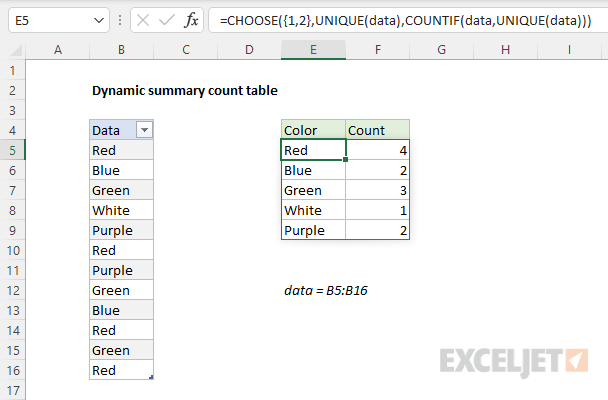
In the dynamic array version of Excel , a simple way to create a summary table is to use two formulas, one to collect unique values, and one to count the values. This is the solution shown in the worksheet at the top of the page. The formula in E5 is based on the UNIQUE function:
=UNIQUE(data) // get unique values
The formula in F5 uses the COUNTIF function:
=COUNTIF(data,E5#) // count unique values
Notice that inside COUNTIF, the table named data is provided as the range argument, and the spill reference E5# is used for criteria . When source data changes, both formulas will stay in sync. In general this is a good, simple option. However, there are limitations. For example, because there are two separate formulas, we can’t sort the results (in place) with the SORT function .
All-in-one formula
A more advanced solution involves an all-in-one formula. One approach looks like this:
=CHOOSE({1,2},UNIQUE(data),COUNTIF(data,UNIQUE(data)))
In this formula, we are using the CHOOSE function to combine two arrays . The first array contains the unique values in the data:
UNIQUE(data) // unique values
The second array is essentially the COUNTIF formula explained above, except the criteria argument is created dynamically:
COUNTIF(data,UNIQUE(data)) // counts
Note: we are using CHOOSE function as a stand-in for the forthcoming HSTACK function , which has just been released to the Beta Channel.
The CHOOSE function combines both arrays into a single array, which displays as a two-column table in the worksheet:
Sorting results
Now that we have a formula that returns the entire table, we can easily sort the table in descending order by count. To do this, we wrap the entire formula in the SORT function , and specify 2 for sort_index and -1 for sort_order :
=SORT(CHOOSE({1,2},UNIQUE(data),COUNTIF(data,UNIQUE(data))),2,-1)
Video: Basic SORT function example
Now the table will update automatically if data changes, and the table will remain sorted by count, with highest counts at the top.
With the LET function
We can use the LET function to streamline the formula a bit, by defining a variable, u , to hold the unique values:
=LET(u,UNIQUE(data),SORT(CHOOSE({1,2},u,COUNTIF(data,u)),2,-1))
Notice this version of the formula calls the UNIQUE function once only, storing the result in u , which is used twice.
Array option
As one of Excel’s RACON functions , one limitation of COUNTIF is that it requires an actual range for the range argument. If you try to use the formula above on an in-memory array , you’ll get an error. To workaround this limitation, we can use an even more advanced formula based on the SCAN function together with the LAMBDA function :
=LET(u,UNIQUE(data),SORT(CHOOSE({1,2},u,SCAN(0,u,LAMBDA(a,v,SUM(--(v=data))))),2,-1))
Note: The LAMBDA function lets you create custom functions in Excel. More here .
At a high level, the mechanics of this formula are similar to the LET version above: UNIQUE gets unique values, CHOOSE combines two arrays, and SORT sorts the results. However, this formula uses a different method of counting, which is done here:
SCAN(0,u,LAMBDA(a,v,SUM(--(v=data)))
Starting with an initial value of zero, SCAN loops through each value ( v ) in the unique array ( u ) and compares each value to data. The result is an array of TRUE and FALSE values which are coerced to 1s and 0s and summed with the SUM function here:
SUM(--(v=data))
Video: Boolean operations in array formulas
After looping through all values in u , SCAN returns an array that contains five counts. Next, CHOOSE joins the unique values ( u ) to the array result from SCAN, and the SORT function sorts the array returned by CHOOSE in descending order by count. Like the formula above, this formula will also update the table automatically, but it will also work with an array of data that is not in a range on the worksheet.
Note: with slight changes, the BYROW function could be used instead of SCAN to produce the same result. Also note that CHOOSE is again standing in for HSTACK until HSTACK is available.
Explanation
In this example, the goal is to create a formula that performs a dynamic two-way average of all age and gender combinations in the range B5:D16 . The solution shown requires four general steps:
- Create an Excel Table called data
- List unique age groups with UNIQUE function
- List unique genders with UNIQUE function
- Generate all averages in AVERAGEIFS function
Create the Excel Table
One of the key features of an Excel Table is its ability to dynamically resize when rows are added or removed. In this case, all we need to do is create a new table named data with the data shown in B5:D16. You can use the keyboard shortcut Control + T .
Video: How to create an Excel table
The table will now automatically expand or contract as needed.
List unique age groups
The next step is to list the unique age groups in the “Age” column starting in cell F5. For this we use the UNIQUE function . The formula in F5 is:
=UNIQUE(data[Age]) // unique age groups
The result from UNIQUE is a spill range starting in cell F5 listing all of the unique age groups in the Age column of the table. This is what makes this solution fully dynamic. The UNIQUE function will continue to output a list of unique age groups, even as data in the table changes.
Video: Intro to the UNIQUE function
List unique genders
Two perform a two-way average, we also need a list of unique genders starting in cell G4. We can do this with a formula like the one we used for age groups:
UNIQUE(data[Gender]) // unique genders
However, unlike age groups, we need this list to run horizontally across the top of the averages . To change the output from vertical to horizontal, we nest the UNIQUE formula in the TRANSPOSE function . The final formula in G4 is:
=TRANSPOSE(UNIQUE(data[Gender])) // horizontal array
The UNIQUE function returns a vertical array like this:
{"Male";"Female"}
And the TRANSPOSE function converts this array into a horizontal array like this:
{"Male","Female"}
Note the comma instead of semicolon in the second array. The UNIQUE function will continue to output a list of unique genders, even if data in the table changes.
Video: What is an array ?
Calculate unique averages
We now have what we need to calculate the averages. Because we have both unique age groups and unique genders on the worksheet as spill ranges , we can use the AVERAGEIFS function for this task. The formula in G5 is:
=AVERAGEIFS(data[Rating],data[Age],F5#,data[Gender],G4#)
The first argument in AVERAGEIFS is average_range . This is the range that contains numbers to average. In this example, this is the Rating column in the table:
data[Rating] // average_range
The other arguments are range/criteria pairs. The first pair targets ages:
data[Age],F5# // all ages, unique ages
The second range/criteria pair targets gender:
data[Gender],G4# // all genders, unique genders
When data changes
The key advantage to this formula approach is that it responds instantly to changes in the data. If new rows are added that refer to existing age groups and genders, the spill ranges returned by AVERAGEIFS remain unchanged, and AVERAGEIFS simply returns an updated set of averages. If new rows are added that include new age groups and/or new genders, these are captured by the UNIQUE function, which expands the spill ranges in F5 and G4 as needed. If rows are deleted from the table, spill ranges contract as needed. In all cases, the spill ranges represent the current list of unique age groups and genders, and the AVERAGEIFS function uses these values to return a current set of averages.
Pivot Table option
A pivot table would also be a good way to solve this problem , and would provide additional capabilities. However, one drawback is that pivot tables need to be refreshed to show the latest data. Formulas, on the other hand, update instantly when data changes.
Dynamic Array Training
If you need training for dynamic arrays in Excel, see our course: Dynamic Array Formulas .
