Explanation
In this example, the goal is to create a formula that performs a dynamic two-way average of all age and gender combinations in the range B5:D16 . The solution shown requires four general steps:
- Create an Excel Table called data
- List unique age groups with UNIQUE function
- List unique genders with UNIQUE function
- Generate all averages in AVERAGEIFS function
Create the Excel Table
One of the key features of an Excel Table is its ability to dynamically resize when rows are added or removed. In this case, all we need to do is create a new table named data with the data shown in B5:D16. You can use the keyboard shortcut Control + T .
Video: How to create an Excel table
The table will now automatically expand or contract as needed.
List unique age groups
The next step is to list the unique age groups in the “Age” column starting in cell F5. For this we use the UNIQUE function . The formula in F5 is:
=UNIQUE(data[Age]) // unique age groups
The result from UNIQUE is a spill range starting in cell F5 listing all of the unique age groups in the Age column of the table. This is what makes this solution fully dynamic. The UNIQUE function will continue to output a list of unique age groups, even as data in the table changes.
Video: Intro to the UNIQUE function
List unique genders
Two perform a two-way average, we also need a list of unique genders starting in cell G4. We can do this with a formula like the one we used for age groups:
UNIQUE(data[Gender]) // unique genders
However, unlike age groups, we need this list to run horizontally across the top of the averages . To change the output from vertical to horizontal, we nest the UNIQUE formula in the TRANSPOSE function . The final formula in G4 is:
=TRANSPOSE(UNIQUE(data[Gender])) // horizontal array
The UNIQUE function returns a vertical array like this:
{"Male";"Female"}
And the TRANSPOSE function converts this array into a horizontal array like this:
{"Male","Female"}
Note the comma instead of semicolon in the second array. The UNIQUE function will continue to output a list of unique genders, even if data in the table changes.
Video: What is an array ?
Calculate unique averages
We now have what we need to calculate the averages. Because we have both unique age groups and unique genders on the worksheet as spill ranges , we can use the AVERAGEIFS function for this task. The formula in G5 is:
=AVERAGEIFS(data[Rating],data[Age],F5#,data[Gender],G4#)
The first argument in AVERAGEIFS is average_range . This is the range that contains numbers to average. In this example, this is the Rating column in the table:
data[Rating] // average_range
The other arguments are range/criteria pairs. The first pair targets ages:
data[Age],F5# // all ages, unique ages
The second range/criteria pair targets gender:
data[Gender],G4# // all genders, unique genders
When data changes
The key advantage to this formula approach is that it responds instantly to changes in the data. If new rows are added that refer to existing age groups and genders, the spill ranges returned by AVERAGEIFS remain unchanged, and AVERAGEIFS simply returns an updated set of averages. If new rows are added that include new age groups and/or new genders, these are captured by the UNIQUE function, which expands the spill ranges in F5 and G4 as needed. If rows are deleted from the table, spill ranges contract as needed. In all cases, the spill ranges represent the current list of unique age groups and genders, and the AVERAGEIFS function uses these values to return a current set of averages.
Pivot Table option
A pivot table would also be a good way to solve this problem , and would provide additional capabilities. However, one drawback is that pivot tables need to be refreshed to show the latest data. Formulas, on the other hand, update instantly when data changes.
Dynamic Array Training
If you need training for dynamic arrays in Excel, see our course: Dynamic Array Formulas .
Explanation
In this example, the goal is to create a formula that performs a dynamic two-way count of all color and size combinations in the range B5:D16. The solution shown requires four general steps:
- Create an Excel Table called data
- List unique colors with UNIQUE function
- List unique sizes with UNIQUE function
- Generate counts in COUNTIFS function
Create the Excel Table
One of the key benefits of an Excel Table is its ability to resize when rows are added or removed. In this case, all we need to do is create a new table named data with the data shown in B5:D16.
Video: How to create an Excel table
The table will now automatically expand or contract as needed.
List unique colors
The next step is to list the unique colors in the “Color” column starting in cell F5. For this we use the UNIQUE function . The formula in F5 is:
=UNIQUE(data[Color]) // unique colors
This is what makes this solution dynamic. The UNIQUE function will continue to output a list of unique colors, even when data in the table changes.
Video: Intro to the UNIQUE function
List unique sizes
Two perform a two-way count, we also need a list of unique sizes starting in cell G4. We can do this with a formula just like the one we used for colors:
UNIQUE(data[Size]) // unique sizes
However, unlike colors, we need this list to run horizontally . To change the output from vertical to horizontal, we nest the UNIQUE formula in the TRANSPOSE function . The formula in G4 is:
=TRANSPOSE(UNIQUE(data[Size])) // horizontal array
The UNIQUE function returns a vertical array like this:
{"L";"M";"S"}
And the TRANSPOSE function converts this array into a horizontal array like this:
{"L","M","S"}
Note the commas instead of semicolons in the second array.
Video: What is an array ?
Calculate unique counts
We now have what we need to calculate the counts. Because we have both unique sizes and unique colors on the worksheet as spill ranges , we can use the COUNTIFS function for this task. The formula in G5 is:
=COUNTIFS(data[Color],F5#,data[Size],G4#)
With COUNTIFS, conditions are entered in range/criteria pairs. The first pair targets colors:
data[Color],F5# // all colors, unique colors
The second range/criteria pair targets sizes:
data[Size],G4# // all sizes, unique sizes
When data changes
The key advantage to this formula approach is that it instantly responds to changes in the data. If new rows are added that refer to existing colors and sizes, the spill ranges returned by COUNTIFS are unchanged, and COUNTIFS simply returns an updated set of counts. If new rows are added that include new colors and/or new sizes, these are captured by the UNIQUE function, which expands the spill ranges as needed. If rows are deleted from the table, spill ranges contract if needed. In all cases, the spill ranges represent the current list of unique colors and sizes, and the COUNTIFS function uses these values to return a current set of counts.
All in one formula
In the latest version of Excel, we can use the LET function and two new functions, HSTACK and VSTACK , to write a single all-in-one formula that builds a complete summary table like this:
=LET(
  colors,UNIQUE(data[Color]),
  sizes,TRANSPOSE(UNIQUE(data[Size])),
  counts,COUNTIFS(data[Color],colors,data[Size],sizes),
  HSTACK(VSTACK({"Color"},colors),VSTACK(sizes,counts))
)
Note: VSTACK and HSTACK are still in beta, available via the Beta Channel for Excel 365.
In a nutshell, we use the UNIQUE function to extract unique colors and sizes, and the COUNTIFS function to generate all counts. The LET function is used to assign all three of these results to the variables colors , sizes , and counts . Then, we use the HSTACK and VSTACK functions to assemble the final table. Because HSTACK is the last function to run, it returns the final result, which is an array of values that spills into multiple cells. For more information on LET, this example walks through using the LET function in detail.
The formula above is a great example of how dynamic array formulas will completely change formula solutions in the future.
Pivot Table option
A pivot table would also be an excellent way to solve this problem , and would provide additional capabilities. However, one drawback is that pivot tables need to be refreshed to show the latest data. Formulas, on the other hand, update instantly when data changes.
Dynamic two-way sum
The example above performs a dynamic two-way count . However, you can easily create a dynamic two-way sum with the same approach. To calculate a two-way sum on the Qty column, simply replace COUNTIFS with the SUMIFS function :
=SUMIFS(data[Qty],data[Color],F5#,data[Size],G4#)
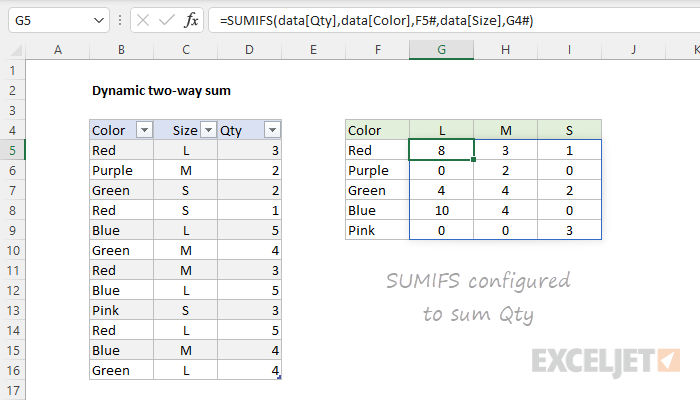
Notice the SUMIFS function takes an extra (first) argument , sum_range , which specifies the range to sum. The range/criteria pairs used to target color and size combinations are the same as that used in the COUNTIFS formula. Detailed walkthrough here .
Non-dynamic solution
If you are using an older version of Excel without the UNIQUE function, you can still build a non-dynamic count with the COUNTIFS function. See this video: How to build a simple summary table and this formula .
Dynamic Array Training
Need structured training for dynamic arrays in Excel? See our course: Dynamic Array Formulas .
