Purpose
Return value
Syntax
=EOMONTH(start_date,months)
- start_date - A date that represents the start date in a valid Excel serial number format.
- months - The number of months before or after start_date.
Using the EOMONTH function
The EOMONTH function returns the last day of the month, a given number of months in the past or future. You can use EOMONTH to calculate expiration dates, due dates, and other dates that must land on the last day of a month. EOMONTH returns a serial number corresponding to an Excel date . To display the result as a date, apply a number format of your choice .
The EOMONTH function takes two arguments , start_date and months :
- start_date - a valid Excel date to use as the starting point. The day of the month does not matter. EOMONTH will return the last day of the month regardless.
- months - a whole number that specifies how many months to move. Use a positive number of months to get a date in the future and a negative number for a date in the past.
Note: The EOMONTH function returns the last day of the month. If you want the same day of the month, use the EDATE function .
The EOMONTH function explained
With a given start date, EOMONTH returns a new date by adding the number of months provided and returning the last day of the resulting month. To illustrate how this works, assume we want to create dates for the last day of each quarter, starting from January 1, 2024. We can do this with the following formulas:
=EOMONTH("1-Jan-2024",2) // returns 31-Mar-2024
=EOMONTH("1-Jan-2024",5) // returns 30-Jun-2024
=EOMONTH("1-Jan-2024",8) // returns 30-Sep-2024
=EOMONTH("1-Jan-2024",11) // returns 31-Dec-2024
The first formula adds 2 months, the second adds 5 months, the third adds 8 months, and the fourth adds 11 months to the date. Although the start date is the 1st of the month, EOMONTH returns the last day of the month in all cases after adding months. Of course, hardcoding a date into a formula doesn’t make much sense in Excel. A better option is to use a cell reference. If we enter the date January 1, 2024, in cell A1, the same formulas look like this:
=EOMONTH(A1,2) // returns 31-Mar-2024
=EOMONTH(A1,5) // returns 30-Jun-2024
=EOMONTH(A1,8) // returns 30-Sep-2024
=EOMONTH(A1,11) // returns 31-Dec-2024
The results are the same. And if the date in A1 is changed, EOMONTH will generate new dates. You can use negative numbers for months to create dates before the start date. With the same date in A1 (1-Jan-2024), the formulas below return end-of-quarter dates for the previous year:
=EOMONTH(A1,-1) // returns 31-Dec-2023
=EOMONTH(A1,-4) // returns 30-Sep-2023
=EOMONTH(A1,-7) // returns 30-Jun-2023
=EOMONTH(A1,-10) // returns 31-Mar-2023
Example - Basic usage
With the date May 12, 2017, in cell B5, the formulas below will return the dates as noted:
=EOMONTH(B5,0) // returns May 31, 2017
=EOMONTH(B5,4) // returns Sep 30, 2017
=EOMONTH(B5,-3) // returns Feb 28, 2017
Notice that although the start date is the 12th of May, the result from EOMONTH is always the last day of the month.
Example - Move by years
To use the EOMONTH function to move by years, multiply the months by 12. For example, to move a date forward 2 years, you can use either of these formulas:
=EOMONTH(A1,24) // forward 2 years
=EOMONTH(A1,2*12) // forward 2 years
The second form is handy when you already have a value for years in another cell.
Example - Last day of the current month
To get the last day of the current month, combine the TODAY function with EOMONTH like this:
=EOMONTH(TODAY(),0) // last day of current month
The TODAY function returns the current date to the EOMONTH function, and the value for months is given as zero. The result is that EOMONTH will return the last day of the current month. Because the TODAY function will continue to recalculate over time, this formula will always return the correct result.
Example - First day of the current month
Although the EOMONTH function returns the last day of a month, you can easily adjust the formula above to return the first day of the current month like this:
=EOMONTH(TODAY(),-1)+1 // first day of current month
The formula works like this:
- The TODAY function returns the current date to EOMONTH.
- EOMONTH moves back to the last day of the previous month.
- Adding 1 returns the first day of the current month.
See the links below for more examples of how to use the EOMONTH function in formulas.
Example - Sum by month
The EOMONTH function will often turn up in formulas that perform month-based calculations. For example, in the worksheet below, the goal is to sum amounts by month and by client. The formula in G5 is:
=SUMIFS(amount,client,$F5,date,">="&G$4,date,"<="&EOMONTH(G$4,0))
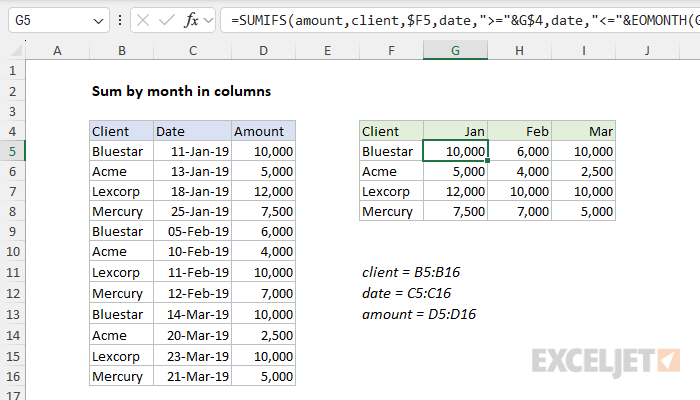
In this example, the values in G4:I4 are actually first-of-month dates, formatted to display only an abbreviated month name. The SUMIFS function is configured to use EOMONTH to create “brackets” for each month that are used to sum the amounts in column D by month and by client. For a full explanation of how this formula works, see this page .
Example - Sequence of months
In Excel 2021 and later, you can use the SEQUENCE function with EOMONTH to create a list of end-of-month dates. In the worksheet below, the start date is in cell B5. The formula in D5 looks like this:
=EOMONTH(B5,SEQUENCE(12))
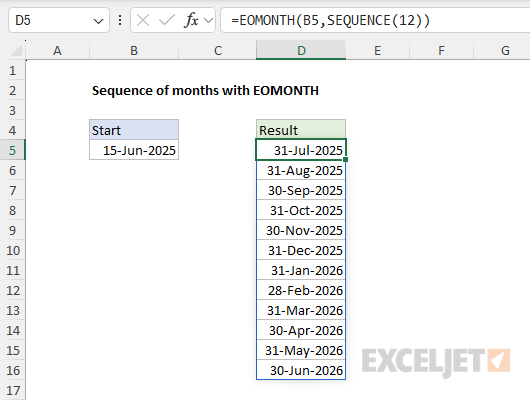
The SEQUENCE function returns an array of 12 numbers like {1;2;3;4;5;6;7;8;9;10;11;12} directly to the EOMONTH function:
=EOMONTH(B5,{1;2;3;4;5;6;7;8;9;10;11;12})
EOMONTH then generates 12 end-of-month dates starting with the month after 15 June 2025. If the date in cell B5 is changed, a new list of dates will be generated. For a more detailed explanation of this idea, see Sequence of months .
Notes
- For months , use a positive number for future dates and a negative number for past dates.
- EOMONTH will return the #VALUE error if the start date is not a valid date.
- If the start date has a fractional time attached, it will be removed.
- If the months argument contains a decimal value, it will be removed.
- To move any date n months into the future or past, see the EDATE function .
- EOMONTH returns a date serial number , which must be formatted as a date .
Purpose
Return value
Syntax
=HOUR(serial_number)
- serial_number - A valid Excel time.
Using the HOUR function
The HOUR function returns the hour portion of a time as a number between 0-23. For example, with a time of 9:00 AM, HOUR will return 9. HOUR takes just one argument , serial_number , which must be a valid Excel date or a valid Excel time .
Times can be supplied to the HOUR function as text (e.g. “7:45 PM”) or as decimal numbers (e.g. 0.5, which equals 12:00 PM). To create a time value from scratch with separate hour, minute, and second inputs, use the TIME function .
The HOUR function will “reset” to 0 every 24 hours (like a clock). To work with hour values larger than 24, use a formula to convert time to decimal hours .
Example #1 - Hour from time
The HOUR function returns the hour from of a time or date as a number between 0-23. For example:
=HOUR("9:00 AM") // returns 9
=HOUR("9:00 PM") // returns 21
Example #2 - Minutes ignored
The HOUR function ignores minutes and seconds. For example, when given the time “6:30 PM”, HOUR returns 18:
=HOUR("6:30 PM") // returns 18
Example #3 - Hour from date
Some Excel dates include time. When given a date that includes time, the HOUR function will extract the hour and ignore the date. For example, with 29-May-2021 6:00 AM in cell A1:
=HOUR(A1) // returns 6
The date portion of the value is ignored completely. If the date contains no time value, HOUR returns 0 (zero) which is midnight.
Example #4 - with TIME function
You can use the HOUR function to extract the hour and feed the result into another formula, like the TIME function. For example, with the time “8:00 AM” in A1, you could force the time to be on the half-hour with:
=TIME(HOUR(A1),30,0) // returns 8:30 AM
Note: Excel stores dates and times as serial numbers. For example, the date Jan 1, 2000 12:00 PM is equal to the serial number 32526.5 in Excel. To check that Excel is correctly recognizing a date or time, you can temporarily format the date as a number.
Notes
- HOUR returns #VALUE! if serial_number is not recognized as a valid date or time.
- HOUR returns #NUM! if serial_number is out of range.
