If you’re used to working with Excel on Windows, one of the most confusing aspects of using Excel on a Mac is shortcuts. Even basic shortcuts you’ve been using for years in Windows may not work as you expect.
After a few problems, you might wind up thinking that Mac shortcuts are “totally different” or somehow “broken”. In reality, Excel shortcuts on the Mac are quite capable, you just have to understand and adjust to certain differences.
In this article, I’ll walk you through the key differences you need to be aware of to work productively with Excel shortcuts on a Mac.
Also see: Excel shortcuts on the Mac //3-minute video
1. Special symbols
One of the more confusing aspects of keyboard shortcuts on the Mac is the symbols you’ll see for certain keys. For example, the Command key is abbreviated as ⌘, the Control key with ⌃, and the option key as ⌥. These symbols have a long history on the Mac, and you’ll find them in menus everywhere.
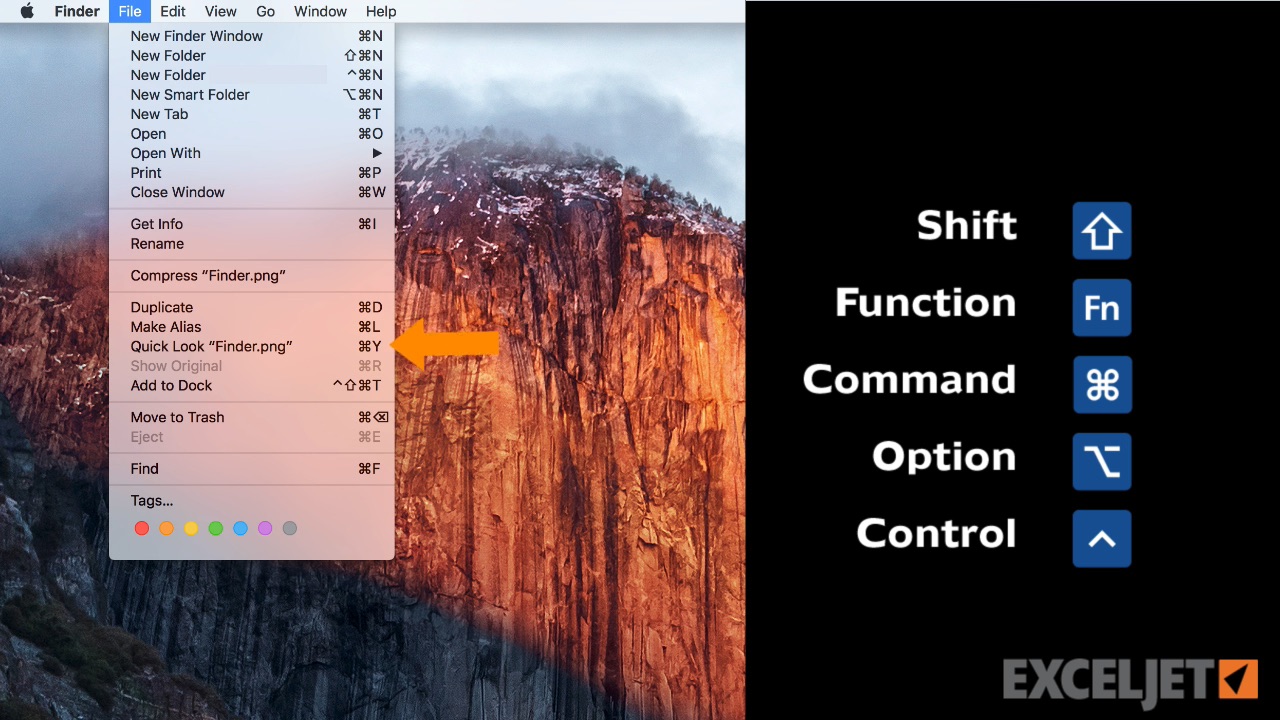
The Mac Finder – abbreviations appear in all applications, not just Excel
You’ll see these symbols in menus across all applications, so they’re not specific to Excel. There really aren’t too many symbols, so I recommend that you bite the bullet and memorize them. The table below shows some example shortcuts with a translation.
| Command | Shortcut | Translation |
|---|---|---|
| New workbook | ⌘N | Command N |
| Save As | ⌘⇧S | Command Shift S |
| Toggle ribbon | ⌘⌥R | Command Option R |
| Paste Special | ⌘⌃V | Command Control V |
| Select row | ⇧Space | Shift Space |
2. Function keys
Like their counterparts in the Windows world, Mac keyboards have function keys. These keys sit at the top of the keyboard and are labeled F1 to F12 on standard keyboards and F13, F14, and higher on extended keyboards.
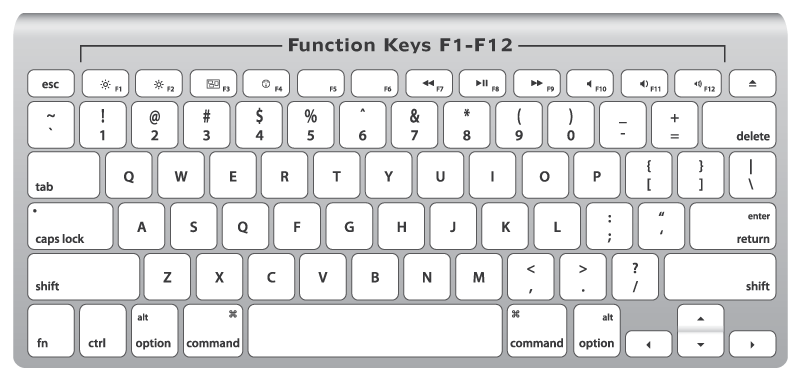
Standard Mac keyboard with 12 function keys
As you know, function keys are used for many shortcuts in Excel. For example, you can use F1 for help, F7 for spelling, and shift + F3 to insert a function. But if you try these shortcuts directly on a Mac, they don’t work. Why?
By default, Function keys on a Mac control the computer itself, things like screen brightness, volume, video pause and play, and so on. This means that if press only the function keys in Excel, you’ll end up controlling the Mac, and not Excel.
To make function keys work like you expect in Excel, you need to add a key: the function or fn key. You’ll find the fn key in the lower left on your keyboard. Here are a few examples:
| Command | Windows | Mac |
|---|---|---|
| New chart | F11 | fn F11 |
| Calculate worksheets | F9 | fn F9 |
| Open Spelling | F7 | fn F7 |
| Evaluate formula | F9 | fn F9 |
If you really hate using the fn key, you can change this behavior by changing a preference at System Preferences > Keyboard. Here you can check a box that will change function key behavior to work like “standard function keys”.

If you do this, however, note that you won’t be able to use function keys for things like Brightness, Volume, etc. unless you hold down the fn key. In essence, this setting reverses behavior so that you need to use fn to control the Mac.
Personally, I like using the function keys to control the computer, so I leave this setting alone, and just the fn key when needed in Excel.
3. Missing keys
Another difference that may trip you up on a Mac is certain keys are missing.
Unless you’re using an extended keyboard, keys like Home, End, backspace, Page up, and Page down are nowhere to be found. This is a problem because many of these keys are used in Excel shortcuts. The solution is to use specific substitutions, as shown in the table below.
| Windows | Mac equivalent |
|---|---|
| Home | fn arrow left |
| End | fn arrow right |
| Page Up | fn arrow up |
| Page Down | fn arrow down |
| Screen right | fn option arrow down |
| Screen left | fn option arrow up |
| Move to the Last cell | fn control arrow right |
| Move to the first cell | fn control arrow left |
| Delete | fn Delete |
| Backspace | Delete |
The substitutions let you perform the same actions you can do in Windows. However, They can make some shortcuts seem complicated on a Mac because you have to use more keys.
Note: If you’re using an extended keyboard on a Mac, you don’t need to worry about substitutions, since you’ll have keys for Home, End, Page up, etc.

Extended keyboards have all the keys
4. Ribbon shortcuts
In the world of shortcuts, perhaps the most painful difference on a Mac is a lack of ribbon shortcuts.
In Excel on Windows, you can use so-called accelerator keys to access almost every command in Excel using only your keyboard. This doesn’t matter much when you’re performing an action that has a dedicated shortcut (i.e. Control + B for bold), since dedicated shortcuts are faster than ribbon shortcuts. But when you want to trigger an action that doesn’t have a dedicated shortcut (like sort, hide gridlines, align text, etc.), it hurts a bit.
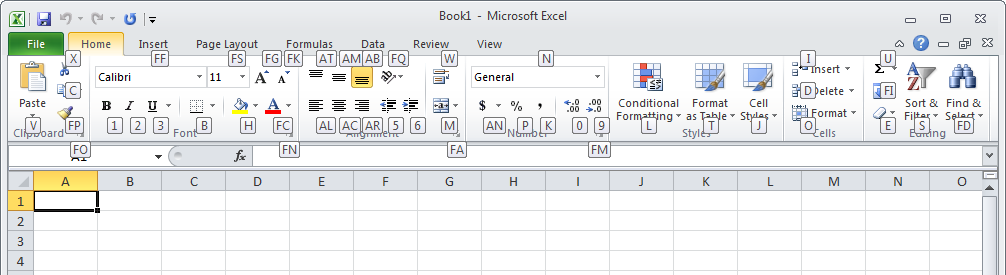
Excel ribbon in Windows with accelerator keys visible. No equivalent on the Mac!
Note: Accelerator Keys is a commercial product that makes it possible to drive the ribbon with the Alt/Option key using Accessibility features on Mac OS. Requires Catalina (10.15) or higher.
5. Just different
Finally, some Excel shortcuts are just plain different on a Mac.
For example, the shortcut for Edit Cell in Windows is F2, and on a Mac, it’s Control + U. The shortcut to toggle absolute and relative references is F4 in Windows, while on a Mac, its Command T. For a complete list of Windows and Mac shortcuts, see our side-by-side list .
If you want to see more Excel shortcuts for the Mac in action, see our video tips . Whenever we use a shortcut, we show both the Windows and Mac version.
Excel 365
With the introduction of Excel 365 on the Mac, Microsoft has started to align more Mac shortcuts with those on Windows, and many Windows shortcuts can be used Excel 365. For example, you can use F4 to toggle between absolute and relative references, Control + Shift + L to toggle a filter on and off, etc. So far, all the shortcuts that have been adjusted to match Windows shortcuts remain backwards compatible with previous Mac-only shortcuts. For example while F4 toggles references on the Mac in Excel 365, the old shortcut Command + T still works as well.
More shortcut resources
- 200 Excel shortcuts for Win and Mac (online list)
- The 54 Excel shortcuts you really should know (article)
- Laminated quick reference cards (old school)
- Excel shortcuts course - (video training)
We ran a survey on Excel shortcuts. Here are the results, based on over 800 replies.
I’ve also compiled a list of the most 20 popular Excel shortcuts below. This is a tricky business, because people often don’t know what to call shortcuts, or how to refer to them. So I’ve had to “interpret” many of the shortcuts people mentioned. That said, the patterns are clear, and the best shortcuts naturally bubble up again and again. It’s a great list.
Dave
Survey Results
People think Excel Shortcuts are important
99% said Excel shortcuts are important, very important, or critical.
Wow. Although people who take a shortcut survey are naturally interested in shortcuts, this is surprising!
Most people don’t know many Excel shortcuts
There are over 200 shortcuts in Excel (over 400, if you count both Windows and Mac). How many do people think they know?
26% know 10 or less 61% know between 10 and 50 10% know between 50 and 100
I made a mistake with this question – I should have asked about 10-20. My guess is about half of the 61% above are in that range.
Top 5 reasons for learning Excel Shortcuts
- Work faster and more efficiently in Excel
- Easily manage huge amounts of data
- Maintain sanity when doing tedious work
- Maintain accuracy and consistency
- Better understanding of how Excel works
I actually think the last item has the most overall “punch”, since shortcuts can teach you how to solve complex problems with very elegant solutions that take advantage of Excel’s most powerful features. For example, rather than use a shortcut 100 times to do the same thing (quickly) on a large set of data, you might be able to complete all the work in just a few steps. Examples here , and here .
People have been using Excel for a long time
- 20% have been using Excel for between 3 and 5 years
- 73% have been using Excel for more than 5 years
- 52% have been using Excel for more than 10 years
20 Most popular shortcuts
- Cut, copy, paste - Ctrl X, C, V (Mac: you can also use Command). I guess this is expected, since other applications share the same shortcuts. And, of course, these are shortcuts you’ll use every day.
- Extend selection - Control Shift arrow keys (Mac: you can also use Command). These are absolutely critical shortcuts when you’re working with a large set of data and want to extend your selection to the bottom, or any edge.
- Paste Special - Control + Alt + V (Mac: Control + Command + V). Paste Special is extremely powerful. You can paste values, paste formulas, paste formatting, and even paste column widths!
- Fill down - Control D. An excellent way to copy values from the cell above without copying and pasting. Several people also mentioned Fill right, Control + R
- Toggle formula references - F4 (Mac: Command Shift T). Who likes to type $ signs in a formula? No one. Use this shortcut to quickly rotate through all absolute and relative formula reference options (i.e. A1, $A$1, $A1, A$1).
- Autosum - Alt = (Mac: Command + T). A classic “magic” shortcut to automatically insert a sum function. You can use autosum to sum rows, columns, or even an entire table in one step (more details here ; autosum demo here ).
- Toggle filters - Control + Shift + L (Mac: Command + Shift + F). An excellent shortcut to apply and clear all filters. It’s a very handy way to “reset” a table with many filters applied…just use it twice.
- Current date and time - Control + ; (date) Control + Shift + : (time). If you need a date or time stamp, it’s magic.
- Select all - Control A (Mac: you can also use Command). This shortcut will select all data in the “same region”. Use it whenever you want to select an entire table.
- Go to first cell / last cell - Control + Home, Control + End. (Mac: fn + Control + left arrow, fn + Control + right arrow. Very satisfying when you want to go instantly to the first cell or last cell of a worksheet, no matter where you are. Bonus: add the shift key to select everything on the way.
- Repeat last action - F4 or Control Y (Mac: Command + Y). Did you know that many commands can be repeated? You can use this for things like applying the same borders, format, or even to insert a worksheet again. (Note: on Macs up to 2011, this shortcut is not as robust).
- Data navigation - Control + arrow key(s) (Mac: you can also use Command). These shortcuts are “must-know” if you work with large sets of data. They let you move to the edges of the data instantly, without tedious scrolling.
- Fill handle - double click that little square at the bottom right of any selection. While not a keyboard shortcut, it’s still one of the most powerful features in Excel, because it will copy a formula (or a pattern) down a column to the bottom of a table in one click.
- Insert / delete columns and rows - To insert: with an entire row or column selected, use Control+ Shift ++ (Mac: Control + I, but in 2016, same as Win). To delete: with an entire row or column selected, use Control + - .
- Edit cell - F2 (Mac: control + U) to enter “edit mode” for the active cell without taking your hands off the keyboard.
- Enter multiple cells - Control + Enter. Whenever you want to enter the same value or formula in more than one cell at a time. You’ll be surprised how often you use it once you understand how it works.
- Format cells - Control + 1 (Command + 1). Most people know this as the shortcut for the Format Cells dialog, but you can also use it to format almost anything in Excel, without care about the state of the ribbon. Try it.
- Select visible cells only - Alt + ; (Mac: command + shift + Z). The trick to copying only what you see. Priceless when you’re manually hiding rows and columns.
- New Table - Control + T. Very handy when you want to convert a set of data to a “proper” Excel table with filters and formatting. Tables are a powerful and convenient way to handle lots of data easily.
- Toggle formulas on and off - Control + `. A very fast way to (temporarily) reveal all formulas in a worksheet. Use it again to turn formulas off again.
More resources for Excel shortcuts
- 200 Excel shortcuts for Win and Mac (online list)
- Laminated shortcut cards (old school)
- Excel shortcuts on a Mac (article)
- Excel shortcuts course (video training)
