Purpose
Return value
Syntax
=FILTERXML(xml,xpath)
- xml - Valid XML as a text string.
- xpath - A valid Xpath expression as a text string.
Using the FILTERXML function
The Excel FILTERXML function returns specific data from XML text using a specified XPath expression.
XML is a text format for storing and transporting data. It is not dependent on any particular hardware or software. XML is extensible and is designed to transport data, as opposed to displaying data in a particular way. XML has strict syntax rules which allows software to traverse the structure of an XML document and perform various operations.
XPath is a special query language for selecting the elements and attributes in an XML document. The FILTERXML function uses XPath to match and extract data from text in XML format.
FILTERXML is only available in Excel for Windows, not Excel for Mac, or Excel Online.
Example
In the example shown, the cell contains XML that carries information about albums published as CDs. Each CD contains the title of the album, the name of the artist, and the year the album was released. The formula in cell D5 uses FILTERXML to extract all titles:
=FILTERXML(B5,"//cd/title")
The xml argument is the XML in cell B5, and the xpath argument is the expression “//cd/title”, which matches all title elements with the parent . In Excel 365 , which supports dynamic arrays , the results spill into the range D5:D14 automatically.
Purpose
Return value
Syntax
=WEBSERVICE(url)
- url - The url of the web service to call.
Using the WEBSERVICE function
The WEBSERVICE function returns data from a web service hosted on the internet. The WEBSERVICE function is only available in Excel 2013 and later for Windows.
A web service uses a protocol like HTTP to retrieve data in a machine-readable format like XML or JSON. For example, a formula that uses WEBSERVICE to call a fictitious web service hosted at somewebservice.com might look something like this:
=WEBSERVICE(“http://somewebservice.com/endpoint?query=xxxx”)
The result from the WEBSERVICE function is returned directly to the worksheet. In cases where the result from a webservice is in XML format, you can use the FILTERXML function to parse the XML.
Example
A simple example of a web service is RSS, which is used to syndicate content in XML format. RSS is widely available and does not require authentication, so it is an easy way to test the WEBSERVICE function. In the example above, WEBSERVICE is used to fetch breaking news from NASA. The formula in B4 is:
=WEBSERVICE("https://www.nasa.gov/rss/dyn/breaking_news.rss")
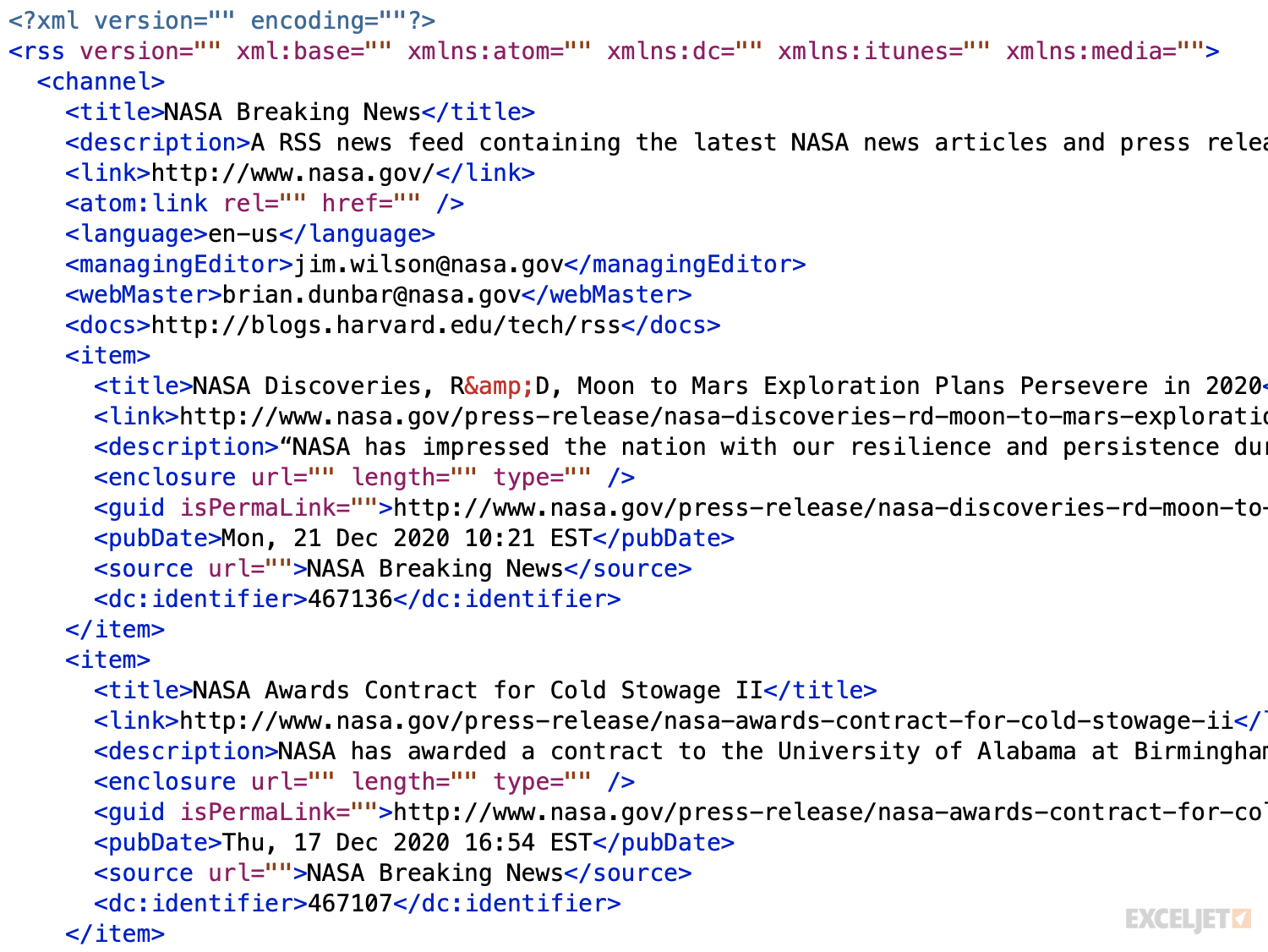
RSS uses XML, so the result is a long string of XML that contains the titles of the last 10 news articles published by NASA, along with meta information like description, date, url, and so on. The screen below shows this data in a text editor:
Parsing the result
When the result from WEBSERVICE is XML, you can use the FILTERXML function to parse the data. In the example shown, this is how the data and title of each article is extracted. The formula in B7 extracts the date, and trims extra characters with the MID function to create an Excel-friendly date:
=MID(FILTERXML(B4,"//item/pubDate"),6,11)
The formula in C7 extracts the title:
=FILTERXML(B4,"//item/title")
Notes
- When WEBSERVICE can’t retrieve data, it returns a #VALUE! error.
- If the result from WEBSERVICE is more than 32767 characters, it returns a #VALUE! error.
