One of the charts you’ll see around is a so called “floating column chart”, where columns rise up off the horizontal axis to depict some sort of value range. There are many ways to make this kind of chart in Excel, and Jon Peltier has a very comprehensive run-down here .
This page describes just one approach, where you make a line chart with two data series (one high, one low) and then use “up/down bars” to create the floating columns. The advantage of this approach is simplicity. There is no need to add calculations and a ghost data series to float the columns, as you’ll see in other examples.
The data used to make the chart on this page looks like this:
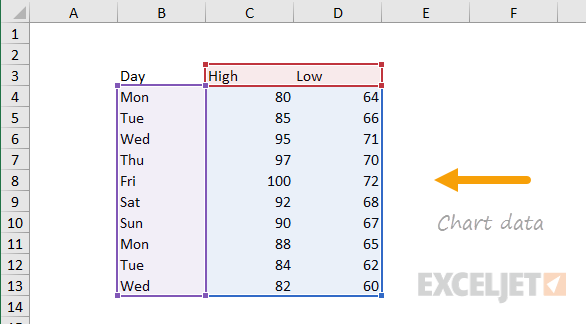
How to make this chart
- Place cursor in data and insert a line chart:
- Select the standard 2D option:
- The chart as inserted:
- Select the chart and add up/down bars:
- Select each data series in turn and set line to “no line”:
- Chart after setting both data series to “no line”:
- Select and delete legend
- Select vertical axis and set bounds to 100 and 55:
- Select up/down bars and change color and border as desired
- Final chart before title and sizing:
This chart is an example of a 100% stacked column chart. The data shown in the chart represents projects over a three year period, categorized as hit goals, missed goals, and exceeded goals. I think this is a good example of how a 100% stacked column chart can work well to show trends over time, in this case highlighting the worrying trend of more projects with missed goals.
The data used to plot the chart looks like this:

How to create this chart
- Select data and Insert > Column chart on Ribbon:
- Choose the 2D 100% stacked column option:
- Chart as inserted:
- Move legend to top of chart:
- Select data on the ribbon (or right click to select)
- Reorder series to plot missed data first:
- Reorder series to plot missed data first:
- Set tick marks on vertical axis:
- Select and delete horizontal grid lines
- Chart at this point in the process:
- Right click each series and set fill color:
- Final chart before resizing and setting title:
