Purpose
Return value
Syntax
=FREQUENCY(data_array,bins_array)
- data_array - An array of values for which you want to get frequencies.
- bins_array - An array of intervals (“bins”) for grouping values.
Using the FREQUENCY function
The FREQUENCY function counts how often numeric values occur in a set of data and returns a frequency distribution – a list that shows the frequency (count) of each value in a range at given intervals (bins). FREQUENCY returns the distribution as a vertical array of numbers that represent a “count per bin”.
The FREQUENCY function always returns an array with one more item than bins in the bins_array . This is by design, to catch any values greater than the largest value in the bins_array . The general pattern for FREQUENCY is:
=FREQUENCY(data,bins)
where data_array and bins_array are typically ranges on the worksheet.
Instructions
To create a frequency distribution using FREQUENCY:
- Enter numbers that represent the bins you want to group values into
- Make a selection the same size as the range that contains bins, or one greater if want to include the extra item
- Enter the FREQUENCY function as a multi-cell array formula with control+shift+enter.
In Excel 365 , it is not necessary to enter FREQUENCY as an array formula. See notes below.
Examples
In the example shown, the formula in G5:G8 is:
{=FREQUENCY(C5:C14,F5:F8)}
Entered as a multi-cell array formula.
Note: the curly braces added by Excel automatically when entered with control + shift + enter .
Horizontal results
The FREQUENCY function always returns a vertical array of results. To return horizontal results, wrap the FREQUENCY function in the TRANSPOSE function :
=TRANSPOSE(FREQUENCY(data,bins))
Excel 365
In Excel 365 , which supports dynamic arrays natively , it is not necessary to select multiple cells before entering the FREQUENCY function. In cell G5, you can simply enter the formula below:
=FREQUENCY(C5:C14,L5:L8)
FREQUENCY will return an array of six counts, and these counts will spill automatically into the range G5:G9. The count in the last row (G9) is the overflow bin, the count of any values greater than the largest value in the bins_array .
Notes
- FREQUENCY returns multiple values and must be entered as an array formula, except in Excel 365 .
- FREQUENCY always returns an array with one more item than bins. This is by design, to catch any values greater than the largest interval in the bins_array.
- Each bin shows a count of values up to and including bin value, excluding values already accounted for.
Purpose
Return value
Syntax
=GAMMA(number)
- number - A decimal number for which you want to calculate the gamma function value.
Using the GAMMA function
The GAMMA function returns the gamma function value Γ(n) for a given number. The key relationship to understand is that Γ(n) = (n - 1)!, which means Excel’s GAMMA function essentially computes factorials shifted by one position. For example, GAMMA(5) returns 24, which is equivalent to 4! (4 factorial). Importantly, the gamma function extends this factorial concept to non-integer values, defining calculations like GAMMA(2.5) that would be undefined with traditional factorials.
The GAMMA function is used for statistical calculations, probability distributions, and advanced mathematical modeling.
Key features
Returns the gamma function value for decimal numbers
For positive integers n, GAMMA(n) equals (n-1)!
Accepts positive decimal numbers as input
Returns #NUM! error for zero and negative integers
Example #1 - Basic calculations
Example #2 - Relationship to factorials
Example #4 - Error conditions
Mathematical Definition
Notes
Example #1 - Basic calculations
The GAMMA function takes a single argument in this syntax:
=GAMMA(number)
The argument number is the value for which you want to calculate the gamma function. Here are some basic examples showing both integer and non-integer inputs:
=GAMMA(0.5) // returns 1.7724538509... (√π)
=GAMMA(2) // returns 1
=GAMMA(2.5) // returns 1.3293403881...
=GAMMA(5) // returns 24
Example #2 - Relationship to factorials
The example below demonstrates the relationship between the GAMMA function and factorials. For any positive integer n, GAMMA(n) equals (n-1)!.
=GAMMA(n) // returns (n-1)!
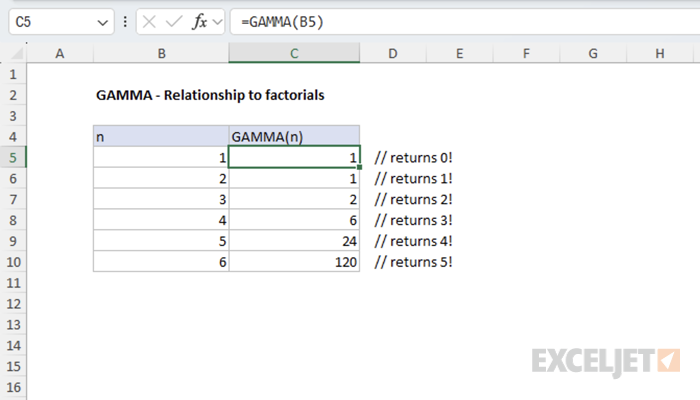
This relationship makes the GAMMA function particularly useful when you need factorial-like calculations for non-integer values or in statistical formulas.
Example #3 - Error conditions
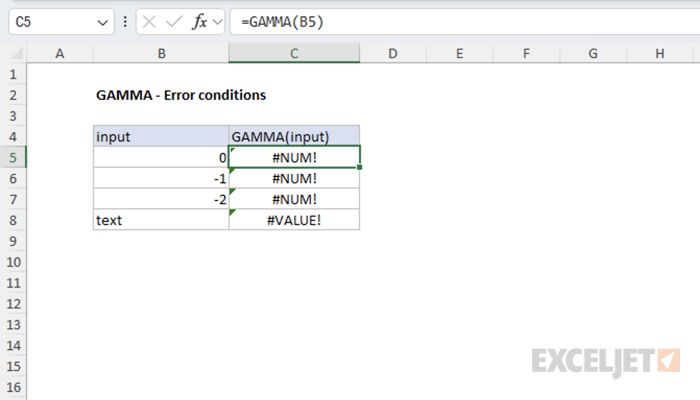
The GAMMA function returns #NUM! for zero and negative integers, and #VALUE! for non-numeric inputs.
=GAMMA(0) // returns #NUM! error
=GAMMA(-1) // returns #NUM! error
=GAMMA(-2) // returns #NUM! error
=GAMMA("text") // returns #VALUE! error
Mathematical Definition
The gamma function is formally defined as an integral that extends the concept of factorials to real and complex numbers. The mathematical definition is:
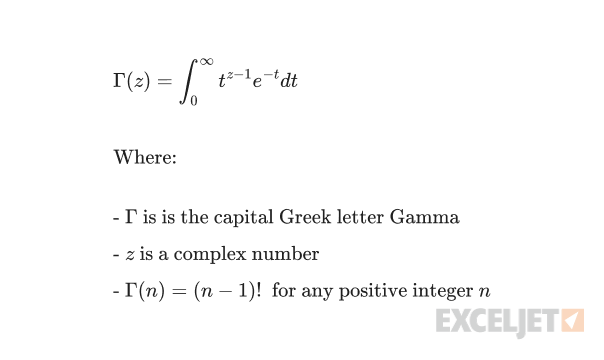
While the gamma function is mathematically defined for complex numbers, Excel’s GAMMA function implementation only accepts positive real number inputs.
Notes
- Decimal and positive values are accepted and return valid results
- For positive integers n, GAMMA(n) = (n-1)!
- The function returns #NUM! error for zero and negative integers
- The GAMMA function is used for advanced statistical and mathematical calculations
