Explanation
In this example, the goal is to retrieve the current stock price for the companies listed in Column B. Note these cells in the range B5:B16 have already been converted to the “Stocks” Data Type . Once the Stocks Data Type is available on the worksheet, you can retrieve various information using the simple formulas described below. These formulas follow a “dot” syntax like this:
=A1.field
With a valid Data Type in A1, Excel will automatically display available fields once the “.” is typed.
Note: the Stocks Data Type is only available in Excel 365 .
Previous close
The formula for “Last close” in column C is:
=B5.[Previous close]
Notice the field name “Previous close” is enclosed in square brackets. This is a requirement for any field name that contains a space character.
Current Price
The formula for “Last close” in column D is:
=B5.Price
Change %
The formula for “Change %” in column E is:
=B5.[Change (%)]
This is equivalent to the manual formula:
=(D5-C5)/C5 // manual change %
FIELDVALUE function
The FIELDVALUE function can also be used as an alternative to the “dot” syntax formulas above. The equivalent formulas are:
=FIELDVALUE(B5,"Previous close")
=FIELDVALUE(B5,"Price")
=FIELDVALUE(B5,"Change (%)")
Notice square brackets are not required, but the field names are enclosed in double quotes ("").
Explanation
In this example, the goal is to retrieve the last available close price for each symbol shown in column B. This can be done with the STOCKHISTORY function . The main purpose of STOCKHISTORY is to retrieve historical stock price information, and we need to make a few adjustments to prevent errors that might occur when a close price is not available on a given date. We also need to adjust arguments to return just a single value per symbol, instead of an array of values that spill onto the worksheet into multiple cells.
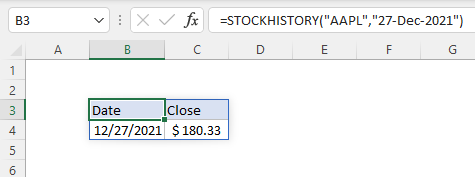
The STOCKHISTORY function retrieves historical stock price information based on a given symbol and date range. For example, to return the closing price for Apple, Inc. on December 27, 2021, you can use:
=STOCKHISTORY("AAPL","27-Dec-2021") // close price on Dec 27
The result is an array that includes headers, date, and close price:
To get a closing price for today , we can use the TODAY function instead of a fixed date.
=STOCKHISTORY("AAPL",TODAY()) // close price today
However, this formula is a bit fragile. If the current date (today) is a holiday or weekend, or if the market is open but not yet closed, STOCKHISTORY will return a #VALUE error. One way to handle this problem is to set the interval argument in STOCKHISTORY to monthly instead of daily:
=STOCKHISTORY("AAPL",TODAY(),,2) // close price this month
The last argument, 2, sets interval to monthly (2) instead of the default of daily (0). The result is the latest available close price in the current month. To adapt this example to work in the example, as shown above, we also need to get rid of the date and the header, since we only want the close price. We can do that by adjusting arguments like this:
=STOCKHISTORY(B5,TODAY(),,2,0,1)
Here, the zero after interval (2) sets the headers argument to “no headers”. The final 1 is a property setting that tells STOCKHISTORY to return the close price only. See the table here for more information about properties available to the STOCKHISTORY function.
When this formula is copied down the table, the result is the last available close price for each symbol in the current month. Note the formula will fail with a #VALUE error if there is not yet close price data in the current month. See below for a workaround.
Workarounds
The above formula works fine as long as there is at least one close price in the current month. However, if there is no price data yet in the current month, the formula will return a #VALUE error. As a workaround, we can modify the formula to retrieve the last week of close prices for a given symbol, then use the LOOKUP function to get the last value in the list:
=LOOKUP(TODAY()+1,STOCKHISTORY("MSFT",TODAY()-7,TODAY()))
This works because LOOKUP has some unique behaviors that make it useful for retrieving the last value in a list . Essentially, we are asking LOOKUP to find a value we know can’t exist (TODAY()+1). LOOKUP always operates in approximate match mode, assuming data is sorted. It scans to the end of the values looking for TODAY+1 and when that value isn’t found, it returns the last value in the second column. This is an example of the BigNum concept.
If you want to retrieve the date as well (as a reference for the price that comes back) you can use a more involved formula based on the LET function :
=LET(results,STOCKHISTORY("MSFT",TODAY()-7,TODAY()),INDEX(results,ROWS(results),0))
Rather than rely on approximate matching, this formula explicitly requests the last result. First, the LET function stores results from STOCKHISTORY in a variable called results . Next, the ROWS function counts the rows in results and feeds this number into the INDEX function as row_num. Finally, with results provided as array , and column_number hardcoded as 0, INDEX returns the last row in results . This row contains two values: the date and the close price on that date.
