Explanation
In this example, the goal is to extract the last name from a list of names in “Last, First” format as seen in column B. In the current version of Excel, the easiest solution is to use the TEXTBEFORE function. In older versions of Excel, it can be solved with a more complex formula based on the LEFT and FIND functions. Both approaches are explained below.
Modern solution
In the current version of Excel, the TEXTBEFORE function is the best way to solve this problem. TEXTBEFORE extracts text that occurs before a given delimiter. In its simplest form, TEXTBEFORE only requires two arguments, text and delimiter :
=TEXTBEFORE(text,delimiter)
In the worksheet shown, the formula we are using to return the last name looks like this:
=TEXTBEFORE(B5,",")
- text - B5, the name in column B
- delimiter - “,” (a comma)
Legacy solution
In older versions of Excel that do not provide the TEXTBEFORE function, you can solve this problem with a more complex formula based on the RIGHT, LEN, and FIND functions:
=LEFT(B5,FIND(",",B5)-1)
At a high level, the LEFT function extracts text starting at the left side of a text string. LEFT takes two arguments, text and num_chars , which indicates how many characters to extract:
=LEFT(text,num_chars)
For example, if we use “apple” for text and 3 for num_chars , we get “app”:
=LEFT("apple",3) returns "app"
The main challenge in this example is to calculate how many characters to extract, which is equal to the length of the last name. This is done with the FIND function like this:
FIND(",",B5)-1
FIND returns the location of text as a numeric position. Because the comma appears as the 6th character in the text, the FIND function returns 6. This is one more character than we need, so we subtract 1:
FIND(",",B5)-1 // returns 5
The result is 5, which is the length of the last name in “Chang, Amy”. The code above returns this result directly to the LEFT function as the num_chars argument:
LEFT("Chang, Amy",5) // returns "Chang"
LEFT returns “Chang” as the final result. To extract the first name from names in column B see the formulas on this page .
Explanation
In this example, the goal is to return the middle name from a full name in “First Middle Last” format. In the current version of Excel this is a fairly simple problem using the TEXTAFTER and TEXTBEFORE functions. In older versions of Excel, a similar formula is significantly more complicated, based on the MID function and multiple FIND functions. Both approaches are explained below.
Modern solution
In the latest version of Excel you can solve this problem with the TEXTAFTER and TEXTBEFORE functions like this:
=TEXTAFTER(TEXTBEFORE(B5," ",-1)," ",,,,"")
As the formula is copied down, it returns the middle name when present, and an empty string ("") when there is no middle name. Working from the inside out, the TEXTBEFORE function is first used to extract all text that occurs after the last space in the name:
TEXTBEFORE(B5," ",-1) // returns "Emily Marie"
- text - the full name in cell B5
- delimiter - a single space (" “)
- instance_num - provided as -1 (first space from the end)
The trick here is using -1 for instance_num . A positive instance number tells TEXTBEFORE to count from the start of the text string. A negative instance number tells TEXTBEFORE to count from the end . The result is “Emily Marie” (the name without the last name) which is delivered to the TEXTAFTER function :
=TEXTAFTER("Emily Marie"," ",,,,"")
- text - result from TEXTBEFORE
- delimiter - a single space (” “)
- instance_num - omitted, defaults to 1
- match_mode - omitted
- match_end - omitted
- if_not_found - an empty string (”")
Essentially, we are asking TEXTAFTER for the text after the (first) space. Importantly, we also provide an empty string ("") for the if_not_found argument to gracefully handle cases where there is no middle name.
Legacy solution
In older versions of Excel that do not provide the TEXTAFTER or TEXTBEFORE functions, it is possible to use a more complex formula to extract the middle name:
=MID(B9,FIND(" ",B9)+1,FIND(" ",B9,FIND(" ",B9)+1)-FIND(" ",B9)-1)
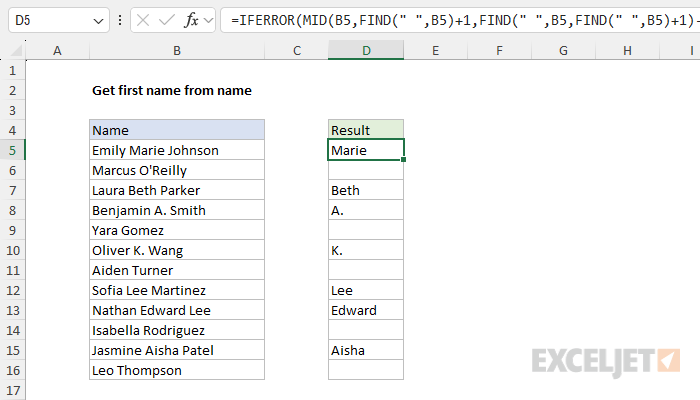
This Excel formula is designed to extract the text between the first and second space characters in the cell B5. At a high level, we are using the MID function to extract a substring from the text in cell B5, where the start_num is the position to start the extraction, and num_chars is the number of characters to extract:
MID(B5,start_num,num_chars)
The challenge is in working out the correct values for start_num and num_chars . To calculate a start number, we use the FIND function like this:
FIND(" ",B5)+1 // start_num
This finds the position of the first space in B5 and adds 1. This calculation is used to set the start_num for the MID function, effectively starting the extraction from the character immediately after the first space. Next, we need to calculate the number of characters to extract. This is a more difficult problem. First, we find the position of the second space in B5 like this:
FIND(" ",B5,FIND(" ",B5)+1)
Here, we take advantage of the fact that the FIND function has as optional third argument called start_num , which controls where FIND begins its search. When no value is provided, start_num will default to 1 and FIND will begin searching from the beginning of the text string. To find the second space , we are asking FIND to begin searching one character after the first space :
FIND(" ",B5)+1 // one char after first space
Once we know the location of the second space, we need to subtract the location of the first space:
FIND(" ",B5,FIND(" ",B5)+ )-FIND(" ",B5)-1
This code calculates the number of characters between the first and second space by subtracting the position of the first space from the position of the second space and then subtracting 1. The result is delivered to the MID function as the num_chars argument, and MID then extracts all text between the two spaces.
=MID(B5,FIND(" ",B5)+1,FIND(" ",B5,FIND(" ",B5)+1)-FIND(" ",B5)-1)
=MID(B5,7,FIND(" ",B5,FIND(" ",B5)+1)-FIND(" ",B5)-1)
=MID(B5,7,FIND(" ",B5,FIND(" ",B5)+1)-FIND(" ",B5)-1)
=MID(B5,7,FIND(" ",B5,6+1)-6-1)
=MID(B5,7,FIND(" ",B5,7)-6-1)
=MID(B5,7,12-6-1)
=MID(B5,7,5)
="Marie"
The formula above will work correctly when there are two spaces in the name. However, when a second space is not found (i.e. there is no middle name, FIND will return a #VALUE! error. An easy way to manage this error is to embed the original formula into the IFERROR function:
=IFERROR(MID(B5,FIND(" ",B5)+1,FIND(" ",B5,FIND(" ",B5)+1)-FIND(" ",B5)-1),"")
Now when a second space is not found, FIND will return a #VALUE! error, and IFERROR will catch that error and return an empty string (""), which looks like a blank cell in Excel.
