Explanation
The goal is to retrieve the nth matching record in a set of data, after filtering on a specific product. In the worksheet shown, the product in H4 and the value for n in H5 are inputs that can be changed at any time. For instance, if the product in H4 is “A” and the value in H5 is 3, the formula should return the 3rd record in the table where the product is “A”, as shown in the screen above. This can be accomplished with the FILTER function and the INDEX function.
FILTER function
The FILTER function “filters” data based on a logical test and extracts matching records. The generic syntax for FILTER looks like this:
=FILTER(array,include,[if_empty])
The array is the data to filter, and the include argument is the logical expression to use when filtering. The if_empty parameter specifies the value to return if no matches are found. Note that by itself, FILTER returns all matching data. For example, if we configure FILTER to match on product “A”, it will extract all 5 matching records as seen below:
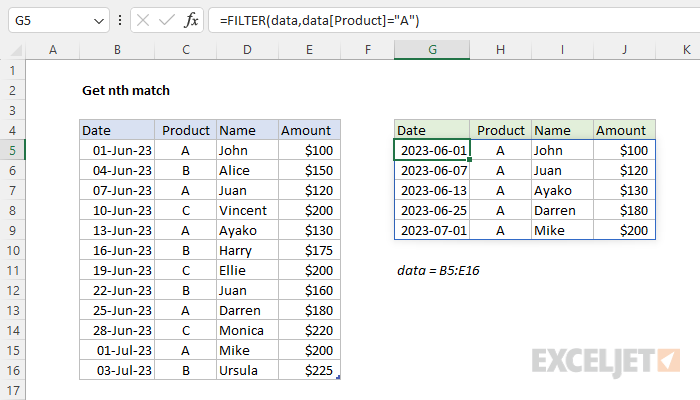
To just return the nth record from this data, we need another function.
INDEX function
=INDEX(FILTER(data,data[Product]="A",n)
The INDEX function returns the value at a given location in a range or array. You can use INDEX to retrieve individual values, or entire rows and columns. The generic syntax for INDEX looks like this:
=INDEX(array,row_num,[col_num])
In this case, we only need to provide a row number to get back the nth match returned by FILTER. To get the 3rd match for product “A”, we nest the FILTER function inside INDEX for array , then supply 3 for row_num :
=INDEX(FILTER(data,data[Product]="A"),3)
To complete the formula as shown, we need to replace the hard-coded reference for product and column number with H4 and H5:
=INDEX(FILTER(data,data[Product]=H4),H5)
Now when a different product is entered in cell H4, or a different value for n is entered in cell H5, the formula will return a new result.
CHOOSEROWS function
The CHOOSEROWS function , a more recent addition to Excel, is designed to return one or more rows from a range or array. As an alternative to INDEX, we can use the CHOOSEROWS function to solve this problem like this:
=CHOOSEROWS(FILTER(data,data[Product]=H4),H5)
This formula returns the same result as the INDEX version above.
Older versions of Excel
In older versions of Excel without the FILTER function, you can use a more complicated formula like this:
=INDEX(data,SMALL(IF(data[Product]=H4,ROW(data)-MIN(ROW(data))+1),H5),0)
This is an array formula and must be entered with Control + Shift + Enter in Excel 2019 and older.
The generic form of this formula looks like this:
=INDEX(rng,SMALL(IF(rng=value,ROW(rng)-MIN(ROW(rng))+1),n)
The core of this formula is the SMALL function , which returns the nth smallest value in an array of numeric values. In this case, the array provided to SMALL represents row numbers created with this part of the formula:
IF(data[Product]=H4,ROW(data)-MIN(ROW(data))+1)
Essentially, IF applies a filter based on the product in cell H4, then returns the corresponding row number from an array of row numbers created with this code:
ROW(list)-MIN(ROW(list))+1
Because the table contains 12 rows of data, the result is an array like this:
{1;2;3;4;5;6;7;8;9;10;11;12}
See this page for a full explanation of the code to create row numbers in Legacy Excel. Putting it all together, SMALL returns the 3rd smallest row number that corresponds with “A” products:
SMALL(IF(data[Product]=H4,{1;2;3;4;5;6;7;8;9;10;11;12}),H5)
With “A” in cell H4, the result is 5. Simplifying, the original formula becomes:
=INDEX(data,5,0)
And INDEX returns row 5 from the data. Note: (1) in older versions of Excel, the zero for col_num is required to return an entire row of data. (2) To display the entire row, enter the formula as a multi-cell array formula across all 4 cells simultaneously.
Explanation
The goal is to retrieve the nth matching record in a table when targeting a specific product. For example, if the value in cell H4 is “A”, the formula in H7 should return the name “John”, since this is the first name in the table associated with product “A”. In the same way, the formula in H8 should return ‘Juan’, since this is the second name associated with product “A”. The product in H4 is an input that can be changed at any time. All data exists in an Excel Table named data .
Basic INDEX and MATCH
Before we look at the formula used in the worksheet, we should review why we can’t use a “normal” INDEX and MATCH formula to solve this problem. Normally, the INDEX and MATCH functions are used to find the position of a value in a table and return a corresponding value in the same position from a different column. However, this method only works for the first match. For example, in the screen below, these the INDEX and MATCH formulas in H7 and I7 are as follows:
=INDEX(data[Name],MATCH(H4,data[Product],0)) // returns "John"
=INDEX(data[Amount],MATCH(H4,data[Product],0)) // returns 100
In these formulas, the MATCH function is configured to match the value in H4 (“A”), in the Product column. In both formulas, MATCH returns 1 because the product is “A”. These formulas work perfectly, but the problem is that we have no way to ask MATCH to find the 2nd match, the 3rd match, etc.
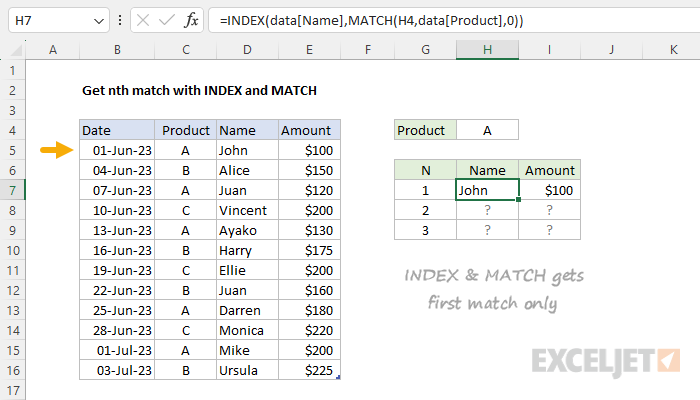
As mentioned, this is a standard application of INDEX and MATCH. For a complete overview, see: How to use INDEX and MATCH .
INDEX and SMALL + IF
One workaround to the INDEX and MATCH limitation explained above is to use INDEX with the SMALL and IF instead of MATCH. At the core, this approach uses INDEX to get the name at a specific row number like this:
=INDEX(data[Name],row_num)
The challenge is how to calculate the row number for each nth match since MATCH will only find the first match. One workaround is to generate a set of row numbers for the entire table, then use the IF function to “filter” the row numbers based on the product specified in cell H4. Then we can give this filtered list to the SMALL function, which is designed to get the “nth smallest” value. That is the approach seen in the worksheet as shown, where the formula in H7 is as follows:
=INDEX(data[Name],SMALL(IF(data[Product]=$H$4,ROW(data)-MIN(ROW(data))+1),G7))
Note this is an array formula that must be entered with control + shift + enter in Excel 2019 and earlier.
All of the hard work in this formula is in determining a row number for INDEX, which is done here:
SMALL(IF(data[Product]=$H$4,ROW(data)-MIN(ROW(data))+1),G7)
This may look complicated, but the approach is pretty straightforward. We create row numbers for the data, filter the numbers with an appropriate logical test, then retrieve the nth matching row number. Working from the inside out, the code below generates a set of relative row numbers for the entire table:
ROW(data)-MIN(ROW(data))+1
Since there are 12 rows in the table, the result is an array like this:
{1;2;3;4;5;6;7;8;9;10;11;12}
For more details on how this works, see this page . Simplifying the formula, we now have:
SMALL(IF(data[Product]=$H$4,{1;2;3;4;5;6;7;8;9;10;11;12}),G7)
Next, the IF function applies a logical test to filter on numbers where the product is “A” in H4:
IF(data[Product]=$H$4,{1;2;3;4;5;6;7;8;9;10;11;12})
Because there are 12 rows in the table, the result is an array like this:
{1;FALSE;3;FALSE;5;FALSE;FALSE;FALSE;9;FALSE;11;FALSE}
Notice the only numbers to survive the filtering are the rows associated with product “A”. The other row numbers have been replaced by FALSE. Next, the SMALL function is used to return the nth smallest value:
SMALL({1;FALSE;3;FALSE;5;FALSE;FALSE;FALSE;9;FALSE;11;FALSE},G7)
SMALL automatically ignores the FALSE values. With 1 in cell G7, SMALL returns the smallest value, which is 1. This is returned directly to the INDEX function as row_num . Back in the original formula, we now have:
=INDEX(data[Name],1) // returns "John"
The INDEX function then returns “John” in cell H7. In cell H8, the value in G8 is 2, and SMALL returns the second smallest row number, which is 3:
=INDEX(data[Name],3) // returns "Juan"
As the formula is copied down, the value for n increases in column G causing the SMALL function to retrieve the next matching row number. At each new row, the formula returns the next nth match.
Retrieving Amount
The formula to retrieve the associated Amount is almost exactly the same as the formula above:
=INDEX(data[Amount],SMALL(IF(data[Product]=$H$4,ROW(data)-MIN(ROW(data))+1),G7))
The only difference is the value for the array provided to INDEX, which is data[Amount] instead of data[Name] .
Handling errors
Once there are no more matches for a given value of n, the SMALL function will return a #NUM error. You can handle this error with the IFERROR function , or by adding logic to count matches and abort processing once the number in column H is greater than the match count. The example here shows one approach.
Multiple criteria
To add multiple criteria, you use boolean logic , as explained in this example .
