Explanation
In this example, the goal is to retrieve historical stock price information for a given stock, provided as a ticker symbol like “MSFT”, “AAPL”, “MMM”, etc. over the past n days, where n is a variable that can be changed as desired. In addition, the data should be sorted in reverse chronological order, with the latest information appearing first.
This can be done with the STOCKHISTORY function , whose main purpose is to retrieve historical information for a financial instrument over time.
Simple example
STOCKHISTORY retrieves historical stock price information based on a given symbol and date range. For example, to return the closing price for Apple, Inc. on December 27, 2021, you can use STOCKHISTORY like this:
=STOCKHISTORY("AAPL","27-Dec-2021") // close price on Dec 27
The result is an array that includes headers, date, and close price:
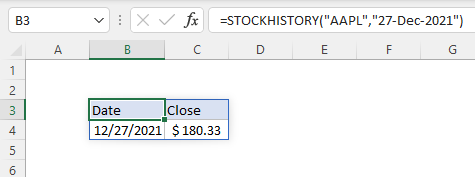
STOCKHISTORY takes a number of function arguments , but in this simple case, we only need to provide symbol and start_date . All other arguments are optional with default values: e nd_date defaults to start_date , interval defaults to daily, headers are on by default, and Date and Close are the default information retrieved. For a more detailed discussion, see our STOCKHISTORY function page .
STOCKHISTORY configuration
In the more complex example shown above, we need to supply additional information. We start by providing a reference to the symbol in I5:
=STOCKHISTORY(I5
Next, we add the start_date and end_date , which are calculated with the TODAY function :
=STOCKHISTORY(I5,TODAY()-I8,TODAY()
Notice that start_date is the current date minus I8, which is 30 in the example shown. This results in a date 30 days earlier than the date returned by TODAY. This works because Excel dates are just large serial numbers . The end_date is simply the value returned by TODAY – the current date.
The next two arguments are interval and headers , and we leave these at their defaults, by using empty commas:
STOCKHISTORY(I5,TODAY()-I8,TODAY(),,,
Finally, we need to specify the properties we want. The STOCKHISTORY function supports six properties that are specified by number . In this case, we want all properties (Date, Close, Open, High, Low, and Volume), so we list out all 6 numbers in the order that we want them:
STOCKHISTORY(I5,TODAY()-I8,TODAY(),,,0,1,2,3,4,5)
This completes the configuration for STOCKHISTORY. When entered, the result will be an array that will spill into multiple cells. By default, STOCKHISTORY will return information in chronological order with older dates appearing first. Note that the number of rows returned will vary according to the number in cell I8, and the number of days the market is not open in the date range provided; STOCKHISTORY will simply omit dates on which the market is not open. The output also depends on the time of day. If the market is already closed, STOCKHISTORY will return information for the current date.
Sorting results
In the example shown, we want to sort results in reverse chronological order. To do this we can nest the STOCKHISTORY function inside the SORT function like this:
=SORT(STOCKHISTORY(I5,TODAY()-I8,TODAY(),,,0,1,2,3,4,5),1,-1)
Inside SORT, the array returned by STOCKHISTORY becomes the array argument. Sort_index is provided as 1 since dates are in the first column, and sort_order is given as -1, since we want to sort dates in descending order.
The output of this formula is fully dynamic. If the symbol in cell I5 is changed, or the number for n in cell I8 is changed, the formula returns a new set of results.
Explanation
In this example, the goal is to get monthly closing stock price over the past n months (i.e. last 6 months, last 12 months, last 24 months, etc.) for the list of symbols that appear in column B. In addition, we want a rolling time period, that stays in sync with the current date. This can be done with the STOCKHISTORY function , whose purpose is to retrieve historical information for a financial instrument over time.
Basic example
STOCKHISTORY retrieves historical stock price information for a given symbol and date range. STOCKHISTORY takes up to 11 arguments , most of which are optional. The syntax for the first 5 arguments looks like this:
=STOCKHISTORY(stock,start_date,[end_date],[interval],[headers])
The interval argument specifies the time period to use between prices. The options are daily (0), weekly (1), or monthly (2). In this case, we want a monthly interval, so we provide 2. For example, to retrieve the close price for Apple (“AAPL”) for the last 6 months beginning in August 2022, we can use a formula like this:
=STOCKHISTORY("AAPL","1-Aug-2021","1-Jan-2022",2)
The result is an array that includes headers, date, and close price:

The remaining arguments (property1 to property5) specify the information STOCKHISTORY can return, which includes Date, Close, Open, High, Low, and volume. If we extend the formula to include all 6 properties, the formula looks like this:
=STOCKHISTORY("AAPL","1-Aug-2021","1-Jan-2022",2,,0,1,2,3,4,5)
And the result is an array with much more detail:

These properties can be reordered as desired by changing the order that the property numbers are listed. For example, to list Volume second, we can move Volume (5) to the second position after date (0):
=STOCKHISTORY("AAPL","1-Aug-2021","1-Jan-2022",2,,0,5,1,2,3,4)
For a more detailed overview of options, see our STOCKHISTORY function page .
Dynamic dates
In the basic example above, the dates are hardcoded as text values. This works fine for a one-off formula, but in this case we want the formula to calculate the dates for us on an ongoing basis. We can do this by adding the TODAY function and the EDATE function to the formula. To calculate a start date 6 months in the past, we use the EDATE function like this:
=EDATE(TODAY(),-5) // date 6 months in the past
The TODAY function returns the current date directly to EDATE. If the date is January 8, 2021, EDATE returns the date August 8, 2021. To calculate the end_date , we use the TODAY() function by itself. Once we update the basic example above, we have a formula like this:
=STOCKHISTORY("AAPL",EDATE(TODAY(),-5),TODAY(),2)
The result is the same as before:
The difference is that this result will continue to update automatically as time goes by.
Note: There is no need to supply a first of month or last of month date to STOCKHISTORY. When interval is set to monthly (2), the STOCKHISTORY function will use the last close price for a date that lands anywhere in the month. For complete months in the past, this will be the last trading day of the month. For months not yet complete, STOCKHISTORY will return the latest close price available.
Horizontal layout
In order to display the last 6 months for each symbol in column B, we need to rotate the vertical format that STOCKHISTORY outputs by default to a horizontal layout. Along with this change, we also need to remove the date field and suppress the header. To start off, we can use the TRANSPOSE function to transpose vertical to horizontal:
=TRANSPOSE(STOCKHISTORY("AAPL",EDATE(TODAY(),-5),TODAY(),2))
This flips the layout to horizontal:

To remove Date and header, we need to adjust the value for header and customize properties. We use 0 for header and supply 1 for the first property to retrieve just the closing price. The formula now looks like this:
=TRANSPOSE(STOCKHISTORY("AAPL",EDATE(TODAY(),-5),TODAY(),2,0,1))
And the resulting array looks like this:

This is close to the final formula. To finalize, we just need to replace the hardcoded symbol “AAPL” with a reference to B5:
=TRANSPOSE(STOCKHISTORY(B5,EDATE(TODAY(),-5),TODAY(),2,0,1))
This is the formula used in cell D5, copied down the column.
The header
The last piece of the puzzle is the header. Note that we don’t want a header that says “Date” or “Price”. Instead, for each price that appears in a separate column, we want a header that shows a corresponding date. To keep things consistent, it would be nice if we could just adjust the arguments in STOCKHISTORY to return only a header, but this won’t work; STOCKHISTORY will return a #VALUE error if only the date field is selected. As a workaround, we can adjust the formula to output both date and close price. First, we adjust the STOCKHISTORY function to remove only the header:
=TRANSPOSE(STOCKHISTORY(B5,EDATE(TODAY(),-5),TODAY(),2,0))
By default, STOCKHISTORY will return both Date and Price, so we no longer need to request the Price only, since we need the Dates. The result looks like this:

Next, we use the INDEX function to return just the first row of the array (the Dates):
=INDEX(TRANSPOSE(STOCKHISTORY(B5,EDATE(TODAY(),-5),TODAY(),2,0)),1,0)
Inside INDEX, row_num is 1, and column_number is set 0, in order to return the entire row. The result is an array of dates that can be used as a header:

This is the formula used in D4 in the example. Note when interval is set to monthly (2), STOCKHISTORY will always show “first of month” dates. However, you can apply a custom date format to display the dates as you like. In the example shown, the date format used is “mmm-yyyy”.
