What is Scroll Lock?
Usually, the arrow keys will move you one cell at a time in whatever direction you wish. However, when Scroll Lock is enabled, the worksheet is “scrolled” instead. The up and down arrow keys scroll one row up and down, and the right and left arrow keys scroll one column right and left. The active cell never changes.
If you don’t understand what’s going on, this can be quite distressing :)

Fortunately, the Scroll Lock setting is a toggle, much like Caps Lock. If you have a Scroll Lock key on your keyboard, just press it to toggle Scroll Lock off. Done.
No key for Scroll Lock?
Unfortunately, it’s harder to disable Scroll Lock if your keyboard doesn’t have a Scroll Lock key. How can you press a key you don’t have?
The “trick” is to figure out how to send the equivalent of the Scroll Lock keystroke to Excel. The rest of this article explains how to do that on both Mac and Windows.
Is Scroll Lock really on?
First, make sure Scroll Lock is really enabled. You can do this by working with the status bar , the name for the bottom edge of the Excel Window, which displays various information about the state of the current worksheet.
On Windows , the status bar will display Scroll Lock if Scroll Lock is toggled on, and if the Scroll Lock status is enabled in the status bar. If Scroll Lock status is not enabled in the status bar, it might be toggled on and you’ll never see it.
Right-click the status bar to make sure Scroll Lock status is enabled:

The Scroll Lock setting here doesn’t control Scroll Lock, it only displays Scroll Lock status.
Once you make sure that the Scroll Lock status is on, look for the Scroll Lock message in the lower left.
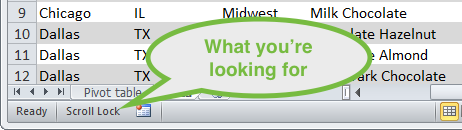
Yes, Scroll Lock is turned on.
On a Mac , as far as I know, Scroll Lock status will not appear in the status bar of Excel 2011. (I haven’t checked Excel 2016 yet). The only way I know to verify the Scroll Lock state is to use the arrow keys and observe behavior. Try moving around with the arrow keys and watch the address in the name box (directly left of the formula bar). If the address doesn’t change, Scroll Lock is probably turned on.

Mac Excel 2011 doesn’t show scroll lock status anywhere.
How to disable Scroll Lock on Windows
If you’re using a full keyboard in Windows – one that has a Scroll Lock key – simply press the key to disable it. You should see the Scroll Lock message disappear from the status bar and then be able to move around normally.
If your keyboard does not have a Scroll Lock key, you can access a virtual keyboard in Windows via Start > All Programs > Accessories > Ease of Access > On-Screen Keyboard.

The On-Screen Keyboard in Windows, Scroll Lock key in white
Once the keyboard is displayed, make sure Excel is the active application and click the ScrLk key. That should do it.
How to disable Scroll Lock on a Mac
The official Microsoft shortcut for Scroll Lock is Shift + F14. If you have an extended keyboard with an F14 key, try that first.

A Mac Extended Keyboard has an F14 key (click to enlarge)
If you have a MacBook Pro, or other machine with a smaller keyboard that does not have extended keys, you’ll have to go a little deeper. You’d think that you could go to System Preferences > Keyboard, then enable an extended virtual keyboard, then use that to press F14. But, after an hour or so of fiddling around, I couldn’t get it to work, and I’m not sure it can be done.
It seems that the Mac is “aware” of the keyboard currently attached, and uses this information to display the virtual keyboard. If you know a way to enable an extended virtual keyboard (on a Mac that doesn’t have one attached), please let me know.
Virtual Keyboard , a commercial freeware utility by Corallo Software (14-day trial) seems to work, but I did very little testing.
AppleScript to the rescue
On Macs, AppleScript is a built-in scripting language that can be used to automate applications and other general tasks. One of the things you can do with AppleScript is send keystrokes to an application.
While researching this problem, I ran into a nice AppleScript by Damien Clark here . However, I couldn’t get the script work like I expected. I could enable Scroll Lock with the script. But when I ran the script again, Scroll Lock wasn’t disabled .
At least not without checking the “use all F1, F2, etc keys as standard function keys setting” checkbox in the Mac’s keyboard preferences…which made the process pretty confusing.
-- Workaround to enable and disable Scroll Lock in Excel on the Mac
-- For Macs that don't have an F14 key available
-- Tested on 2015 MBP running Mac OS 10.10.5 and Excel 2011 (14.5.8)
-- Dave Bruns, December 10, 2015

activate application "Microsoft Excel"
delay 0.5 -- time to release modifier keys
tell application "System Events"
    key code 63 -- fn key
    key code 107 using {shift down}
end tell
To use this script, run the AppleScript Editor, create a new file, and paste in the code above. Then compile the script (Command + K), and run it (play button, or Command + R).
If Scroll Lock is currently on, it should be disabled.
Caution: if Scroll Lock is not currently enabled, it will be enabled, so you’ll need to run the script again to toggle it off again.
If you’ve ever wondered whether learning Excel formulas is worth your time, this list is for you!
Formulas are the heart of spreadsheets, so your skill with them can help you in many ways. Read below for 10 reasons you should take time to increase your skill with formulas.
Formulas are important in many jobs. In a recent survey we conducted about formulas, over 90% of respondents said that Excel formulas were “important”, “very important”, or “vital” to their job.
Formulas are a powerful way to capture and save a working solution ( examples ). They let you repeat the solution again whenever you like, always with perfect accuracy. They are far better than your faulty memory.
Formulas help you translate your vision into reality. Ever felt like you can explain what you want to do in plain English, but you have no idea how to do it in Excel? Formulas let you build the analysis that’s in your head.
Your understanding of formulas helps you design better spreadsheets. You can organize data in a way that takes advantage of formulas, which drastically reduces errors and troubleshooting. (To be fair, Pivot Tables also help you do the same thing.)
Hardly anyone is really good with Excel formulas, so being good with formulas is a chance to differentiate yourself by providing more value and productivity. And all businesses love productivity.
Resources: Function guide | 500 formula examples | time-saving tips
Being good with formulas allows you to build elegant solutions that avoid complexity. Nothing in Excel is more dangerous than unnecessary complexity — it makes it impossible to understand if a spreadsheet is really working correctly.
Because the business world relies on spreadsheets to make decisions, being good with formulas keeps you close to the action.
Formulas help you quickly visualize data. When you combine formulas with conditional formatting , you can instantly “see” important trends, insights, and relationships .
Skill with formulas allows you to deploy a full set of razor-sharp tools when solving problems. Without formula skills, you are forced to use a dull saw on every job, no matter how large or tedious.
Formulas let you get home on time. When you understand how to use formulas, you can do your work faster and spend more time with friends and family. Priceless.
Did I miss something important? Add your thoughts below.
