Explanation
The goal is to take a specific action when a value begins with “x”, “y”, or “z”. As is often the case in Excel, there are multiple ways to approach this problem. The simplest way is to use the OR function with the LEFT function to create the required logical test. Another option is to use the COUNTIF function. Both approaches are explained below.
Note: this formula is more advanced because we need to test for “cell begins with”. For a more basic example of “cell equals this or that” see this page or this video .
OR + LEFT
The OR function returns TRUE if any argument is TRUE. For example, if cell A1 contains “apple” then:
=OR(A1="orange",A1="apple") // returns TRUE
=OR(A1="orange",A1="pear") // returns FALSE
For this problem, instead of an “equals to” test, we need a “begins with” test." For that, we can use the LEFT function , which is designed to extract text from the left side of a text string. For example:
=LEFT("apple",1) // returns "a"
=LEFT("apple",2) // returns "ap"
=LEFT("apple",3) // returns "app"
Putting these two functions together, we can test the value in cell A1 to see if it begins with “x”, “y”, or “z” like this:
=OR(LEFT(A1)="x",LEFT(A1)="y",LEFT(A1)="z")
If cell A1 contains “dog”, the formula above will return FALSE:
=OR(FALSE,FALSE,FALSE) // returns FALSE
If cell A1 contains “zebra”, the formula above will return TRUE:
=OR(FALSE,FALSE,TRUE) // returns TRUE
While this formula works well, it can be cumbersome to enter more values to test. One way to simplify the formula is to use an array constant with a single expression like this:
=IF(OR(LEFT(A1)={"x","y","z"}),"x","")
An array constant is a structure that holds multiple values. It works like a range in Excel, except the values in an array constant are hard coded. Because the result from LEFT is compared to three separate values in the array constant, the expression returns three separate results and the OR function evaluates these results as before. Putting this all altogether, we can use the formula above inside the IF function as the logical test. This is the approach used in the example shown, where the formula in cell D5 is:
=IF(OR(LEFT(B5,1)={"x","y","z"}),"x","")
In cell D5, the formula evaluates like this:
=IF(OR(LEFT(B5,1)={"x","y","z"}),"x","")
=IF(OR({FALSE,FALSE,TRUE}),"x","")
=IF(TRUE,"x","")
="x"
In cell D6, the formula evaluates like this:
=IF(OR(LEFT(B6,1)={"x","y","z"}),"x","")
=IF(OR({FALSE,FALSE,FALSE}),"x","")
=IF(FALSE,"x","")
=""
Notes: (1) The above formula uses an array constant to hold three hard-coded values to test. However, you can also use a normal range on the worksheet. Using a range makes it easy to provide more values to test, and to change these values at any time. (2) In this example, we are testing the first character only, so the num_chars argument in LEFT is 1. To test more than one character, adjust num_chars as needed.
COUNTIF function
Another way to solve this problem is with the COUNTIF function. COUNTIF counts cells in a range that meet a given condition (criteria). If no cells meet the criteria, COUNTIF returns zero. The generic syntax for COUNTIF is:
=COUNTIF(range,criteria)
For example, to count cells that equal “apple”, we can use COUNTIF like this:
=COUNTIF(range,"apple")
COUNTIF supports wildcards . To count cells that begin with “a”, we can use a formula like this:
=COUNTIF(range,"a*")
The asterisk (*) is a wildcard that means zero or more characters, so the meaning here is: begins with “a” . In the example shown, the formula in cell D5 is:
=IF(SUM(COUNTIF(B5,{"x*","y*","z*"})),"x","")
Working from the inside out, the core of this formula is COUNTIF, which is configured to count three separate values using wildcards and the array constant {“x*”,“y*”,“z*”} for criteria:
COUNTIF(B5,{"x*","y*","z*"})
The values in the criteria are supplied in an “array constant”, a hard-coded list of items with curly braces on either side. When COUNTIF receives the criteria in an array constant, it will return multiple counts, one count per item. For cell B5, COUNTIF returns the array {0,0,1}. The first count (0) is the count for cells that begin with “x”. The second count (0) is for cells that begin with “y”. The third count (1) is for cells that begin with “z”. Note that because we only give COUNTIF a one-cell range, it can return only one of two values: 1 or 0. Here are the result for the first 4 cells:
=COUNTIF(B5,{"x*","y*","z*"}) // returns {0,0,1}
=COUNTIF(B6,{"x*","y*","z*"}) // returns {0,0,0}
=COUNTIF(B7,{"x*","y*","z*"}) // returns {0,0,0}
=COUNTIF(B8,{"x*","y*","z*"}) // returns {1,0,0}
Because we are testing for 3 criteria with OR logic, we only care if any result is not zero. To check this, we add up all items using the SUM function. Excel will automatically evaluate any number as TRUE and zero (0) as FALSE. In cell B5, the formula evaluates like this:
=IF(SUM({0,0,1}),"x","")
=IF(1,"x","")
="x"
In other words, IF will return “x” whenever the result from SUM is not zero . However, if the result from SUM is zero , IF will return an empty string (""). In cell D6, the formula evaluates like this:
=IF(SUM({0,0,0}),"x","")
=IF(0,"x","")
=""
Note that this example uses 3 criteria: begins with x, y, or z. As with the LEFT formula above, you can add more values to test and the formula will continue to work.
TRUE or FALSE result
Both formulas above use the IF function to return “x” if a match is found and an empty string ("") if a match is not found. If you only need a TRUE or FALSE result the IF function is not required:
OR(LEFT(B5,1)={"x","y","z"}) // returns TRUE or FALSE
For the COUNTIF version, the logic needs to be adjusted a bit:
SUM(COUNTIF(B5,{"x*","y*","z*"}))>0 // returns TRUE or FALSE
Here we check if the result from SUM is greater than zero in order to force a TRUE or FALSE result.
Notes
- If you are testing many values, you can use a range instead of an array constant to provide values to check. In Excel 2019 and earlier, using a range will make the formula an array formula that must be entered with control + shift + enter. In the current version of Excel, no special handling is required.
- The COUNTIF function will accept ranges only for the range argument; you can’t feed COUNTIF an array that comes from another formula. This can be a problem when working with dynamic array formulas , where it is more common to pass arrays from one formula to another. The LEFT formula option does not have this limitation.
Explanation
The goal is to do something if a cell contains a given substring. For example, in the worksheet above, a formula returns “x” when a cell contains “abc”. If you are familiar with Excel, you will probably think first of the IF function. However, one limitation of IF is that it does not support wildcards like “?” and “*”. This means we can’t use IF by itself to test for a substring like “abc” that might appear anywhere in a cell. One solution is to create a logical test with the SEARCH and ISNUMBER functions, and then use an IF statement to return a final result. This approach is explained below.
Finding text in a cell
The SEARCH function is designed to look for specific text inside a larger text string. If SEARCH finds the text, it returns the position of the text as a number. If the text is not found, SEARCH returns a #VALUE error. For example, the formulas below show the result of looking for the letters “a”, “p”, “e”, and “z” in the text “apple”:
=SEARCH("a","apple") // returns 1
=SEARCH("p","apple") // returns 2
=SEARCH("e","apple") // returns 5
=SEARCH("z","apple") // returns #VALUE!
Notice that SEARCH returns a numeric position for the first three letters, and returns a #VALUE! error for “z”, which is not found. The screen below shows how the formulas above can be transferred to a workbook. The text to search appears in column B and the character to look for is hard coded into the SEARCH function:

Finding a word in a cell
You can use the SEARCH function to find words as well. Notice that SEARCH returns the starting position of the word in the text string:
=SEARCH("quick","The quick brown fox") // returns 5
=SEARCH("brown","The quick brown fox") // returns 11
=SEARCH("fox","The quick brown fox") // returns 17
=SEARCH("dog","The quick brown fox") // returns #VALUE!
As before, if the “find text” isn’t found, SEARCH returns a #VALUE! error as in the last example, where the word “dog” is not found. The screen below shows how the formulas can be set up in a spreadsheet. The text to search is in column B. The word to search for is typed directly into the SEARCH function:
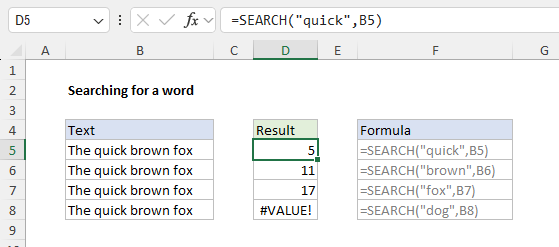
The formulas above work fine. However, we don’t want the position of the text in a cell, what we really want is a TRUE or FALSE result. Enter the ISNUMBER function.
Converting results to TRUE and FALSE
Since our goal is to use an IF statement, we want a logical test that will return TRUE or FALSE. The SEARCH function doesn’t work by itself because it returns either a numeric position or an error. However, we can easily convert the results from SEARCH into TRUE and FALSE values with the ISNUMBER function , which returns TRUE for numeric values and FALSE for anything else:
=ISNUMBER(2) // returns TRUE
=ISNUMBER("a") // returns FALSE
=ISNUMBER(#VALUE!) // returns FALSE
To convert the result from the SEARCH function into a TRUE or FALSE value, we simply place the SEARCH function inside the ISNUMBER function as shown below:
=ISNUMBER(SEARCH("fox","The brown fox")) // returns TRUE
=ISNUMBER(SEARCH("dog","The brown fox")) // returns FALSE
To recap: if SEARCH finds the text in the text string, it returns the position as a number, and ISNUMBER returns TRUE. If SEARCH can’t find the text, it returns an error, and ISNUMBER returns FALSE. We now have what we need to create an IF statement to check if a cell contains text.
If a cell contains a word then
Now that we have a formula that returns TRUE or FALSE, we can use the combination of SEARCH + ISNUMBER as the logical test inside the IF function , and return whatever result we want. In the worksheet shown, we have a list of email addresses, and we want to identify the emails that contain “abc”. The formula in cell C5 looks like this:
=IF(ISNUMBER(SEARCH("abc",B5)),"x","")
The SEARCH function is configured to look for “abc” inside cell B5. If “abc” is found anywhere in cell B5, SEARCH returns a number and ISNUMBER returns TRUE. The IF function then returns “x” as a final result. If “abc” is not found , SEARCH returns an error and ISNUMBER returns FALSE. The IF function then returns an empty string ("") as a final result.
Return matching values
With a small adjustment, we can return the value that contains “abc” instead of returning “x”:
<img loading=“lazy” src=“https://exceljet.net/sites/default/files/images/formulas/inline/if_cell_contains_return_value.png" onerror=“this.onerror=null;this.src=‘https://blogger.googleusercontent.com/img/a/AVvXsEhe7F7TRXHtjiKvHb5vS7DmnxvpHiDyoYyYvm1nHB3Qp2_w3BnM6A2eq4v7FYxCC9bfZt3a9vIMtAYEKUiaDQbHMg-ViyGmRIj39MLp0bGFfgfYw1Dc9q_H-T0wiTm3l0Uq42dETrN9eC8aGJ9_IORZsxST1AcLR7np1koOfcc7tnHa4S8Mwz_xD9d0=s16000';" alt=“If cell contains “abc” return value - 3”>
To return a cell of the value when it contains “abc”, we provide a reference for the value if true argument. If FALSE, we supply an empty string (””) which will display as a blank cell. The formula in cell C5 is:
=IF(ISNUMBER(SEARCH("abc",B5)),B5,"")
If column contains value then
If you need to check a column for a specific text value, the simplest approach is to switch to the COUNTIF function with wildcards. For example, to return “Yes” if column A contains the word “dog” in any cell and “No” if not, you can use a formula like this:
=IF(COUNTIF(A:A,"*dog*"),"Yes","No")
The asterisks (*) are wildcards that match the text “dog” with any number of characters before or after. With this configuration, the COUNTIF function will return a count of cells that contain “dog” anywhere in the cell. If the count is a positive number, the IF function will evaluate the number as TRUE. If no cells contain “dog”, COUNTIF will return zero and the IF function will evaluate this result as FALSE.
Notes
- The SEARCH function is not case-sensitive. If you need a case-sensitive option you can switch to the FIND function as explained here .
- If the goal is to return all matching cells or records together, see the FILTER function .

