Explanation
In the example worksheet, column D contains a date when a task is completed. If the task is not yet complete, the cell in column D will be empty (blank). In column E, the goal is to display the word “Open” when there is no date in column D. If there is a date in column D, the formula in column E should display nothing. The most common way to solve a problem like this is with the IF function .
IF function
The IF function runs a logical test and returns one value for a TRUE result, and another value for a FALSE result. The IF function can return a hard-coded value, a cell reference, or another formula. The generic syntax for IF looks like this:
=IF(logical_test,value_if_true,value_if_false)
To display “Open” when there is no completed date, the formula in cell E5 is:
=IF(D5="","Open","")
The logical expression D5="" means “is empty”. As the formula is copied down, it will return “Open” when the date in column D is blank because the logical test will return TRUE. If there is a value in column D, the logical test will return FALSE and IF will return an empty string ("") as a result. In Excel, an empty string will not display anything. The values returned by the IF function can be customized as needed.
ISBLANK function
You can also use the ISBLANK function to test for an empty cell. To use ISBLANK instead of the expression D5="" revise the formula as follows:
=IF(ISBLANK(D5),"Open","")
The result is the same as the original formula above. There is no practical difference between the formulas, the choice depends on personal preference.
LEN function
There are times when you may need to use the LEN function to check for a blank cell instead of the methods above, because when a formula in a cell returns an empty string , Excel will not consider the cell blank even though it looks blank. For example, if cell A1 contains a formula, the formulas below will always return FALSE, even if the formula returns an empty string (""):
=A1="" // returns FALSE
=ISBLANK(A1) // returns FALSE
This happens because Excel considers A1 as not blank since it contains a formula. If you need to test for values in cells that contain formulas, you can use the LEN function to check for a character count of zero:
=LEN(A1)=0 // returns TRUE
The LEN function will return zero if a cell is truly empty or contains an empty string generated by a formula. The expression above can be used as the logical test in the IF function
=IF(LEN(A1)=0,"Open","")
This is a more literal formula. We are not asking Excel if A1 is blank, we are literally counting the characters in A1. The LEN function will return a non-zero number only when a cell contains actual characters. Using the LEN function this way works for cells containing formulas as well as cells without formulas.
Conditional formatting
Another way to highlight open tasks is to use conditional formatting . In the screen below, this formula is used to highlight rows that do not contain a completion date:
=$D5=""
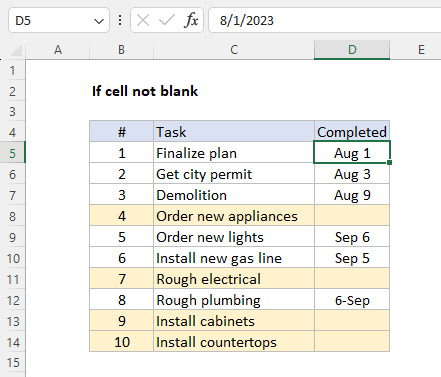
This is an example of applying conditional formatting with a formula. When a date is entered in column D, the formatting will disappear. More examples here .
Explanation
The aim is to mark records with an “x” if a score is greater than 80 and leave the cell blank if the score is less than 80. This can be achieved using the IF function in Excel.
IF function
The IF function runs a logical test and returns one value for a TRUE result, and another value for a FALSE result. The generic syntax for IF looks like this:
=IF(logical_test,if_true,if_false)
The IF function can return a value, a cell reference, or even another formula. In the worksheet shown, the goal is to identify rows where the score is greater than 80 by returning “x” as a marker. To accomplish this task, the formula in cell E5 is:
=IF(C5>80,"x","")
In this formula, the logical test is this expression:
C5>80
This expression returns TRUE if the value in C5 is greater than 80 and FALSE if not. In cell F5, the result is TRUE because C5 contains 85. The IF function then returns “x” as a final result:
=IF(C5>80,"x","") // returns "x"
In cell F6, the expression returns FALSE because C6 contains 79. The IF function returns an empty string "" as a final result:
=IF(C6>80,"x","") // returns ""
In Excel, an empty string ("") displays nothing. The result returned by the IF function can be customized as needed. For example, to return “Yes” if a score is greater than 80 and “No” if not, you can use this formula:
=IF(C5>80,"Yes","No")
Note that if no value is provided for the value_if_false argument, the formula will return FALSE for scores not greater than 80.
Conditional formatting
Another way to identify cells with a value greater than 80 is to use conditional formatting , as seen below:
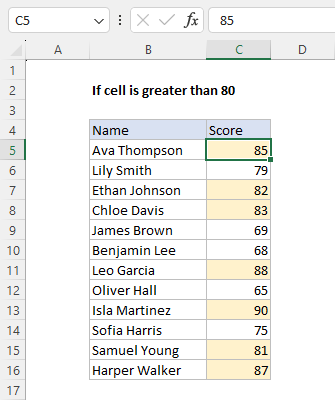
This is an example of applying conditional formatting with a formula. The formula used to highlight scores greater than 80 is:
=C5>80
The formatting is automatic. If a score is changed to a number greater than 80, the yellow highlighting will appear. You can find more conditional formatting examples here .
