Explanation
The goal is to create a formula that returns “Done” in column E when a cell in column D is not blank (i.e., contains a value). In the worksheet shown, column D records the date a task is completed. If column D contains a date (i.e. is not empty), we can assume the task is complete. This problem can be solved with the IF function alone or with the IF function and the ISBLANK function. It can also be solved with the LEN function. All three approaches are explained below.
IF function
The IF function runs a logical test and returns one value for a TRUE result, and another value for a FALSE result. Use IF to test for a blank cell like this:
=IF(A1="",TRUE) // IF A1 is blank
=IF(A1<>"",TRUE) // IF A1 is not blank
In the first example, we test if A1 is empty with ="". In the second example, the <> symbol is a logical operator that means “not equal to”, so the expression A1<>"" means A1 is “not empty”. In the worksheet shown, we use the second concept in cell E5 like this:
=IF(D5<>"","Done","")
If D5 is “not empty”, the result is “Done”. If D5 is empty, IF returns an empty string ("") which displays as nothing in Excel. As the formula is copied down, it returns “Done” only for cells in column D that contain a value. To display both “Done” and “Not done”, you can adjust the formula like this:
=IF(D5<>"","Done","Not done")
ISBLANK function
Another way to solve this problem is with the ISBLANK function . The ISBLANK function returns TRUE when a cell is empty and FALSE if not. To use ISBLANK only, you can rewrite the formula like this:
=IF(ISBLANK(D5),"","Done")
Notice the TRUE and FALSE results have been reversed. The logic now is if cell D5 is blank . To maintain the original logic, you can nest ISBLANK inside the NOT function like this:
=IF(NOT(ISBLANK(D5)),"Done","")
The NOT function reverses the output from ISBLANK.
LEN function
One problem with testing for blank cells in Excel is that ISBLANK(A1) or A1="" will return FALSE if A1 contains a formula that returns an empty string. In other words, if a formula returns an empty string in a cell, Excel interprets the cell as “not empty” even though it looks empty. To work around this problem, you can use the LEN function to test for characters in a cell like this:
=IF(LEN(A1)<>0,"Open","")
This is a more literal formula. We are not asking Excel if A1 is blank, we are literally counting the characters in A1. The LEN function will return a non-zero number only when a cell contains actual characters. Using the LEN function this way works for cells containing formulas as well as cells without formulas.
Conditional formatting
Another way to highlight tasks based on a cell that is not blank is to use conditional formatting . In the screen below, this formula is used to highlight rows that do not contain a completion date:
=$D5<>""
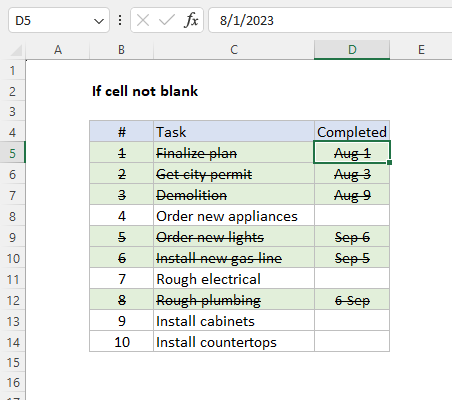
This is an example of applying conditional formatting with a formula. When a date is entered in column D, the formatting will be applied. More examples here .
Explanation
In the example shown, we want to mark or “flag” records where the color is red OR green. In other words, we want to check the color in column B, and then leave a marker (x) if we find the word “red” or “green”. In D6, the formula is:
=IF(OR(B6="red",B6="green"),"x","")
This is an example of nesting – the OR function is nested inside the IF function. Working from the inside out, the logical test is created with the OR function:
OR(B6="red",B6="green") // returns TRUE
OR will return TRUE if the value in B6 is either “red” OR “green”, and FALSE if not. This result is returned directly to the IF function as the logical_test argument. The color in B6 is “red” so OR returns TRUE:
=IF(TRUE,"x","") // returns "x"
With TRUE as the result of the logical test, the IF function returns a final result of “x”.
When the color in column B is not red or green, the OR function will return FALSE, and IF will return an empty string ("") which looks like a blank cell:
=IF(FALSE,"x","") // returns ""
As the formula is copied down the column, the result is either “x” or “”, depending on the colors in column B.
Note: if an empty string ("") is not provided for value_if_false, the formula will return FALSE when the color is not red or green.
Increase price if color is red or green
You can extend this formula to run another calculation, instead of simply returning “x”. For example, let’s say you want to increase the price of red and green items only by 15%. In that case, you can use the formula in column E to calculate a new price:
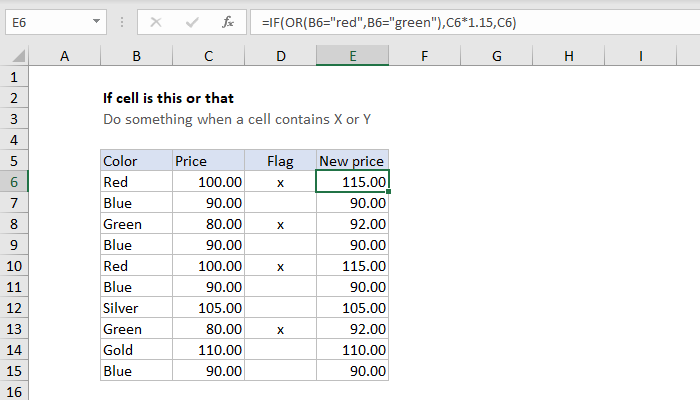
=IF(OR(B6="red",B6="green"),C6*1.15,C6)
The logical test is the same as before. However, the value_if_true argument is now a formula:
C6*1.15 // increase price 15%
When the result of the test is TRUE, we multiply the original price in column C by 1.15, to increase by 15%. If the result of the test is FALSE, we simply return the original price. As the formula is copied down, the result is either the increased price or the original price, depending on the color.
Notes
- The IF function and the OR function are not case-sensitive.
- The IF function can be nested inside itself .
- Text values like “red” are enclosed in double quotes (""). More examples .
