Explanation
The goal is to identify records where the color is “Red” or “Green” and the quantity is greater than 10. If a row meets all conditions, the formula should return “x”. If any condition is not true, the formula should return an empty string (""). This problem can be solved with the IF function together with the OR function and the AND function.
IF function
The IF function runs a logical test and returns one value for a TRUE result, and another value for a FALSE result. For example, if cell A1 contains the text “Red”, then:
=IF(A1="red",TRUE) // returns TRUE
=IF(A1="blue",TRUE) // returns FALSE
Notice the IF function is not case-sensitive. Also, notice that IF automatically returns FALSE even though no value is provided for a false result.
OR function
The OR function returns TRUE if any argument is TRUE. For example, if cell A1 contains “Red” then:
=OR(A1="Red",A1="Green") // returns TRUE
=OR(A1="Blue",A1="Green") // returns FALSE
AND function
The AND function returns TRUE if all arguments are TRUE. For example, if cell A1 contains “Red” and B1 contains 10, then:
=AND(A1="Red",B1=10) returns TRUE
=AND(A1="Red",B1=12) returns FALSE
=AND(A1="Blue",B1=10) returns FALSE
Putting it all together
The goal is to identify records where the color is “Red” or “Green” and the quantity is greater than 10. The formula in cell E5 is:
=IF(AND(OR(B5="red",B5="green"),C5>10),"x","")
Note that the OR function appears inside the AND function . This means the OR function must return TRUE in order for the AND function to return TRUE. In other words, the color must be “Red” or “Green” and the quantity must be greater than 10. In cell E5, the formula evaluates like this:
=IF(AND(OR(B5="red",B5="green"),C5>10),"x","")
=IF(AND(OR(TRUE,FALSE),C5>10),"x","")
=IF(AND(TRUE,TRUE),"x","")
=IF(TRUE,"x","")
="x"
Notice the OR function is evaluated first because it is nested inside the AND function. In other words, the OR function must return a result before the AND function can return a result. In the same way, both the OR function and the AND function must return a result before the IF function can return a result. In the end, the IF function returns “x”, because the AND function returns TRUE. In cell E6, the formula evaluates like this:
=IF(AND(OR(B6="red",B6="green"),C6>10),"x","")
=IF(AND(OR(FALSE,FALSE),C6>10),"x","")
=IF(AND(FALSE,FALSE),"x","")
=IF(FALSE,"x","")
=""
The result is an empty string (""), because the color is not “Red” or “Green” and the quantity is not greater than 10. Even if the quantity were greater than 10, the result would be the same because the color would not be “Red” or “Green”.
Note: if we didn’t supply an empty string ("") for the value_if_false argument, the formula would return FALSE when the logical test returned FALSE.
Explanation
The goal is to display a checkmark (also called a “tick mark” in British English) when a task is marked complete. The easiest way to do this is with the IF function and the mark you would like to display. The article below explains several options.
IF with a plain checkmark
The simplest approach, and the one that appears in the example shown, is to use a plain text checkmark like this:
=IF(C5="complete","✓","")
This formula uses the IF function to check for “complete” in column C. When the value is “complete”, IF returns a checkmark (✓). When the value in column C is anything else, IF returns an empty string (""), which looks like a blank cell in Excel. Notice the checkmark itself must be enclosed in double quotes ("") since it is text.
IF with UNICHAR
A more flexible way to display a checkmark is to use the IF function with the UNICHAR function like this:
=IF(C5="complete",UNICHAR(10003),"")
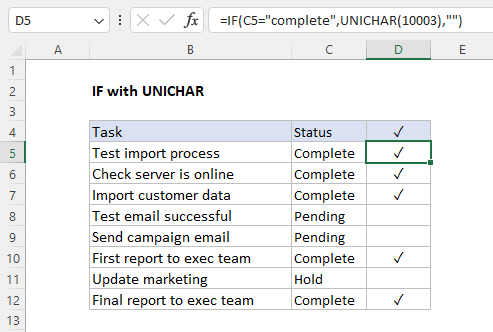
The logic of this formula is the same as the original formula above. However, instead of hardcoding a plain text version of a checkmark into the formula, the UNICHAR function is used to return the Unicode character 10003. The benefit of this approach is that you can easily change the number to display a different character. Here are a few examples of Unicode characters related to check and tick marks:
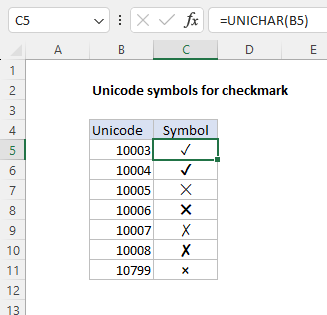
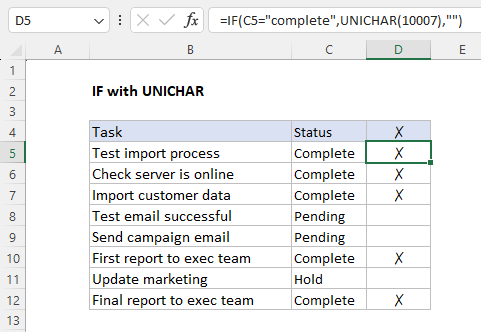
To use a different symbol, change the number in the formula. For example, use 10007 for an “X”:
=IF(C5="complete",UNICHAR(10007),"")
For more useful Unicode symbols, see: How to use the UNICHAR function .
IF with CHAR
An older way to display a checkmark in a formula is to use IF with the CHAR function , then format the result with the Wingdings font:
=IF(C5="complete",CHAR(252),"")
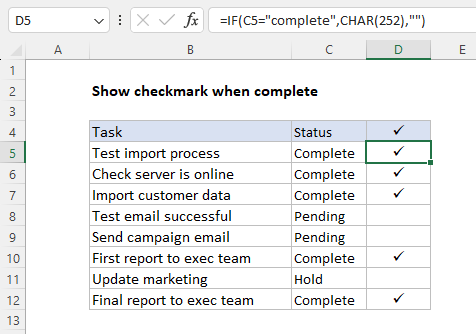
Note: with this option, you must format the range D4:D12 with the Wingdings font. If you skip this step, you will not see a checkmark. Instead, you will see a character like “ü” or similar.
With conditional formatting
You can also use Excel’s built-in conditional formatting icons to show a checkmark, but you don’t have much flexibility. Visit this page for a comprehensive guide on conditional formatting with formulas, featuring many practical examples.
