Explanation
The goal is to identify dates in column B that fall between a given start date and end date. The start and end dates are exposed as inputs on the worksheet that can be changed at any time, labeled “Start” and “End” in the example shown.
Named ranges
For convenience, both start (E5) and end (E8) are named ranges that can be used directly in the formula. If you prefer not to use named ranges, use absolute references like $E$5 and $E$8 to prevent these references from changing as the formula is copied down the table.
=IF(AND(B5>=$E$5,B5<=$E$8),"x","")
Excel dates
Excel dates are just large serial numbers and can be used in any numeric calculation or comparison. This means we can compare one date to another date with a logical operator like greater than or equal (>=) or less than or equal (<=) like any other number.
AND function
The AND function returns TRUE if all arguments are TRUE. For example, if cell A1 contains “Red” and B1 contains 10, then:
=AND(A1="Red",B1>5) returns TRUE
=AND(A1="Red",B1>12) returns FALSE
=AND(A1="Blue",B1>5) returns FALSE
In this example, the main task is to construct a logical test to find dates that fall between the start and end dates. The first comparison is against the start date. We want to check if the date in B5 is greater than or equal (>=) to the date in cell E5, which is the named range start :
=B5>=start
The second expression needs to check if the date in B5 is less than or equal (<=) to the end date in cell E5:
=B5<=end
Since we want to test if both conditions are TRUE at the same time, we use the AND function like this:
=AND(B5>=start,B5<=end) // returns TRUE
For cell B5, the result is TRUE, because 11-Jan-2022 is greater than 1-Jan-2022 AND is less than 30-Apr-2022. For cell B6 however, the result is FALSE. Although 1-May-2022 is greater than 1-Jan-2022, it is not less than 30-Apr-2022:
=AND(B6>=start,B6<=end) // returns FALSE
To summarize: the AND function will return TRUE when the date in column B is greater than or equal to start (E5) AND less than equal to end (E8) If either test fails, the AND function will return FALSE. We now have the logical test we can use in the IF function.
IF function
The IF function runs a logical test and returns one value for a TRUE result, and another value for a FALSE result. The generic syntax for IF looks like this:
=IF(logical_test,if_true,if_false)
We start off by placing the expression we developed above inside the IF function as the logical_test argument:
=IF(AND(B5>=start,B5<=end),
Next, we add a value_if_true argument. In this case, we want to return an “x” when a date is between two dates, so we add “x” as a text value :
=IF(AND(B5>=start,B5<=end),"x",
If the date in B5 is not between the start and end dates, we don’t want to display anything, so we use an empty string ("") for value_if_false . The final formula in C5 is:
=IF(AND(B5>=start,B5<=end),"x","")
As the formula is copied down, the formula returns “x” if the date in column B is between the start and end date. If not, the formula returns an empty string (""), which looks like an empty cell in Excel. The values returned by the IF function can be customized as desired.
Explanation
The goal is to return “Small” when the value in column D is “S” and “Large” when the value in column D is “L”. In other words, if the value in column D is “S” return “Small” else return “Large”.
If else in Excel
The concept of “If else” in Excel is handled with the IF function . The IF function runs a test, then returns one value if the result is TRUE, and a different value if the result is FALSE. The generic syntax for IF looks like this:
=IF(test,true_result,false_result)
For example, to check cell A1 and return “Yes” if the value is greater than 100 and “No” if not, you can use the IF function like this:
=IF(A1>100,"Yes","No")
Note that the “else” concept is built into the IF function. The first argument is the logical test, and the second argument is the result (or calculation) to return when the test is TRUE. The third argument is the “else” — the value or calculation to return if the result of the logical test is FALSE.
Example worksheet problem
In the worksheet shown, we have a list of T-shirts that includes color and size. The sizes in column D are abbreviated, with “S” for small and “L” for large. There are only these two sizes in the data. Let’s say you want to write a formula to expand these abbreviations and show either the word “Small” or “Large” in column E. In other words:
- If a cell in column D contains “S”, return “Small”.
- If a cell in column D contains “L”, return “Large”.
This is a perfect application of the IF function. To check the abbreviated size in column D and return either “Small” or “Large”, the formula in cell E5 is:
=IF(D5="S","Small","Large")
Translated, this means: IF cell D5 equals “S”, return “Small”, ELSE return “Large”.
Notice we are only testing for “S” — we don’t need to test for “L”. That’s because we only have two possible values, and the ELSE part of the formula (the FALSE result) logically takes care of “L” for us: if the cell doesn’t contain “S”, it must be “L”.
Text values inside the IF function must be enclosed in double quotes (""), but numbers should not be quoted. See our IF Function page for more details.
Nesting IFs (if elseif)
As seen above, handling a single condition with the IF statement is simple. But how do you implement the idea of “If elseif” in Excel? The formula above works fine if we only have two sizes, Small (“S”) and Large (“L”), but what if we have another size, “M” for “Medium”? In that case, we can extend the formula with another IF statement. We do this by replacing the existing FALSE result with a second IF function. In the example below, we’ve extended the formula to handle a medium size. The formula in E5 is:
=IF(D5="S","Small",IF(D5="M","Medium","Large"))
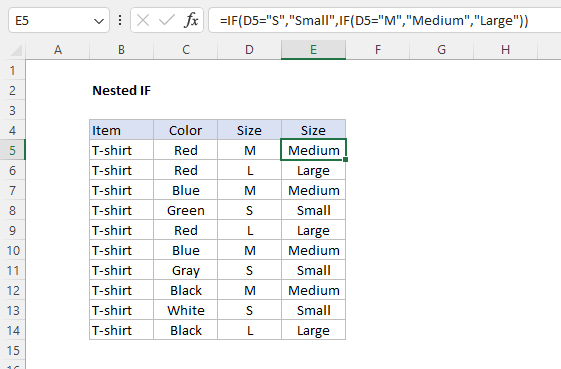
Roughly translated, the formula now means: “If D5 is “S” return “Small”, elseif D5 is “M” return “Medium”, else return “Large”. This technique is called " nesting " since we are placing one function inside another. When more than one IF function is nested together in a formula, you will sometimes hear the formula called a “Nested IF formula” or “Nested IFs” for short. This page has many examples .
Other options
It is possible to nest many IF functions together in a single formula. However, the longer a formula like this gets, the harder it is to read and maintain. Before you create a long nested IF formula, you should consider other options:
- The IFS function is designed to handle multiple options without nesting.
- The VLOOKUP function can handle many options with a simple formula .
