Explanation
The goal is to “flag” records that are neither “Red” nor “Green”. More specifically, we want to check the color in column B, and leave an “x” in rows where the color is NOT “Red” OR “Green”. If the color is “Red” OR “Green”, we want to display nothing.
IF function logic
The IF function is commonly used for simple tests. For example, to return “OK”, when a value is over 100 and “Fail” if not, you can use the IF function in a formula like this:
=IF(A1>100,"OK","Fail")
In this formula, A1>100 is the logical test. The behavior of the IF function can be easily extended by adding functions like AND , OR , and NOT to the logical test. For example, to reverse the existing logic in the formula above, we can add NOT like this:
=IF(NOT(A1>100),"OK","Fail")
Translation: If the value in A1 is NOT greater than 100, then return “OK”. Otherwise, return “Fail”.
In the worksheet shown, the goal is to mark records where the color is NOT “Red” OR “Green” with an “x”. If the color is “Red” or “Green” we don’t want to do anything. The formula in cell D6 is:
=IF(NOT(OR(B6="red",B6="green")),"x","")
In this formula, the logical test is this bit:
NOT(OR(B6="red",B6="green"))
Working from the inside out, we first use the OR function to test for “red” or “green”:
OR(B6="red",B6="green")
OR will return TRUE if B6 is “Red” or “Green”, and FALSE if B6 contains any other value. The NOT function simply reverses this result. Adding NOT means the test will return TRUE if B6 is NOT “Red” or “Green”, and FALSE otherwise:
NOT(OR(B6="red",B6="green"))
The rest of the formula is standard. Since we want to flag items that pass the test, we provide “x” for value_if_true . Since we don’t want to display anything for other values, we provide an empty string ("") for value_if_false . This causes an “x” to appear in column D when the color in column B is NOT “Red” or “Green”. You can extend the OR function to check additional conditions as needed.
Keep in mind that Excel is not case-sensitive by default, so the color names in the formula are all lowercase. The expressions B6=“red”, B6=“Red”, and B6=“RED” will all return the same result. Also, notice that we need to provide an empty string ("") for the false result. This argument is not required, but if we leave it empty, the formula will return FALSE when a color is “Red” or “Green”.
Increase price
You can use other formulas inside the IF function to run a different calculation instead of simply returning “x”. For example, let’s say you want to increase the price for all colors except Red and Green by 15%. If the color is Red or Green, you want to leave the price alone. To perform this task, the formula in E6 below is:
=IF(NOT(OR(B6="red",B6="green")),C6*1.15,C6)
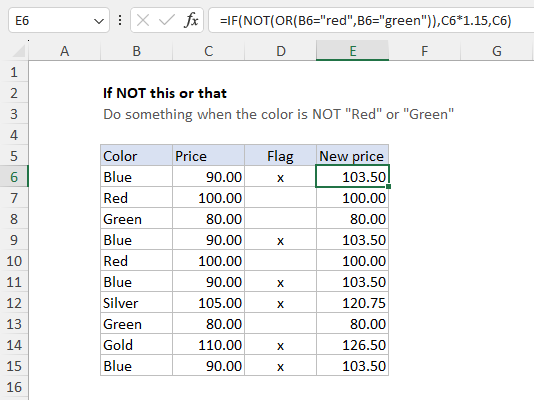
Translation: if the color is NOT “Red” or “Green”, increase the price by 15%. Otherwise, return the original price.
Explanation
The goal is to mark records with an “x” when the color is “Red” and the size is “Small”. To perform this task, you can use the IF function in combination with the AND function .
IF function
The IF function runs a test, then returns one value if the result is TRUE, and a different value if the result is FALSE. The generic syntax for IF looks like this:
=IF(logical_test,value_if_true,value_if_false)
For example, if cell A1 contains the value 75, then you could use IF to return “Pass” or “Fail” like this:
=IF(A1>70,"Pass","Fail") // returns "Pass"
If the value in A1 is 65, then IF returns “Fail”:
=IF(A1>70,"Pass","Fail") // returns "Fail"
Notice that the text values inside IF must be enclosed in double quotes ("").
AND function
The AND function returns TRUE if all arguments are TRUE. For example, if cell A1 contains “Red” and B1 contains 10, then:
=AND(A1="Red",B1>5) returns TRUE
=AND(A1="Red",B1>12) returns FALSE
=AND(A1="Blue",B1>5) returns FALSE
Because the AND function returns TRUE or FALSE, it often appears inside the IF function as a logical test.
IF + AND
In the example shown, we want to identify records where the color is Red and the size is Small. This means we need to test the value in column B for “Red” and test the value in column C for “Small”. We can do that with the AND function like this:
AND(B6="red",C6="small")
Note: Excel formulas are not case-sensitive by default, so B6=“red”, B6=“Red”, and B6=“RED” will all return the same result. For that reason, the text values in the logical test are left in lowercase.
The formula above will return TRUE only if the value in B6 is “Red” AND the value in C6 is “Small”. If either condition isn’t true, the AND function will return FALSE. To process the result from AND and mark a row with an “x” when both conditions are TRUE, we embed the AND formula inside the IF function as the logical test. In D6, the formula is:
=IF(AND(B6="red",C6="small"),"x","")
If the test is FALSE, we don’t want to display anything, so we simply return an empty string (""), which looks like an empty cell in Excel. As the formula is copied down, IF returns an “x” in column D only when the color is Red and the size is Small.
Note: You might wonder if we need to supply an empty string ("") for the false result. Technically, this argument is optional. However, if we don’t provide a value, the IF function will return and display FALSE in all rows that aren’t Red and Small.
Multiple conditions in the same cell
In some scenarios, you may need to evaluate multiple conditions within a single cell. For instance, if you need to verify that a cell value falls within a specific range (e.g., between 100 and 200), you can use the AND function as follows:
=AND(A1>=100,A1<200)
To mark values that meet these conditions, you could use the IF function as before:
=IF(AND(A1>=100,A1<200),"x","")
