Purpose
Return value
Syntax
=IMSQRT(inumber)
- inumber - A string representing a complex number.
Using the IMSQRT function
The Excel IMSQRT function returns the square root of a complex number. For example:
=IMSQRT("3+4i") // returns "2+i"
Excel handles complex numbers as strings formatted like “x+yi” or “x+yj”. Use the COMPLEX function to get the string representing a complex number.
Basic Example
The IMSQRT function returns the complex number’s principal square root (the one with a non-negative real part). For example:
=IMSQRT("2i") // returns "1+i"
The two possible square roots of “2i” are “1+i” and “-1-i”, so “1+i” is returned because it has a non-negative real part.
Square Root of Negative One Example
A fundamental property of complex numbers is that the square root of “-1” is “i”. However, when you take the square root of “-1”, the result contains a tiny error due to how Excel handles floating-point arithmetic.
=IMSQRT("-1") // returns "6.12323399573677E-17+i"
The real part of the return value is a very small number close to zero. For practical purposes, it can be interpreted as just “i” .
Explanation
The square root of a complex number is given by:

Where “r” is equal to the radius of the complex number and “θ” is equal to the angle of the complex number for the branch cut extending from -π to π (excluding -π).
In Excel, we can write the formula equivalent to the complex square root function like this, where B6 contains a string representing a complex number:
=LET(
r, IMABS(B6),
t, IMARGUMENT(B6),
COMPLEX(SQRT(r)*COS(t/2),SQRT(r)*SIN(t/2))
)
Notes
- Excel’s IMSQRT function always returns the principal root with a non-negative real part.
- If the input is not a valid complex number, IMSQRT will return the #NUM! Error.
Purpose
Return value
Syntax
=IMSUB(inumber1,inumber2)
- inumber1 - Complex number 1.
- inumber2 - Complex number 2.
Using the IMSUB function
The IMSUB function returns the difference between two complex numbers. For example:
=IMSUB("4+3i","1+2i") // returns "3+i"
Excel handles complex numbers as strings formatted like “x+yi” or “x+yj”. Use the COMPLEX function to get the string representing a complex number.
Explanation
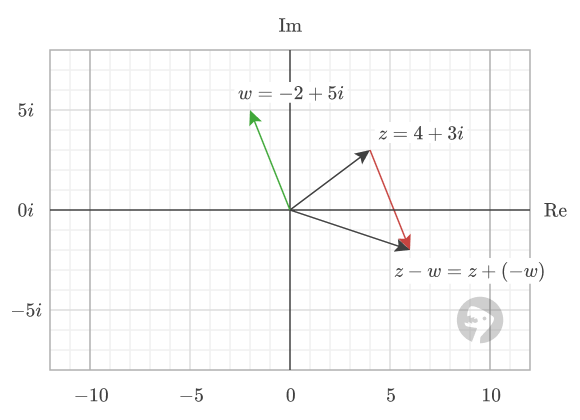
The result of the IMSUB function can be visualized by adding the opposite of the second vector tip-to-tail with the first. For example, the result of the subtraction below
=IMSUB("4+3i","-2+5i") // returns "6-2i"
is visualized like this: