Explanation
In this example, the goal is to look up the correct shipping cost for an item based on the shipping service selected and the item’s weight. At the core, this is an approximate match lookup based on weight. The challenge is that we also need to filter by service. This means we must apply criteria in two steps: (1) match based on Service and (2) match based on Weight. The screen below shows the basic idea:
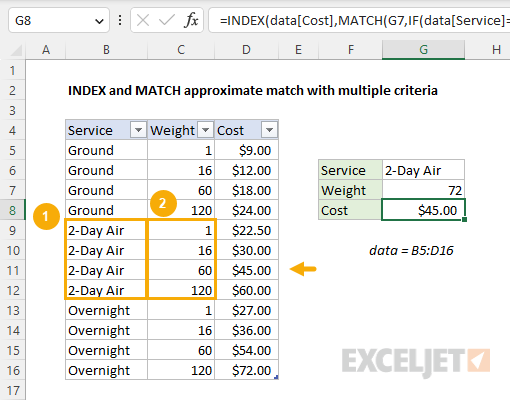
One way to solve this problem is with an INDEX and MATCH and the IF function to perform the required filtering. This works because the IF function returns 12 results, which map to the 12 rows in the table. This means MATCH will still return the correct row in the table even after IF has filtered out the other weights. See below for more details.
Background reading
This article assumes you are familiar with Excel Tables and INDEX and MATCH. If not, see:
- Excel Tables - introduction and overview
- How to use INDEX and MATCH - overview with simple examples
Basic INDEX and MATCH
In INDEX and MATCH formulas, the MATCH function finds the position of an item in a range, and the INDEX function returns the value at that position. If you are new to INDEX and MATCH, see this overview .
Looking at this example from the inside out, the core of the solution is an approximate match lookup based on weight. To illustrate, the screen below shows a simplified version of the same problem with the Service removed completely:

The formula in cell F5 is:
=INDEX(C5:C8,MATCH(F4,B5:B8,1))
Notice the match_type argument inside MATCH is set to 1, to locate the largest value in B5:B8 that is less than or equal to the lookup value in cell F4. In this case, the largest value less than or equal to 72 is 60, so MATCH returns 3 to INDEX as a row number, and INDEX returns $18.00 as a final result:
=INDEX(C5:C8,3) // returns 18
So far, so good. We have a simple working formula that returns the correct cost based on an approximate match lookup. The complication is that we also need to match based on Service. To do that, we need to extend the formula to handle multiple criteria.
Adding criteria for service
We know how to look up costs based on weight. The remaining challenge is that we also need to take into account Service. For simple exact-match scenarios, we can use Boolean logic , as explained here . But in this example, we need to perform an approximate match, so using Boolean logic will become complicated. Another approach is to “filter out” extraneous entries in the table so we are left only with entries that correspond to the Service we are looking up. The classic way to do this is with the IF function . This is the approach used in the example shown, where the formula in cell G8 is:
=INDEX(data[Cost],MATCH(G7,IF(data[Service]=G6,data[Weight]),1))
Note: this is an array formula and must be entered with Control + Shift + Enter in Legacy Excel .
The filtering is done with the IF function, which appears inside the MATCH function like this:
IF(data[Service]=G6,data[Weight])
This code tests the values in the Service column to see if they match the value in G6. Where there is a match, the corresponding values in with Weight column are returned. If there is no match, the IF function returns FALSE. Because there are 12 rows in the table, the IF function returns an array that contains 12 results like this:
{FALSE;FALSE;FALSE;FALSE;1;16;60;120;FALSE;FALSE;FALSE;FALSE}
Notice the only weights that remain in the array are those that correspond to the “2-Day-Air” service; all other weights have been replaced with FALSE. You can visualize this operation in the original data like this:
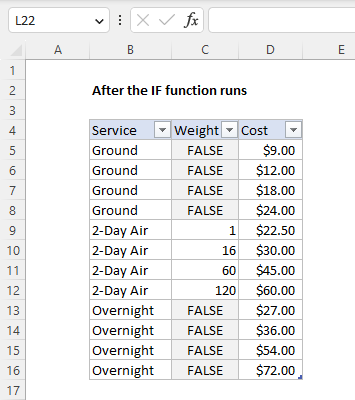
This array is delivered directly to the MATCH function as the lookup_array:
MATCH(G7,{FALSE;FALSE;FALSE;FALSE;1;16;60;120;FALSE;FALSE;FALSE;FALSE},1)
The MATCH function then simply ignores the FALSE values and tries to match the remaining numbers. With a weight of 72 in cell G7, the MATCH function matches 60 and returns 7 to the INDEX function as row_num :
=INDEX(data[Cost],7) // returns 45
With a row number of 7, INDEX returns $45.00 as the final result.
Remember that we are using MATCH in an approximate match mode. With m atch_type set to 1, values in the Weight column must be sorted in ascending order for MATCH to work correctly. See our MATCH function page for more information.
Explanation
In this example, the goal is to perform a case-sensitive lookup on the first name in column B, based on a lookup value in cell F6. By default, Excel is not case-sensitive and this applies to standard lookup formulas like VLOOKUP , XLOOKUP , and INDEX and MATCH . These formulas will simply return the first match, ignoring case. For example, the formula in cell G5 is a standard INDEX and MATCH formula that is not case-sensitive:
=INDEX(data,MATCH(F5,data[First],0),3) // returns "Sales"
Since MATCH is not case sensitive, it returns the first match for “Janet” in row 2 of the table, even though the lookup value is “JANET” in uppercase.
We need a way to get Excel to compare case. The EXACT function is perfect for this task, but the way we use it is a little unusual. Instead of comparing one text value to another, we compare one text value to many values. In a nutshell, we use the EXACT function to generate an array of TRUE and FALSE values, then use the MATCH function to locate the first TRUE.
Background reading
This article assumes you are familiar with Excel Tables and INDEX and MATCH. If not, see:
- Excel Tables - introduction and overview
- How to use INDEX and MATCH - overview with simple examples
EXACT function
Working from the inside out, we first use the EXACT function to compare the lookup value in F6 with every value in the “First” column in the table:
EXACT(F6,data[First])
Because we give EXACT an array of values as a second argument, we will get back an array of TRUE and FALSE results. The first 10 results in this array look like this:
{FALSE;FALSE;FALSE;FALSE;FALSE;TRUE;FALSE;FALSE;FALSE;FALSE;...
Note: the actual array will contain 100 values since there are 100 rows in the table.
This array is created by checking the value in F6 against every cell in the “First” column of the table. A TRUE value indicates an exact, case-sensitive match. A FALSE value means no exact match. Based on the results above, we have an exact match at row 6 of the table.
MATCH function
Now we need to get the position (row number) of the TRUE value in this array. With INDEX and MATCH formulas, this is done with the MATCH function . The twist in this case is that we set up MATCH to look for TRUE instead of the original lookup value in F6:
MATCH(TRUE,EXACT(F6,data[First]),0) // returns 6
Inside the MATCH function, lookup_value is TRUE, lookup_array comes from EXACT, and the match_type argument is set to 0 for exact match. It may seem strange to ask MATCH to look for TRUE, but remember that the EXACT function is creating an array of TRUE and FALSE values. When EXACT delivers this array to MATCH, the original data is no longer available. The MATCH function returns 6.
Note: MATCH will always return the first match if there are duplicate lookup values.
INDEX and MATCH
Now that we have a row number, we just need to use the INDEX function to retrieve the value at the right row and column intersection. The MATCH function returns the number 6 for row_num , as explained above. The column_num argument is hardcoded as 3, since array is given as data , which includes all three columns. The final formula is:
=INDEX(data,MATCH(TRUE,EXACT(F6,data[First]),0),3)
With a row number of 6 and a column number of 3, INDEX returns a final result of “Fulfillment”.
With XLOOKUP
With the XLOOKUP function , we can build a more compact formula with the same result:
=XLOOKUP(TRUE,EXACT(F6,data[First]),data[Department])
This formula works exactly the same as the INDEX and MATCH option explained above. The EXACT function is used to compare all values in the “First” column of the table with the value in cell F6. The result is returned directly to XLOOKUP as the lookup_array . The lookup_value is set to TRUE, and return_array is the “Department” column. For a more detailed explanation of XLOOKUP, see this example .
