Purpose
Return value
Syntax
=INDIRECT(ref_text,[a1])
- ref_text - A reference supplied as text.
- a1 - [optional] A boolean to indicate A1 or R1C1-style reference. Default is TRUE = A1 style.
Using the INDIRECT function
The INDIRECT function converts a text string like “Sheet1!A1” into a valid reference like =Sheet1!A1 . That sounds simple enough, but of all Excel’s many functions , INDIRECT might be the most confusing to users. Why would you use text when you can simply provide a normal reference? Well, one reason is that you already have a reference as text (perhaps in a cell), and you want to make Excel understand the text as a reference . Another reason is that you want to build a dynamic reference using different bits of information. With text, it’s easy to hardcode some values, pick up other values on the worksheet, and join the values together using concatenation . The problem, however, is that once you have created a reference as text, Excel won’t recognize it as a reference. To Excel, it’s just an ordinary text value. The INDIRECT function is like a magic wand that converts a text value to an actual reference.
INDIRECT is a volatile function and can cause performance issues in large or complex worksheets.
Quick syntax demo
INDIRECT takes two arguments , in a generic syntax like this:
=INDIRECT(ref_text,[a1])
Ref_text is the text string to evaluate as a reference. The second argument, a1 , is optional and indicates the “style” of the reference provided. When a1 is omitted (or TRUE), INDIRECT evaluates ref_text as an “A1” style reference. When a1 is FALSE, INDIRECT evaluates ref_text as an “R1C1” style reference. For example:
=INDIRECT("A1") // returns a reference to A1
=INDIRECT("C5") // returns a reference to C5
=INDIRECT("R1C1",FALSE) // returns a reference to A1
=INDIRECT("R5C3",FALSE) // returns a reference to C5
Note: the a1 argument only changes the way INDIRECT evaluates ref_text, not the result.
Things to know about INDIRECT
Here are some things you should know about the INDIRECT function:
- The input to INDIRECT is text . You can create this text any way you like.
- INDIRECT will evaluate the text and convert it into a valid reference .
- If INDIRECT can’t understand the text as a reference, it will return a #REF error.
- INDIRECT can cause performance problems in large or complex worksheets. Use with care.
Here are a few ways you can use the INDIRECT function in a formula:
- Create a formula that uses a sheet name entered in a cell.
- Create a lookup formula with a variable lookup table.
- A formula that can assemble a cell reference from bits of text
- Create a fixed reference that will not change even when rows or columns are deleted
- Create numeric arrays with the ROW function in older versions of Excel.
Example 1 - the basic idea of INDIRECT
The worksheet below shows the basic idea of the INDIRECT function. The text entered in column E represents different ranges. However, if we try to use the text directly in the SUM function as a range, SUM returns zero:
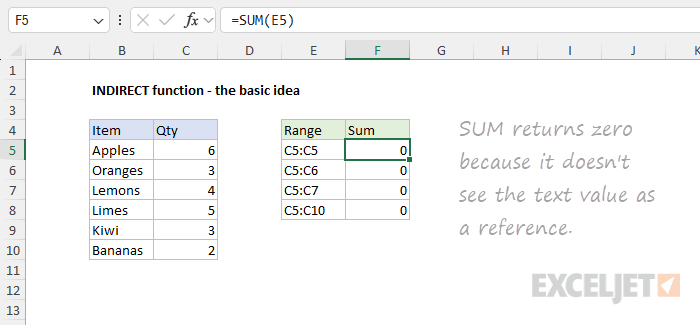
This happens because SUM doesn’t see the text value as a reference; it simply sees a text string:
=SUM(E6)
=SUM("C5:C6")
=0
The solution is to add the INDIRECT function, which converts the text values into actual ranges:
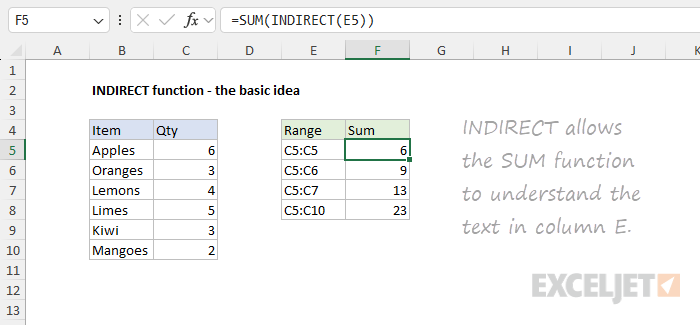
Notice in the second line below, we still have a text value, but in the third line we have the range C5:C6, and SUM now returns 9:
=SUM(INDIRECT(E6))
=SUM(INDIRECT("C5:C6"))
=SUM(C5:C6)
=9
Example 2 - Variable worksheet name
In the example shown below, INDIRECT is set up to use a variable sheet name. The formula in cell C5 is:
=INDIRECT(B5&"!A1") // sheet name in B5 is variable
The formula in C5 concatenates the text in B5 to the string “!A1” and returns the result to INDIRECT. The INDIRECT function then evaluates the text and converts it to a valid reference. As the formula is copied down, it returns the value in cell A1 for each of the 5 sheets listed in column B.
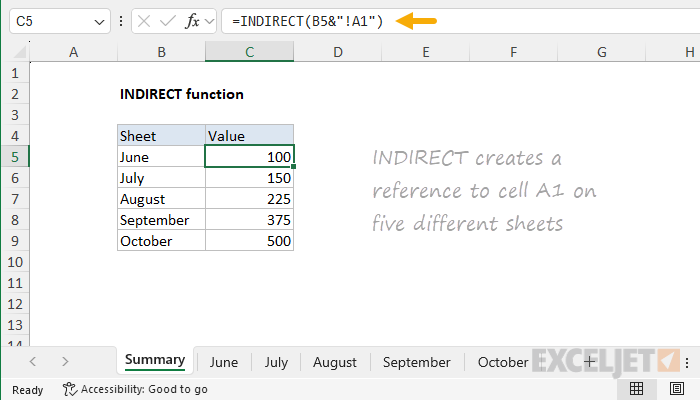
The formula is dynamic and responds to the sheet names in column B. If the sheet names are changed, the formula will automatically recalculate.
Note: As explained in this example , sheet names that contain punctuation or spaces must be enclosed in single quotes (’). This is not specific to the INDIRECT function; the same limitation is true in all formulas. The modified formula is below.
If the sheet names in your worksheet include spaces or punctuation, use the formula below:
=INDIRECT("'"&B5&"'!A1") // single quotes added
Example 3 - INDIRECT with a dropdown list
Using the same approach explained in the example above, we can allow a user to select a sheet name from a dropdown list and then construct a reference to cell A1 on the selected sheet with INDIRECT. The formula in cell C5 is the same:
=INDIRECT(B5&"!A1") // sheet name from dropdown

When a different sheet name is selected, the formula will recalculate. First, the sheet name in cell B5 will be concatenated to the text “!A1” to produce a text string like “August!A1”. Next, INDIRECT will convert the text into a regular reference like =August!A1 . Note that cell A1 is used only as an example. You can change the cell reference as desired.
Example 4 - Variable lookup table
In the worksheet below, VLOOKUP is used to get costs for two vendors, A and B. Using the vendor indicated in column F, VLOOKUP automatically uses the correct table:
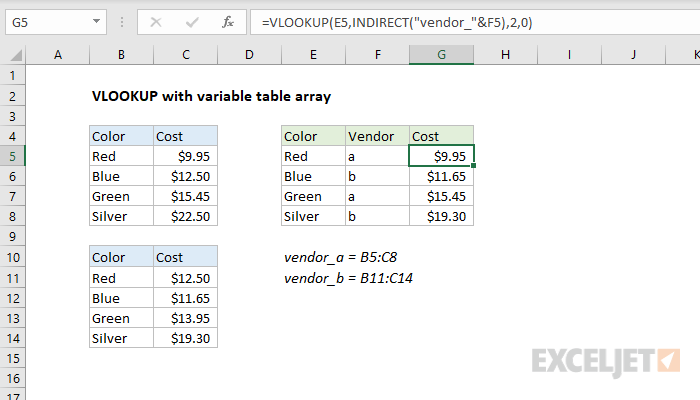
The formula in G5 is:
=VLOOKUP(E5,INDIRECT("vendor_"&F5),2,0)
Read a full explanation here .
Example 5 - Fixed reference
Normally, a reference like A1:A100 will change if rows or columns are deleted. For example, if a row is deleted in this range, the reference will become A1:A99. To create a reference that will not change, you can use the INDIRECT function like this:
=INDIRECT("A1:A100") // fixed reference
Because the text value is static, the reference created by INDIRECT will not change even when cells, rows, or columns are inserted or deleted. The formula below will always refer to the first 100 rows of column A.
Example 6 - named range
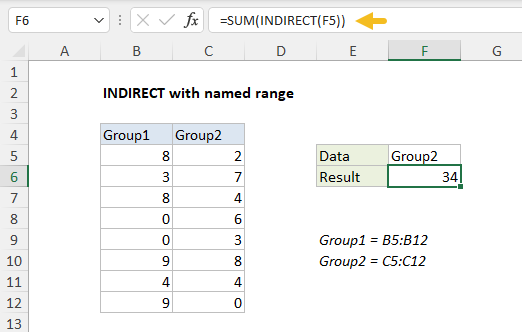
The INDIRECT function can easily be used with named ranges. The worksheet below contains two named ranges : Group1 (B5:B12) and Group2 (C5:C12). When “Group1” or “Group2” is entered in cell F5, the formula in cell F6 sums the appropriate range using INDIRECT like this:
=SUM(INDIRECT(F5))
The value in F5 is text, but INDIRECT converts the text into a valid range.
A specific example of this approach is using named ranges to make dependent dropdown lists .
Example 7 - Generate a numeric array
A more advanced use of INDIRECT is to create a numeric array with the ROW function, like this:
ROW(INDIRECT("1:10")) // create {1;2;3;4;5;6;7;8;9;10}
One use case is explained in this formula , which sums the bottom n values in a range. You may also run into the ROW + INDIRECT approach in more complex formulas that need to assemble a numeric array “on the fly”. One example is this formula, designed to strip numeric characters from a string .
Note: this approach only makes sense in older versions of Excel. In the current version of Excel, you can easily create a numeric sequence with the SEQUENCE function .
Troubleshooting INDIRECT
Working with the INDIRECT function can be tricky because you can’t actually see the reference it returns. Instead, you just see the value at the reference when it works, or an error if the reference is invalid. Here are some troubleshooting tips:
- Be sure you have a good understanding of How to concatenate in Excel . Many INDIRECT problems are caused by text values that can’t be coerced into a valid reference.
- Be sure to include single quotes when referencing sheet names that contain spaces or punctuation (i.e., ‘Sheet 1’!A1 ).
- Debug the text string being delivered to INDIRECT with the F9 key to confirm it meets expectations.
- Work in small steps to make sure INDIRECT is returning the reference you expect before plugging it into a more complex formula.
Notes
- References created by INDIRECT are evaluated in real-time, and the value at the reference is returned.
- When ref_text is an external reference to another workbook, the workbook must be open.
- When a1 is TRUE (the default value), INDIRECT evaluates ref_text as an “A1” style reference.
- When a1 is FALSE, INDIRECT evaluates ref_text as an “R1C1” style reference.
- INDIRECT is a volatile function and can cause performance issues in large or complex worksheets.
Purpose
Return value
Syntax
=LOOKUP(lookup_value,lookup_vector,[result_vector])
- lookup_value - The value to search for.
- lookup_vector - The array or range to search.
- result_vector - [optional] The array or range to return.
Using the LOOKUP function
The LOOKUP function is one of the original lookup functions in Excel. You can use LOOKUP to look up a value in one range or array and return the corresponding value from another range or array. Like the newer XLOOKUP function, LOOKUP can look up values in either rows or columns. However, unlike XLOOKUP, LOOKUP can only perform an approximate match.
LOOKUP has certain default behaviors that make it useful for solving tricky problems in Excel:
- LOOKUP always performs an approximate match.
- LOOKUP assumes that the lookup_vector is sorted in ascending order.
- LOOKUP can look up values in vertical or horizontal ranges/arrays.
- When LOOKUP can’t find an exact match, it matches the next smallest value.
- It can handle some array operations without control + shift + enter (in older versions of Excel).
Here is an example of a traditionally difficult problem that LOOKUP has been able to solve for many years: Get value of last non-empty cell. With the introduction of new power functions like XLOOKUP and XMATCH, LOOKUP is not as important as it was in the past, but if you must use an old version of Excel, LOOKUP can still be quite useful.
The LOOKUP function accepts three arguments: lookup_value, lookup_vector, and result_vector. The first argument, lookup_value, is the value to look for. The second argument, lookup_vector , is the range or array to search. The third argument, result_vector, is the range or array from which to return a result. Result_vector is optional. If result_vector is not provided, LOOKUP returns the value of the match found in lookup_vector . The LOOKUP function has two forms: vector and array. Most of this article describes the vector form, but the last example below explains the array form.
Example #1 - basic usage
In the example shown above, the formula in cell F5 returns the value of the match found in column B. Note that result_vector is not provided:
=LOOKUP(F4,B5:B9) // returns match in level
The formula in cell F6 returns the corresponding Tier value from column C. Notice in this case, both lookup_vector and result_vector are provided:
=LOOKUP(F4,B5:B9,C5:C9) // returns corresponding tier
In both formulas, LOOKUP automatically performs an approximate match, so lookup_vector must be sorted in ascending order.
Example #2 - last non-empty cell
LOOKUP can be used to get the value of the last filled (non-empty) cell in a column. In the screen below, the formula in F6 is:
=LOOKUP(2,1/(B:B<>""),B:B)
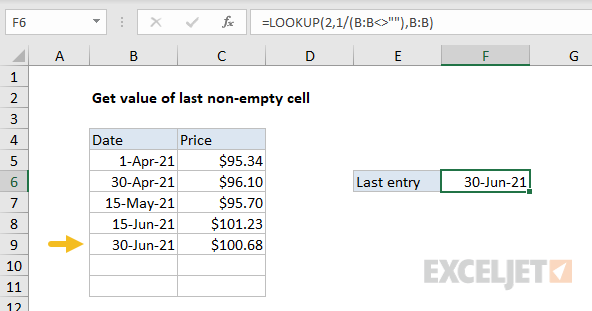
Note the use of a full column reference . This is not an intuitive formula, but it works well. The key to understanding this formula is to recognize that the lookup_value of 2 is deliberately larger than any values that will appear in the lookup_vector . Detailed explanation here .
Example #3 - latest price
Like the above example, the lookup function can be used to look up the latest price in data sorted in ascending order by date. In the screen below, the formula in G5 is:
=LOOKUP(2,1/(item=F5),price)
where item (B5:B12) and price (D5:D12) are named ranges .
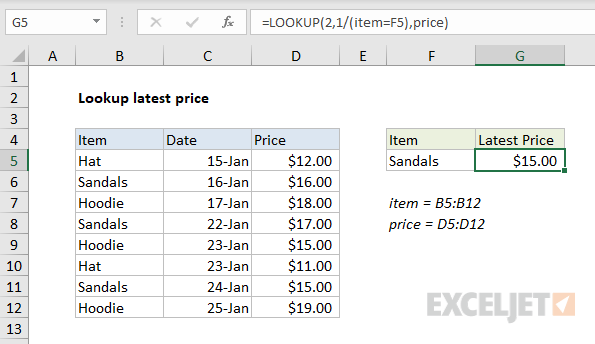
When lookup_value is greater than all values in lookup_array , the default behavior is to “fall back” to the previous value. This formula exploits this behavior by creating an array that contains only 1s and errors, then deliberately looking for the value 2, which will never be found. More details here .
Example #4 - array form
The LOOKUP function has an array form as well. In the array configuration, LOOKUP takes just two arguments: the lookup_value , and a single two-dimensional array:
LOOKUP(lookup_value, array) // array form
In the array form, LOOKUP evaluates the array and automatically changes behavior based on the array dimensions. If the array is wider than tall, LOOKUP looks for the lookup value in the first row of the array (like HLOOKUP ). If the array is taller than wide (or square), LOOKUP looks for the lookup value in the first column (like VLOOKUP ). In either case, LOOKUP returns a value at the same position from the last row or column in the array. The example below shows how the array form works. The formula in F5 is configured to use a vertical array, and the formula in F6 is configured to use a horizontal array:
=LOOKUP(E5,B5:C9) // vertical array
=LOOKUP(E6,C11:G12) // horizontal array
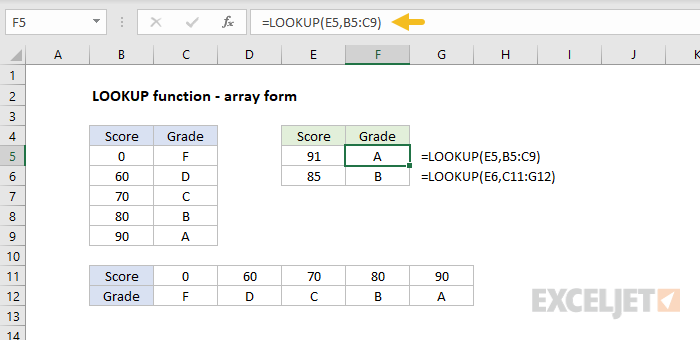
The vertical and horizontal arrays contain the same values; only the orientation is different.
Note: Microsoft discourages the use of the array form and suggests VLOOKUP and HLOOKUP as better options.
Notes
- LOOKUP assumes that lookup_vector is sorted in ascending order.
- When lookup_value can’t be found, LOOKUP will match the next smallest value .
- When lookup_value is greater than all values in lookup_vector , LOOKUP matches the last value.
- When lookup_value is less than the first value in lookup_vector , LOOKUP returns #N/A.
- Result_vector must be the same size as lookup_vector .
- LOOKUP is not case-sensitive
