Explanation
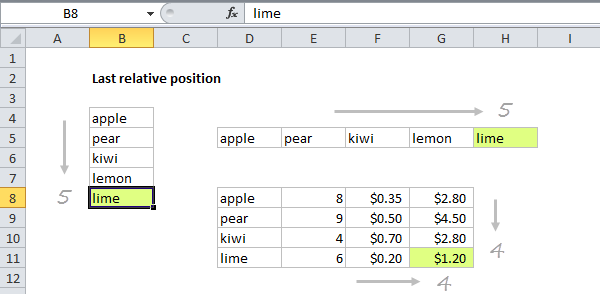
When constructing more advanced formulas, it’s often necessary to figure out the last location of data in a list. Depending on the data, this could be the last row with data, the last column with data, or the intersection of both. We want the last relative position inside a given range not the row number on the worksheet:
This formula uses the MATCH function configured to find the position of the last non-empty cell in a range. Working from the inside out, the lookup array inside MATCH is constructed like this:
=1/(B4:B10<>""))
=1/{TRUE;FALSE;TRUE;FALSE;TRUE;TRUE;FALSE}
={1;#DIV/0!;1;#DIV/0!;1;1;#DIV/0!}
Note: all values in the array are either 1 or the #DIV/0! error.
MATCH is then set to match the value 2 in “approximate match mode”, by omitting the 3rd argument is omitted.
Because the lookup value of 2 will never be found, MATCH will always find the last 1 in the lookup array, which corresponds to the last non-empty cell.
This approach will work with any kind of data, including numbers, text, dates, etc. It also works with null text strings that are returned by formulas like this:
=IF(A1<100,"")
Dynamic range
You can use this formula to create a dynamic range with other functions like INDEX and OFFSET. See the links below for examples:
- Dynamic range with INDEX and COUNTA
- Dynamic range with OFFSET and COUNTA
Inspiration for this article came from Mike Girvin’s excellent book Control + Shift + Enter , where Mike does a great job explaining the concept of “last relative position”.
Explanation
This formula uses the COUNTA function to count values in a range. COUNTA counts both numbers and text to so works well with mixed data.
The range B4:B8 contains 5 values, so COUNTA returns 5. The number 5 corresponds to the last row (last relative position) of data in the range B4:B100.
Note: This approach will fail if the range contains blank/empty cells. This formula based on the LOOKUP function can handle empty cells in the data.
Dynamic range
You can use this formula to create a dynamic range with other functions like INDEX and OFFSET. See links below for examples and explanation:
- Dynamic range with INDEX and COUNTA
- Dynamic range with OFFSET and COUNTA
Inspiration for this article came from Mike Girvin’s excellent book Control + Shift + Enter .
