Explanation
In this example, we’ll use SEQUENCE to generate all dates in a given month. Creating a complete list of dates for a specific month is a common Excel task with many practical applications, from building project timelines and work schedules to generating calendar views and tracking daily data. The input is any date within the target month (it doesn’t matter which specific day), and the output is a dynamic list that automatically adjusts when you change the input date. The technique works because Excel stores dates as serial numbers , allowing SEQUENCE to count through them just like any other numeric sequence. Although the core of the solution is SEQUENCE, it’s also interesting how we use the DAY and EOMONTH functions to calculate the inputs to SEQUENCE. The EOMONTH function is particularly useful and comes up in all kinds of other formulas. The DAY function (together with EOMONTH) is a clever way to get the total days in a month.
- The SEQUENCE function
- SEQUENCE with dates
- SEQUENCE to list all dates in a month
- LET version of the formula
- All dates between two dates
- Current month dates with TODAY function
- Approach for older versions of Excel
- Useful links
The SEQUENCE function
The SEQUENCE function can generate numeric sequences using a generic syntax like this:
=SEQUENCE(rows,[columns],[start],[step])
Rows is the number of rows to return, columns is the number of columns to return, start is the starting value, and step is the increment to use between values. The arguments columns , step , and start all default to 1. For example, we can ask for the numbers 1-10 like this:
=SEQUENCE(10) // returns {1;2;3;4;5;6;7;8;9;10}
To get the numbers 51-60, we can set start to 50:
=SEQUENCE(10,,50) // returns {50;51;52;53;54;55;56;57;58;59}
In both formulas above, SEQUENCE generates an array of numbers that will spill into 10 rows.
SEQUENCE with dates
Because dates are just numbers in Excel, we can easily configure SEQUENCE to output dates. For example, to output the first 5 days in May 2025, we could use a formula like this:
=SEQUENCE(5,,"1-May-2025") // returns {45778;45779;45780;45781;45782}
The result will be an array of serial numbers, as shown above. In this array, the number 45778 corresponds to the date 1-May-2025 in Excel’s date system . To display these numbers as dates, apply number formatting .
SEQUENCE to list all dates in a month
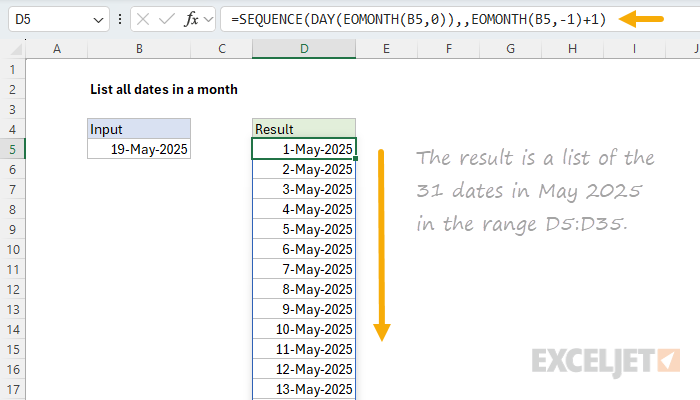
In the worksheet shown, we want to generate a list of all dates in a given month, where the month is input as a date in cell B5. To use SEQUENCE for this task, we need to calculate two input values based on the date in B5: (1) the number of days in the month and (2) the first day of the month. To get the number of days in the month, we can use the DAY function like this:
=DAY(EOMONTH(B5,0))
In this snippet, we use EOMONTH to get the last day of the current month (note the offset is zero), then we use the DAY function to get the number of days in the month. For example, with a date like 15-May-2025 in B5, EOMONTH returns the date 31-May-2025, and DAY returns 31, which is equal to the number of days in the month. To get the first day of the month, we can use the EOMONTH function like this:
=EOMONTH(B5,-1)+1 // get first day in month
Here, we use EOMONTH to travel back to the last day of the “previous” month and then add 1 to move forward one day to land on the first day of the “current” month, relative to the date in B5. The final formula in cell D5 looks like this:
=SEQUENCE(DAY(EOMONTH(B5,0)),,EOMONTH(B5,-1)+1)
The inputs provided to SEQUENCE are as follows:
- rows - DAY(EOMONTH(B5,0)) // days in month
- columns - omitted, defaults to 1
- start - EOMONTH(B5,-1)+1 // first of month
- step - omitted, defaults to 1
With the above configuration, SEQUENCE returns an array of 31 serial numbers that correspond to all dates in May 2025:
{45778;45779;45780;45781;45782;45783;45784;45785;45786;45787;45788;45789;45790;45791;45792;45793;45794;45795;45796;45797;45798;45799;45800;45801;45802;45803;45804;45805;45806;45807;45808}
You must apply a number format for dates to display these serial numbers as dates.
The output is fully dynamic. If the date in B5 is changed to 9-Jun-2025, the formula will list the 30 dates in June 2025. Notice that the actual date given to SEQUENCE doesn’t matter because the formula automatically calculates the first day of the month (with EOMONTH, as explained above) for the start value in SEQUENCE.
LET version of the formula
We can use the LET function to clean up the formula above somewhat like this:
=LET(
  date,B5,
  first,EOMONTH(date,-1)+1,
  days,DAY(EOMONTH(date,0)),
  SEQUENCE(days,,first)
)
This is an excellent example of how the LET function creates cleaner code and results in a formula that is easier to read and debug.
Tip: To see the entire formula above in the formula bar, use the shortcut Control + U.
All dates between two dates
The generic formula to create a list of all dates between two dates looks like this:
=SEQUENCE(end-start+1,1,start)
This can be adapted to generate a list of all dates in a month like this:
=LET(
  date,B5,
  first,EOMONTH(date,-1)+1,
  last,EOMONTH(date,0),
  SEQUENCE(last-first+1,,first)
)
The results will be the same, but I think the first formula above is slightly easier to understand and configure.
Current month dates with TODAY function
To generate a list of all dates in the current month (without needing to specify a date in a cell), you can replace the cell reference with the TODAY function :
=SEQUENCE(DAY(EOMONTH(TODAY(),0)),,EOMONTH(TODAY(),-1)+1)
This formula automatically lists all dates for the current month and updates continuously. For example, if today is June 15, 2025, the formula will generate all 30 dates in June 2025. Tomorrow, if it’s still June, it will show the same list, but if the month changes to July, it will automatically update to show all 31 dates in July 2025.
The formula works exactly the same way as the previous version, but uses TODAY() instead of a cell reference to determine the target month. This approach is useful for things that need to stay up-to-date:
- Dashboard reports that always show current month data
- Daily logs or tracking sheets that auto-update
- Templates that need to work regardless of when they’re opened
Approach for older versions of Excel
In older versions of Excel, we don’t have the SEQUENCE function, so we need to take a different approach. There are many options for this kind of problem, but I think the approach shown below works pretty well:
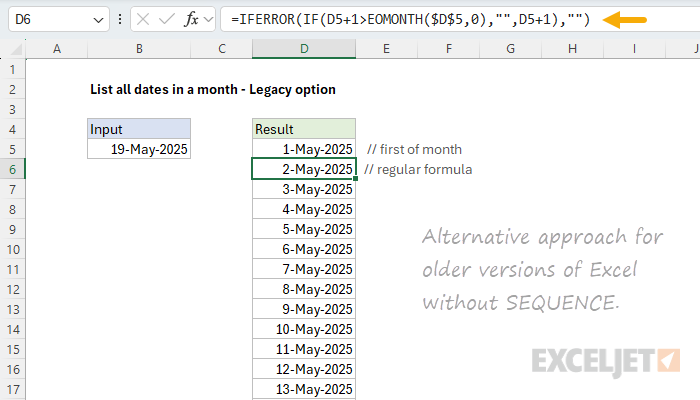
There are two different formulas in the worksheet. The first formula in cell D5 gets the first-of-month from the date in cell B5 like this:
=EOMONTH(B5,-1)+1
The second formula, entered in cell D6 and copied down manually until it returns nothing, looks like this:
=IFERROR(IF(D5+1>EOMONTH($D$5,0),"",D5+1),"")
Working from the inside out, the core formula increments dates with the IF function like this:
IF(D5+1>EOMONTH($D$5,0),"",D5+1)
The formula first adds 1 to the value in D5, then checks if the resulting date is greater than the last day of the month, calculated with EOMONTH($D$5,0) . If so, IF returns an empty string (""), which looks like a blank cell. If not, the result is D5+1, which adds one day to the previous date. As the formula is copied down, it generates all dates in the given month and then begins to output “blank” cells. To handle the #VALUE! error that arises after the first blank cell, the core formula above is wrapped in the IFERROR function :
=IFERROR(formula,"")
IFERROR catches the value error and returns an empty string ("") when necessary. The result is that you can copy the formula well past the end of the month and not see any errors.
Useful links
- How to use the SEQUENCE function - overview
- The SEQUENCE function - 3 min video
- SEQUENCE of dates - 3 min video
- Dynamic Array Formulas - Video training
Explanation
In this example, the goal is to generate a list of “nth weekdays of the month” with a formula. For example, the formula should be able to create a list of any of the following:
- 2nd Tuesdays of the month
- 1st Fridays of the month
- 3rd Mondays of the month
This is a somewhat challenging problem in Excel, because there is no built-in function to help you find, say, the 2nd Tuesday of a given month. However, Excel offers many other powerful functions that can be used to craft a custom solution. At a high level, the approach I’ve taken here to solve this problem looks like this:
- Define a start date and end date
- Generate a list of all dates between these dates
- Filter the list of dates by the supplied “day of week”
- Calculate an instance number for each date
- Filter the dates again by the desired instance number
This is a “brute force” approach, in that we don’t try to do anything clever when we create our initial list of dates. Instead, we simply generate all the dates in the date range, then we come back and selectively remove dates we don’t want until we are left with a final list of desired dates.
Note: If you just need a single nth day in a month (i.e., the 3rd Friday in a given month), use the formula on this page .
Key functions
This is a more advanced formula based on several newer functions in Excel. If you are unfamiliar with these functions, use the links below for reference:
- LET function
- SEQUENCE function
- FILTER function
- LAMBDA function
- BYROW function
We also have video training on Dynamic Array Formulas .
Define a start and end date
The start and end date are defined in the first six lines of the formula here:
=LET(
start,EOMONTH(TODAY(),-1)+1,
months,B5,
n,B11,
dow,B8,
end,EDATE(start,months)-1,
We open with the LET function , which allows us to declare and define a number of variables. The first variable is “start”, which we define to be the first day of the current month like this:
EOMONTH(TODAY(),-1)+1 // start
Moving on, we then declare and assign values to “months” (12), “n” (2), and “dow” (“Tuesday”). The abbreviation “dow” stands for “day of week”. Finally, we use the EDATE function to define a value for “end”:
EDATE(start,months)-1 // end
Here, we use EDATE to move 12 months forward from the start date (defined above as the 1st day in the current month), then we subtract 1 day to end up on the last day of the previous month. This gives us a date range that spans the full number of months.
At this point, we are done with set-up and have everything we need to begin generating dates.
Generate a list of all dates
Next, we use the SEQUENCE function to generate a list of all dates between start and end like this:
SEQUENCE(end-start+1,1,start,1)
This works because Excel dates are stored as large serial numbers, and SEQUENCE is designed to generate numeric arrays. The resulting array of dates is assigned to the variable “dates”. For more details, see Sequence of days .
Filter the list of dates by day of week
Next, we need to filter the list of days by the “target” day of the week, previously defined as “dow” above, and given the value “Tuesday” from cell B8. To filter the list, we use the FILTER function like this:
FILTER(dates,TEXT(dates,"dddd")=dow)
Essentially, FILTER removes all dates that are not Tuesdays, by using the TEXT function to get the weekday name of each date and testing the name against the value assigned to dow (“Tuesday”) . The resulting array of dates is assigned to the variable “fdates” which stands for “filtered dates”.
Calculate an instance number for each date
Next, we perform the trickiest step in the formula, which is to calculate an “instance” number for each date in fdates . We do this with the BYROW function and like this:
BYROW(fdates,LAMBDA(d,SUM((TEXT(d,"mmyy")=TEXT(fdates,"mmyy"))*(d>=fdates))))
The BYROW function applies a custom LAMBDA function to each row of a given array and returns one result per row. In this case, we are using BYROW to process fdates , the array of Tuesdays defined in the previous step. Inside the LAMBDA function “d” is a variable that represents a single date in fdates . The calculation that is applied to each row looks like this:
SUM((TEXT(d,"mmyy")=TEXT(fdates,"mmyy"))*(d>=fdates))
At a high level, BYROW works through each date (d) in fdates and asks two questions:
- Is the date (d) in the same year and month as other filtered dates (fdates)?
- is the date (d) greater than or equal to the other dates in fdates?
The logic for the first question is based on the TEXT function here:
TEXT(d,"mmyy")=TEXT(fdates,"mmyy"))
The logic to answer the second question is here:
(d>=fdates)
Each expression results in an array of TRUE and FALSE values. The two expressions are joined by multiplication (*) which creates AND logic using Boolean algebra . The math operation automatically converts the TRUE and FALSE values to 1s and 0s, and the SUM function sums the results. It is important to understand that this operation is performed on each date (d) in fdates . For the first Tuesday in a month, the SUM function returns 1, for the second Tuesday, SUM returns 2, and so on. The final array returned by the BYROW function looks like this:
{1;2;3;4;1;2;3;4;5;1;2;3;4;1;2;3;4;1;2;3;4;5;1;2;3;4;1;2;3;4;1;2;3;4;5;1;2;3;4;1;2;3;4;1;2;3;4;5;1;2;3;4}
In this array, each number corresponds to the “nth occurrence” of a Tuesday in a month across the full date range. The numbers reset to 1 when the month changes, so the 2’s in the array represent “Second Tuesdays”. The array is then assigned to the variable “instance”.
Filter dates again by desired instance number
The last step in the formula is to filter the dates again by the “target” instance number like this:
FILTER(fdates,instance=n)
Here the FILTER function is configured to filter fdates. With n previously defined as 2, we have:
FILTER(fdates,instance=2)
The final result is a list of all second Tuesdays in the date range. This formula is dynamic. If the number of months ( month ), day of week ( dow ), or instance number ( n ) is changed, the formula will return a new set of results.
Legacy Excel
In older versions of Excel, we don’t have functions like LET, FILTER, BYCOL, LAMBDA, and SEQUENCE. However, it is possible to build a list of “nth weekdays of the month” with some helper columns and a more manual approach. You can see this approach in the workbook below:
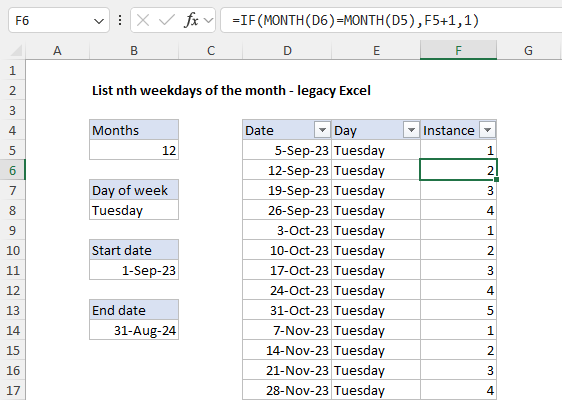
The formula in cell B11 to calculate a first-of-month date in the current month is based on the EOMONTH function and the TODAY function :
=EOMONTH(TODAY(),-1)+1
=EDATE(B11,B5)-1
The formula to get the first Tuesday of the month in cell D5 is interesting:
=B11+MATCH(B8,TEXT(B11+{0,1,2,3,4,5,6},"dddd"),0)-1
Basically, we need a formula that will calculate the first Tuesday after (and including) the start date. You can find a full explanation of this tricky formula here: Get next day of week . The formula in cell E5 to get the day name from the date in column D is based on the TEXT function with the custom number format “dddd”.
=TEXT(D5,"dddd")
The formula in F6 to calculate “instance” is:
=IF(MONTH(D6)=MONTH(D5),F5+1,1)
Here, we use the IF function with the MONTH function to compare the month in the current row. If the month is the same, we increment by 1. If not, we reset the number to 1. As these formulas are copied down, they create a list of all the Tuesdays after the start date along with an instance number. To get a list of just the 2nd Tuesdays, use the filter to filter on rows where the instance is 2.
