Explanation
The goal is to list the working days between a start date and an end date. In the simplest form, this means we want to list dates that are Monday, Tuesday, Wednesday, Thursday, or Friday, but exclude dates that are Saturday or Sunday. In addition, we need an option to exclude a list of given holidays. This article describes two ways to approach this problem, both of which use the SEQUENCE function to “spin up” a full range of dates and the FILTER function to remove dates that are not working days. Both methods also use the LET function to name and store the array from SEQUENCE so that it can be reused later in the formula.
The difference is that the first method uses the WORKDAY.INTL function to test dates as working days whereas the second method uses a more transparent manual approach to logically filter dates with the WEEKDAY and XMATCH functions. The second method is presented mainly as an example of how dynamic array formulas in Excel can be adapted to solve many different problems. Finally note that although the workbook shown is used to list workdays over just a two-week period, the approach will work to list workdays over much larger time frames, for example, 3 months, 6 months, 1 year, etc.
Note: In the workbook shown, all dates use the custom number format “ddd d-mmm-yyyy”. This date format is used to make it easy to see the day of the week along with the date.
Creating the dates
Both methods below use the SEQUENCE function to create an array of dates that cover the entire date range. SEQUENCE is designed to generate numeric sequences in rows and/or columns. The generic syntax for SEQUENCE looks like this:
=SEQUENCE(rows,[columns],[start],[step])
In this example, the goal is to generate a series of dates that span the date range defined by the start date in cell B5 and the end date in cell B8, inclusive. We use SEQUENCE to generate the dates like this:
SEQUENCE(B8-B5+1,1,B5)
The arguments inside SEQUENCE have the following values:
- rows - B8-B5+1 (45260-45246+1 = 15)
- columns = 1
- start - B5 (45246)
Note: Dates in Excel are large serial numbers .
After Excel evaluates the arguments, we can simplify the formula to this:
SEQUENCE(15,1,45246)
The SEQUENCE function then creates an array of 15 dates starting at 45246 (16-Nov-2023). The result is an array like this:
{45246;45247;45248;45249;45250;45251;45252;45253;45254;45255;45256;45257;45258;45259;45260}
These serial numbers represent the 15 dates between 16-Nov-2023 and 30-Nov-2023, inclusive. Inside the main formula, the LET function defines the array above as the variable dates . The FILTER function is then used to remove non-working days from dates, using one of the two methods explained below.
Method 1
The first method relies on the WORKDAY.INTL function to test dates as working days. This approach builds on the Date is workday formula here . The WORKDAY.INTL function is an upgraded version of the older WORKDAY function.
WORKDAY.INTL function
The WORKDAY.INTL function takes a date and returns the next workday based on a given offset value provided as the days argument. WORKDAY.INTL will automatically exclude weekends (Saturday and Sunday) and can optionally exclude dates that are holidays. The generic syntax for WORKDAY.INTL looks like this:
=WORKDAY.INTL(start_date,days,[weekend],[holidays])
The arguments inside WORKDAY.INTL have the following purpose:
- start_date - the date to start from
- days - the number of days to move forward or back
- weekend - the weekend scheme to use
- holidays - dates to be excluded as holidays
The screen below shows the basic operation of WORKDAY.INTL:
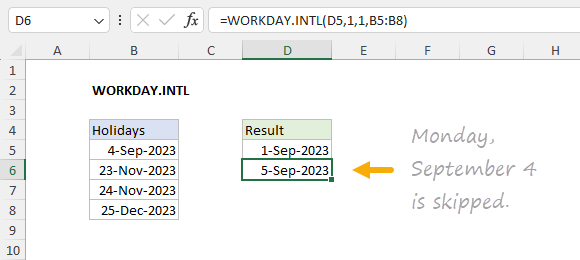
As you can see above, we are starting on September 1, 2023 (Friday) and asking for the next workday 1 day forward in the calendar. WORKDAY.INTL skips Saturday and Sunday because we are using the default value (1) weekend and also skips Monday, September 4, 2023, because that date is listed as a holiday in the range B5:B8. That is the basic operation of WORKDAY.INTL. For more details, see How to use the WORKDAY.INTL function .
In the worksheet shown at the top of the page in cell D5, we use WORKDAY.INTL like this:
=LET(dates,SEQUENCE(B8-B5+1,1,B5),FILTER(dates,WORKDAY.INTL(dates-1,1,1)=dates))
As explained above, the SEQUENCE function is used to generate an array that contains all dates between 16-Nov-2023 and 30-Nov-2023, inclusive, and the LET function stores the result in dates:
=LET(dates,SEQUENCE(B8-B5+1,1,B5)
Next the WORKDAY.INTL function is used with the FILTER function to remove non-working days:
FILTER(dates,WORKDAY.INTL(dates-1,1,1)=dates)
This is the tricky part of the formula. It builds on the Date is workday formula here . The WORKDAY.INTL function does not allow you to test a date with a “zero offset”. In other words, you can’t test a single date by providing the date with 0 for days. However, you can “step back” 1 day in time and check the “next day” with a value of 1 for days. Then you can compare the result to the day you want to test. If they are the same, you know you have a workday. If they are different, you know you have a non-working day. Although slightly non-intuitive, this is the trick we use in the formula:
WORKDAY.INTL(dates-1,1,1)=dates
For start_date in WORKDAY.INTL, we subtract 1 from dates, which results in an array of “day before” values. Then we ask WORKDAY.INTL for the “next workday” using the altered values. Finally, we compare the results from WORKDAY.INTL with the original dates. In the example shown, the result is an array of 15 TRUE and FALSE values like this:
{TRUE;TRUE;FALSE;FALSE;TRUE;TRUE;TRUE;TRUE;TRUE;FALSE;FALSE;TRUE;TRUE;TRUE;TRUE}
Each value in this array tells us whether a date is a working day or not for the 15 days in the date range between 16-Nov-2023 and 30-Nov-2023. Finally, the FILTER function uses this array to filter out non-working days. The final result that lands in cell D5 is this array:
{45246;45247;45250;45251;45252;45253;45254;45257;45258;45259;45260}
These are the 11 working days in the date range between 16-Nov-2023 and 30-Nov-2023.
Exclude Holidays
The formula above can be easily extended to exclude holidays as well. The formula in F5 looks like this:
=LET(dates,SEQUENCE(B8-B5+1,1,B5),FILTER(dates,WORKDAY.INTL(dates-1,1,1,B11:B17)=dates))
This version of the formula adds the holidays that appear in the range B11:B17 to the WORKDAY.INTL function, which then excludes November 23 and 24 from the results listed in F5:F13.
Method 2
Another way to solve this problem is to use more basic functions in Excel to filter out non-working days. The main reason to take this approach is to build a more transparent formula that can apply custom logic not provided by WORKDAY.INTL. For example, you could check and exclude dates using more than one list of holidays. The explanation below shows how to solve the same problem using a combination of the WEEKDAY function and the XMATCH function instead of WORKDAY.INTL.
List workdays
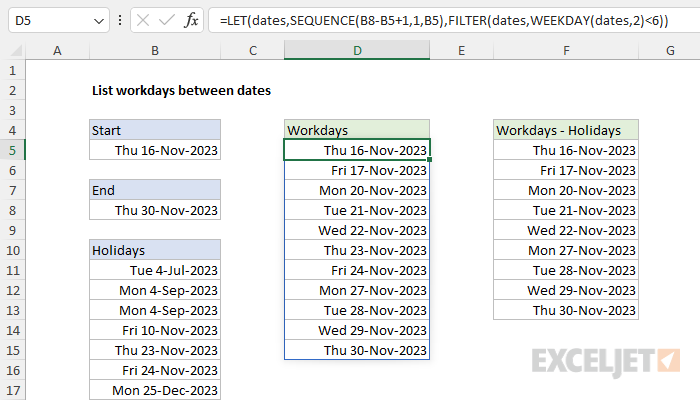
To list all days between two dates while excluding Saturday and Sunday, you can use a formula like this in cell D5:
=LET(dates,SEQUENCE(B8-B5+1,1,B5),FILTER(dates,WEEKDAY(dates,2)<6))
First, the LET function is used to define the dates variable with the SEQUENCE function like this:
=LET(dates,SEQUENCE(B8-B5+1,1,B5)
The inputs to SEQUENCE are as follows:
- rows - B8-B5+1 (the count of days, which is 15 in the workbook shown)
- columns - 1 (defaults to 1 and could be omitted)
- start - the date in B5 (16-Nov-2023, or 45246 in serial number format )
The result from SEQUENCE is an array of 15 dates in serial number format like this:
{45246;45247;45248;45249;45250;45251;45252;45253;45254;45255;45256;45257;45258;45259;45260}
These numbers represent all dates between 16-Nov-2023 and 30-Nov-2023, inclusive. This array is then assigned to the variable dates by the LET function. Next, the dates are run through the FILTER function to remove Saturdays and Sundays:
FILTER(dates,WEEKDAY(dates,2)<6)
The logic used to filter out weekends is defined by the WEEKDAY function here:
WEEKDAY(dates,2)<6
The serial_number argument is given as dates from the previous step. Return_type is provided as 2. WEEKDAY returns a number for each day of the week. By default, WEEKDAY will return numbers that correspond to a Sunday-based week where Sunday is 1, Monday is 2, Tuesday is 3, and so on. Providing 2 for return_type tells WEEKDAY to return numbers that correspond to a Monday-based week. In this scheme, Monday is 1, Tuesday is 2, Wednesday is 3, etc. By testing for weekdays that are less than 6, we are effectively filtering out Saturdays (6) and Sundays (7). After FILTER runs, the result is the eleven workdays seen in the range D5:D15. Note that this version of the formula does not exclude holidays. See below for an option that does.
Remove holidays
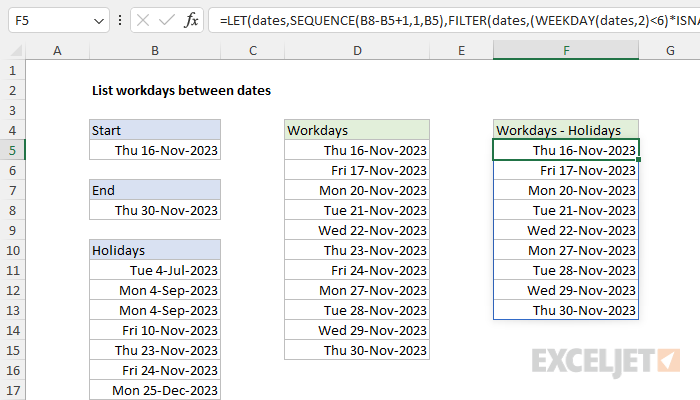
So far, we have a working formula that excludes Saturdays and Sundays but does not exclude holidays. To exclude holidays, we need to extend the logic inside the FILTER function to remove dates that are holidays. To do this, the formula used in cell F5 looks like this:
=LET(dates,SEQUENCE(B8-B5+1,1,B5),FILTER(dates,(WEEKDAY(dates,2)<6)*ISNA(XMATCH(dates,B11:B17))))
This formula is the same as the formula explained above except that the logic used inside FILTER has been extended to check for holidays like this:
(WEEKDAY(dates,2)<6)*ISNA(XMATCH(dates,B11:B17))
Notice that the first part of this expression is the same as above; we are using WEEKDAY to remove Saturdays and Sundays. The second part of the expression uses the XMATCH function to test for holidays like this:
ISNA(XMATCH(dates,B11:B17))
Essentially, we are looking up each date in dates in the range B11:B17, which contains dates that are holidays with the XMATCH function. If XMATCH finds a match (i.e. the date is a holiday) it will return a number representing the position of the match. If XMATCH does not find a match (the date is not a holiday) it will return the #N/A error. Consequently, we use the ISNA function to test for an #N/A error. IF ISNA returns TRUE, it means the date is not a holiday. If ISNA returns FALSE, the date is a holiday.
Notice the WEEKDAY expression and the ISNA function are joined with a multiplication operator (*). This is an example of Boolean algebra . Effectively, it joins the two expressions with AND logic, so both must be true. When the include argument inside FILTER is evaluated, the math operation converts the TRUE and FALSE values to 1s and 0s:
=FILTER(dates,{1;1;0;0;1;1;1;1;1;0;0;1;1;1;1}*{1;1;1;1;1;1;1;0;0;1;1;1;1;1;1})
The result after multiplication looks like this:
=FILTER(dates,{1;1;0;0;1;1;1;0;0;0;0;1;1;1;1})
The 1s in the array represent dates that are working days (not Saturday or Sunday and not a holiday). The 0s represent dates that are a Saturday a Sunday or a holiday. Only the dates associated with 1s make it through FILTER. Notice the final result starting in cell F5 contains nine dates (2 less than the previous formula) because 2 dates in the date range are holidays.
Cleaned up formula
Since we are already using the LET function, we can clean things up a bit like this:
=LET(
start,B5,
end,B8,
holidays,B11:B17,
dates,SEQUENCE(end-start+1,1,start),
FILTER(dates,(WEEKDAY(dates,2)<6)*ISNA(XMATCH(dates,holidays))))
In this version, we define the needed cell references and variables at the top. This makes the remaining code below more generic and easier to read.
Explanation
In this example, the goal is to create a list of pay dates that follow a semimonthly schedule. A semimonthly pay schedule means employees are paid twice a month, usually on fixed dates such as the 1st and 15th or the 15th and the last day of the month. This results in 24 pay periods over the course of a year. For example, in the worksheet shown above, payroll dates are the 1st and 15th of each month. In the worksheet shown above, the formula solves this problem in two steps. Step 1 is to generate a list of all dates between the start date and the end date. Step 2 is to filter those dates so that only those that land on the 1st and 15th remain. The formula in cell D5 looks like this:
=LET(dates,SEQUENCE(B8-B5+1,1,B5),FILTER(dates,(DAY(dates)=1)+(DAY(dates)=15)))
Background study
If you are not familiar with the SEQUENCE function, these links will help you get up to speed quickly:
- How to use the SEQUENCE function - overview
- The SEQUENCE function - 3 min video
- SEQUENCE of dates - 3 min video
- Dynamic Array Formulas - video training
Generating the dates
The first step is to generate all the dates, and this is done with the SEQUENCE function here:
SEQUENCE(B8-B5+1,1,B5) // generate all dates
The SEQUENCE function generates numeric sequences. Excel dates are just large serial numbers , so this part of the formula evaluates like this:
=SEQUENCE(B8-B5+1,1,B5)
=SEQUENCE(45107-44927+1,1,44927)
=SEQUENCE(181,1,44927)
Essentially, we are asking SEQUENCE for 181 sequential dates that start on 44927, which is the serial number for January 1, 2023, in Excel’s date system. The SEQUENCE generates an array that contains 181 dates, and these are defined as the variable “date” by the LET function :
=LET(dates,SEQUENCE(B8-B5+1,1,B5)
We use the LET function here to avoid redundancy. We need to use the full range of dates more than once in the formula, and creating this array once and assigning it to dates means the operation does not need to be repeated. This makes the formula easier to read and understand, and also improves performance.
Filtering the dates
At this point, we have a list of all dates within the target date range, and we have named the list dates . The next step is to filter the list to extract just the dates we are about: the paydays that occur on the 1st and 15th of each month. To do this, we use the FILTER function , which is configured like this:
FILTER(dates,(DAY(dates)=1)+(DAY(dates)=15))
The array in FILTER is given as dates , which contains all dates between January 1, 2023, and June 30, 2023. The include argument is set up like this:
(DAY(dates)=1)+(DAY(dates)=15) // 1st and 15th only
Here, we use the DAY function to extract just the day from the date, then use Boolean algebra with addition to construct an OR condition. In other words, we are filtering on dates that land on the 1st or the 15th day of each month. The final result from FILTER is an array of the 12 dates that land on the 1st and 15th of each month in the target date range. For more information on using addition (+) to create “OR logic”, see this short video: Array formulas with AND and OR logic .
Alternative formula - 15th and last
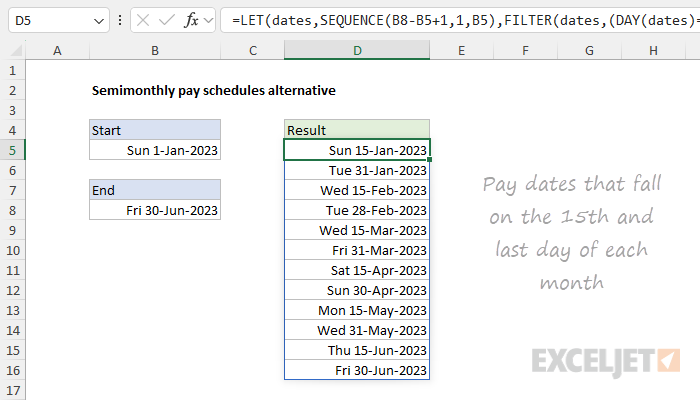
The formula above can be easily adapted to return payroll dates that follow different rules. For example, to return a list of payroll dates that fall on the 15th and last day of each month, you can use a formula like this:
=LET(dates,SEQUENCE(B8-B5+1,1,B5),FILTER(dates,(DAY(dates)=15)+(dates=EOMONTH(dates,0))))
The only difference in this formula is that the include logic inside FILTER has been adjusted like this:
(DAY(dates)=15)+(dates=EOMONTH(dates,0)) // 15th and last
The test for the 15th is the same. To test each for an “end of month” date, we use the EOMONTH function . Inside, EOMONTH, we provide 0 for months to return the last day of the month. As before, the two expressions are joined with addition (+) to create OR logic . The screen below shows the result:
WORKDAY adjustment
The formulas above work well, but they don’t check what day of the week pay dates land on. In the real world, companies often adjust pay dates that land on a holiday or weekend to the previous business day. So, for example, if the 15th of the month lands on a Saturday, the date is adjusted to Friday the 14th. To adjust dates that land on weekends or holidays back to the previous working day, you can use the WORKDAY function with a special configuration like this:
=WORKDAY(date+1,-1)
Essentially, we move forward one day, and then ask WORKDAY for the previous workday by providing -1 for days . In this configuration, WORKDAY returns the original date if it is a working day. Otherwise, WORKDAY steps back one day at a time and returns the first working day found. You can see the result in the worksheet below:

The original results from the “1st and 15h” formula appear in column D. Column F shows the adjusted dates. Notice that four dates have been shifted back to the previous working day.
All in one formula
It is possible to combine the formulas above into a single formula by piping the results from FILTER directly into the WORKDAY function like this:
=LET(dates,SEQUENCE(B8-B5+1,1,B5),WORKDAY(FILTER(dates,(DAY(dates)=1)+(DAY(dates)=15))+1,-1))
This formula will return the same results seen in column F, all in one step. In the same way, you can use the formula below to list adjusted dates for the 15th and last day of the month, like this:
=LET(dates,SEQUENCE(B8-B5+1,1,B5),WORKDAY(FILTER(dates,(DAY(dates)=15)+(dates=EOMONTH(dates,0)))+1,-1))
In both formulas, we’ve nested the FILTER formula inside the WORKDAY function as the start_date argument. This causes all the dates returned by FILTER to go through the WORKDAY, and only dates that land on non-working days are adjusted.
Note: To simplify things, I have not provided holidays to WORKDAY, but you can easily add this optional argument to make WORKDAY skip official holidays. See Previous working day for an example.
Legacy Excel
In older versions of Excel, there is no SEQUENCE function or FILTER function, so we can’t use the approach explained above. One option is to hardcode the first date into cell D5, then enter this formula in cell D6 and drag copy it down as needed:
=IF(DAY(D5)=1,D5+14,EOMONTH(D5,0)+1)
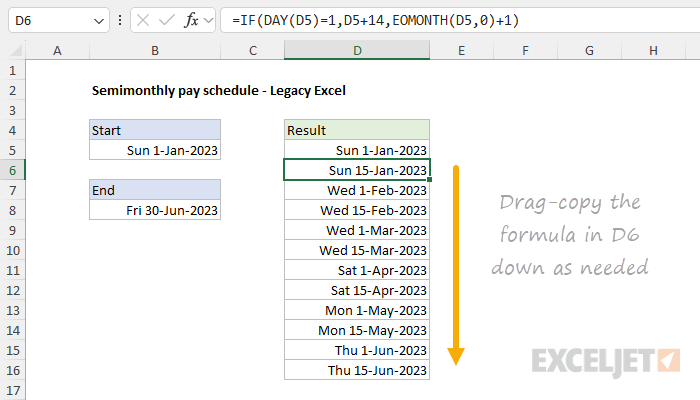
This formula uses the IF function and the DAY function to check the date in the “cell above” to see if it is the first of the month. If it is, IF returns the date + 14 days. If it is not the first of the month, we use the EOMONTH function to move to the end of the month, then add one day to land on the first day of the next month.
Alternative
To list pay dates that fall on the 15th and last day of the month in older versions of Excel, you can use the same basic process and a formula like this:
=IF(DAY(D5)=15,EOMONTH(D5,0),D5+15)
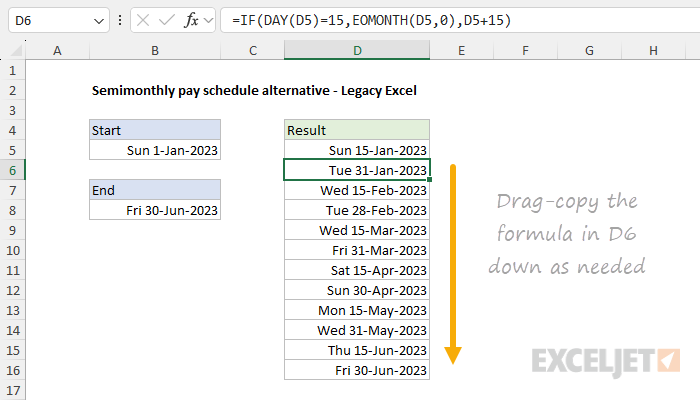
This formula assumes that the first date in D5 is either the 15th of a month or the last day of a month. As before, this formula uses the IF and DAY functions to check the date in the “cell above”. If the day is the 15th, we use the EOMONTH function to move to the end of the month. If the day is not the 15th, we assume it is the last day of the month and add 15 days.
