Purpose
Return value
Syntax
=MATCH(lookup_value,lookup_array,[match_type])
- lookup_value - The value to match in lookup_array.
- lookup_array - A range of cells or an array reference.
- match_type - [optional] 1 = exact or next smallest (default), 0 = exact match, -1 = exact or next largest.
Using the MATCH function
The MATCH function is used to determine the position of a value in a range or array . For example, in the screenshot above, the formula in cell E6 is configured to get the position of the value in cell D6. The MATCH function returns 5 because the lookup value (“peach”) is in the 5th position in the range B6:B14:
=MATCH(D6,B6:B14,0) // returns 5
The MATCH function can perform exact and approximate matches and supports wildcards (* ?) for partial matches. There are 3 separate match modes (set by the match_type argument), as described below.
Note: the MATCH function will always return the first match. If you need to return the last match (reverse search) see the XMATCH function . If you want to return all matches, see the FILTER function .
MATCH only supports one-dimensional arrays or ranges , either vertical or horizontal. However, you can use MATCH to locate values in a two-dimensional range or table by giving MATCH the single column (or row) that contains the lookup value. You can even use MATCH twice in a single formula to find a matching row and column at the same time.
Frequently, the MATCH function is combined with the INDEX function to retrieve a value at a certain (matched) position. In other words, MATCH figures out the position , and INDEX returns the value at that position . For a detailed overview with simple examples, see How to use INDEX and MATCH .
Match type information
Match type is optional. If not provided, match_type defaults to 1 (exact or next smallest). When match_type is 1 or -1, it is sometimes referred to as an “approximate match”. However, keep in mind that MATCH will always perform an exact match when possible, as noted in the table below:
| Match type | Behavior | Details |
|---|---|---|
| 1 | Approximate | MATCH finds the largest value less than or equal to the lookup value. The lookup array must be sorted in ascending order. |
| 0 | Exact | MATCH finds the first value equal to the lookup value. The lookup array does not need to be sorted. |
| -1 | Approximate | MATCH finds the smallest value greater than or equal to the lookup value. The lookup array must be sorted in descending order. |
| (omitted) | Approximate | When match_type is omitted, it defaults to 1 with behavior as explained above. |
Caution: Be sure to set match_type to zero (0) if you need an exact match. The default setting of 1 can cause MATCH to return results that look normal but are in fact incorrect. Explicitly providing a value for match_type, is a good reminder of what behavior is expected.
Exact match
When match_type is zero (0), MATCH performs an exact match only. In the example below, the formula in E3 is:
=MATCH(E2,B3:B11,0) // returns 4

In the formula above, the lookup value comes from cell E2. If the lookup value is hardcoded into the formula, it must be enclosed in double quotes (""), since it is a text value:
=MATCH("Mars",B3:B11,0)
Note: MATCH is not case-sensitive, so “Mars” and “mars” will both return 4.
Approximate match
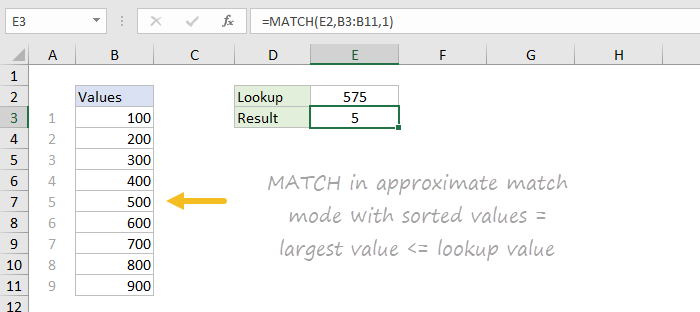
When match_type is set to 1, MATCH will perform an approximate match on values sorted A-Z, finding the largest value less than or equal to the lookup value. In the example shown below, the formula in E3 is:
=MATCH(E2,B3:B11,1) // returns 5
Wildcard match
When match_type is set to zero (0), MATCH can use wildcards . In the example shown below, the formula in E3 is:
=MATCH(E2,B3:B11,0) // returns 6
This is equivalent to:
=MATCH("pq*",B3:B11,0)

INDEX and MATCH
The MATCH function is commonly used together with the INDEX function . The resulting formula is called “INDEX and MATCH”. For example, in the screen below, INDEX and MATCH are used to return the cost of a code entered in cell F4. The formula in F5 is:
=INDEX(C5:C12,MATCH(F4,B5:B12,0)) // returns 150
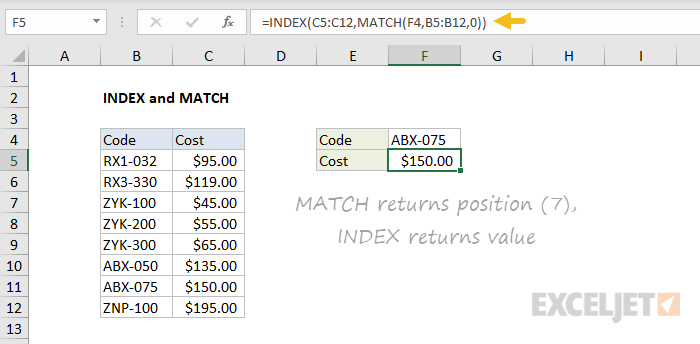
In this example, MATCH is set up to perform an exact match. The MATCH function locates the code ABX-075 and returns its position (7) directly to the INDEX function as the row number. The INDEX function then returns the 7th value from the range C5:C12 as a final result. The formula is solved like this:
=INDEX(C5:C12,MATCH(F4,B5:B12,0))
=INDEX(C5:C12,7)
=150
See below for more examples of the MATCH function. For an overview of how to use INDEX and MATCH with many examples, see: How to use INDEX and MATCH .
Case-sensitive match
The MATCH function is not case-sensitive. However, MATCH can be configured to perform a case-sensitive match when combined with the EXACT function in a generic formula like this:
=MATCH(TRUE,EXACT(lookup_value,array),0)
The EXACT function compares every value in array with the lookup_value in a case-sensitive manner. This formula is explained with an INDEX and MATCH example here .
Notes
- MATCH is not case-sensitive.
- MATCH returns the #N/A error if no match is found.
- MATCH only works with text up to 255 characters in length.
- In case of duplicates, MATCH returns the first match.
- If match_type is -1 or 1, the lookup_array must be sorted as noted above.
- If match_type is 0, the lookup_value can contain the wildcards .
- The MATCH function is frequently used together with the INDEX function .
Purpose
Return value
Syntax
=OFFSET(reference,rows,cols,[height],[width])
- reference - The starting point, supplied as a cell reference or range.
- rows - The number of rows to offset below the starting reference.
- cols - The number of columns to offset to the right of the starting reference.
- height - [optional] The height in rows of the returned reference.
- width - [optional] The width in columns of the returned reference.
Using the OFFSET function
The Excel OFFSET function returns a dynamic range constructed with five inputs: (1) a starting point, (2) a row offset, (3) a column offset, (4) a height in rows, (5) a width in columns.
OFFSET is a volatile function , and can cause performance issues in large or complex worksheets.
The starting point (the reference argument) can be one cell or a range of cells. The rows and cols arguments are the number of cells to “offset” from the starting point. The height and width arguments are optional and determine the size of the range that is created. When height and width are omitted, they default to the height and width of reference .
For example, to reference C5 starting at A1, reference is A1, rows is 4 and cols is 2:
=OFFSET(A1,4,2) // returns reference to C5
To reference C1:C5 from A1, reference is A1, rows is 0, cols is 2, height is 5, and width is 1:
=OFFSET(A1,0,2,5,1) // returns reference to C1:C5
Note: width could be omitted, since it will default to 1.
It is common to see OFFSET wrapped in another function that expects a range. For example, to SUM C1:C5, beginning at A1:
=SUM(OFFSET(A1,0,2,5,1)) // SUM C1:C5
The main purpose of OFFSET is to allow formulas to dynamically adjust to available data or to user input. The OFFSET function can be used to build a dynamic named range for charts or pivot tables, to ensure that source data is always up to date.
Note: Excel documentation states height and width can’t be negative, but negative values appear to have worked fine since the early 1990’s . The OFFSET function in Google Sheets won’t allow a negative value for height or width arguments.
Examples
The examples below show how OFFSET can be configured to return different kinds of ranges. These screens were taken with Excel 365 , so OFFSET returns a dynamic array when the result is more than one cell. In older versions of Excel, you can use the F9 key to check results returned from OFFSET.
Example #1
In the screen below, we use OFFSET to return the third value (March) in the second column (West). The formula in H4 is:
=OFFSET(B3,3,2) // returns D6

Example #2
In the screen below, we use OFFSET to return the last value (June) in the third column (North). The formula in H4 is:
=OFFSET(B3,6,3) // returns E9

Example #3
Below, we use OFFSET to return all values in the third column (North). The formula in H4 is:
=OFFSET(B3,1,3,6) // returns E4:E9

Example #4
Below, we use OFFSET to return all values for May (fifth row). The formula in H4 is:
=OFFSET(B3,5,1,1,4) // returns C8:F8

Example #5
Below, we use OFFSET to return April, May, and June values for the West region. The formula in H4 is:
=OFFSET(B3,4,2,3,1) // returns D7:D9

Example #6
Below, we use OFFSET to return April, May, and June values for West and North. The formula in H4 is:
=OFFSET(B3,4,2,3,2) // returns D7:E9

Notes
- OFFSET only returns a reference, no cells are moved.
- Both rows and cols can be supplied as negative numbers to reverse their normal offset direction - negative cols offset to the left, and negative rows offset above.
- OFFSET is a " volatile function “. Volatile functions can make larger and more complex workbooks run slowly.
- OFFSET will display the #REF! error value if the offset is outside the edge of the worksheet.
- When height or width is omitted, the height and width of reference is used.
- OFFSET can be used with any other function that expects to receive a reference.
- Excel documentation says height and width can’t be negative, but negative values do work.
