Purpose
Return value
Syntax
=MAXA(value1,[value2],...)
- value1 - Number, reference to numeric value, or range that contains numeric values.
- value2 - [optional] Number, reference to numeric value, or range that contains numeric values.
Using the MAXA function
The MAXA function returns the largest numeric value in a range of values. Like the MAX function , MAXA ignores empty cells. However, unlike the MAX function, MAXA evaluates the logical values TRUE and FALSE as 1 and 0, and evaluates text as zero when these values appear in a range or cell reference.
The MAXA function takes multiple arguments in the form number1 , number2 , number3 , etc. up to 255 total. Arguments can be a hardcoded constant, a cell reference, or a range, in any combination.
Examples
Like the MAX function , the MAXA function returns the largest number in the supplied data:
=MAX(12,17,25,11,23) // returns 25
=MAXA(12,17,25,11,23) // returns 25
MAXA can be used with constants, cell references, or ranges:
=MAXA(5,10)
=MAXA(A1,A2,A3)
=MAXA(A1:A10)
MAXA vs. MAX
The primary difference between MAX and MAXA is that MAXA evaluates TRUE and FALSE values as 1 and 0, and text values as zero when these values appear in a range or in a cell reference. You can see this behavior in the range I7:I12 of the example shown. While the MAX function ignores the logical and text values completely, the MAXA function includes these values when calculating a maximum value.
Note that MAX and MAXA both evaluate numbers as text when supplied directly as arguments:
=MAXA(5,"10") // returns 10
=MAX(5,"10") // also returns 10
Notes
- MAXA ignores empty cells, but evaluates logical values and text values.
- Arguments can be provided as numbers, names, arrays, or references.
- If arguments contain no numeric values, MAXA returns 0.
- To ignore logical values and text, see the MAX function .
Purpose
Return value
Syntax
=MAXIFS(max_range,range1,criteria1,[range2],[criteria2],...)
- max_range - Range of values used to determine maximum.
- range1 - The first range to evaluate.
- criteria1 - The criteria to use on range1.
- range2 - [optional] The second range to evaluate.
- criteria2 - [optional] The criteria to use on range2.
Using the MAXIFS function
The MAXIFS function returns the largest numeric value in cells that meet multiple conditions, referred to as criteria . Each condition is provided with a separate range and criteria . To define criteria, MAXIFS supports various logical operators (>,<,<>,=) and wildcards (*,?,~). The syntax used to apply criteria in MAXIFS is a bit tricky because it is unusual in Excel. See below for details.
Key features
- Can handle up to 126 conditions.
- Each new condition requires a separate range and criteria .
- To be included in the final result, all conditions must be TRUE.
- Returns zero (0) when no cells meet the supplied criteria.
- Automatically ignores empty cells that meet supplied criteria.
- Returns a #VALUE! error if criteria_range is not the same size as max_range.
Unlike most other Excel functions, MAXIFS requires an actual range for max/criteria ranges. If you try to use an array , Excel will not let you enter the formula.
Syntax
The syntax for the MAXIFS function depends on the criteria being evaluated. Each condition is provided with a separate range and criteria . The generic syntax for MAXIFS looks like this:
=MAXIFS(max_range,range1,criteria1) // 1 condition
=MAXIFS(max_range,range1,criteria1,range2,criteria2) // 2 conditions
The MAXIFS function takes three required arguments : max_range , range1 , and criteria1 . With these three arguments, MAXIFS returns the maximum number in max_range where corresponding cells in range1 meet the condition set by criteria1 . Additional conditions are applied using range/criteria pairs. The second condition is defined by range2 and criteria2 , the third condition is range3 and criteria3 , and so on. MAXIFS can handle up to 126 range/criteria pairs.
Criteria
The MAXIFS function supports logical operators (>,<,<>,=) and wildcards (*,?) for partial matching. Because MAXIFS is in a group of eight functions that split logical criteria into two parts, the syntax is a bit tricky. Each condition requires a separate range and criteria , and operators need to be enclosed in double quotes (""). The table below shows some common examples:
| Target | Criteria |
|---|---|
| Cells greater than 75 | “>75” |
| Cells equal to 100 | 100 or “100” |
| Cells less than or equal to 100 | “<=100” |
| Cells equal to “Red” | “red” |
| Cells not equal to “Red” | “<>red” |
| Cells that are blank "" | "" |
| Cells that are not blank | “<>” |
| Cells that begin with “X” | “x*” |
| Cells less than A1 | “<"&A1 |
| Cells less than today | “<"&TODAY() |
Notice the last two examples use concatenation with the ampersand (&) character. When a criteria argument includes a value from another cell, or the result of a formula, logical operators like “<” must be joined with concatenation. This is because Excel needs to evaluate cell references and formulas first to get a value before that value can be joined to an operator.
Basic Example
In the worksheet shown above, the formulas in G5 and G6 are:
=MAXIFS(D5:D16,C5:C16,"F") // returns 93
=MAXIFS(D5:D16,C5:C16,"M") // returns 83
In the first formula, MAXIFS returns the maximum value in D5:D16 where C5:C16 is equal to “F” (93). In the second formula, MAXIFS returns the maximum value in D5:D16 where C5:C16 is equal to “M” (83).
Two criteria
In the example below, the MAXIFS function is used with two criteria, one for Gender and one for Group. Note conditions are added in range/criteria pairs. The range E5:E16 is paired with the condition “B”.
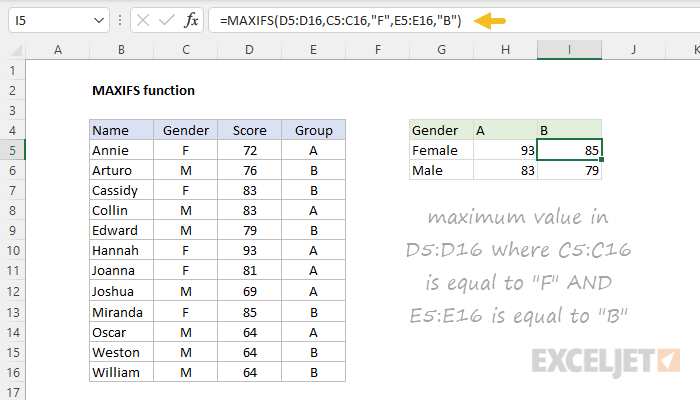
The formulas in H5:I6 are:
H5=MAXIFS(D5:D16,C5:C16,"F",E5:E16,"A") // returns 93
I5=MAXIFS(D5:D16,C5:C16,"F",E5:E16,"B") // returns 85
H6=MAXIFS(D5:D16,C5:C16,"M",E5:E16,"A") // returns 83
I6=MAXIFS(D5:D16,C5:C16,"M",E5:E16,"B") // returns 79
Other criteria
To return the maximum value in A1:A100 when cells in B1:B100 are greater than 50:
=MAXIFS(A1:A100,B1:B100,">50")
To get the maximum value in A1:A100 when cells in B1:B100 are less than or equal to 100, and cells in C1:C100 are greater than zero:
=MAXIFS(A1:A100,B1:B100,"<=100",C1:C100,">0")
Not equal to
To construct “not equal to” criteria, use the “<>” operator surrounded by double quotes (””). For example, to return the maximum value in A1:A100 when cells in B1:B100 are not equal to “red”:
=MAXIFS(A1:A100,B1:B100,"<>red")
Value from another cell
When using a value from another cell in a condition, the cell reference must be concatenated to the operator. For example, to return the maximum value in A1:A100 when cells in B1:B100 are greater than the value in C1:
=MAXIFS(A1:A100,B1:B100,">"&C1)
Notice the greater than operator (>) is enclosed in quotes (""), but the cell reference (C1) is not.
Wildcards
The wildcard characters question mark (?), asterisk(), or tilde (~) can be used in criteria . A question mark (?) matches any one character, and an asterisk () matches zero or more characters. For example, to return the maximum value in A1:A100 when cells in B1:B100 begin with “a”:
=MAXIFS(A1:A100,B1:B100,"a*")
The tilde (~) is an escape character to allow you to find literal wildcards. For example, to match a literal question mark (?), asterisk(), or tilde (~), add a tilde in front of the wildcard (i.e. ~?, ~, ~~).
Notes
- Conditions are applied using range/criteria pairs.
- MAXIFS will return a #VALUE error if any criteria range is not the same size as max_range.
- If no criteria match, MAXIFS will return zero (0).
- MAXIFS ignores empty cells that meet criteria.
