Purpose
Return value
Syntax
=MMULT(array1,array2)
- array1 - The first array to multiply.
- array2 - The second array to multiply.
Using the MMULT function
The MMULT function returns the matrix product of two arrays, sometimes called the “dot product”. The result from MMULT is an array that contains the same number of rows as array1 and the same number of columns as array2 . The MMULT function appears in certain more advanced formulas that need to process multiple rows or columns. For example, you can use MMULT with XLOOKUP to match a value in any column .
The MMULT function takes two arguments , array1 and array2 , both of which are required. The column count of array1 must equal the row count of array2 . For example, you can multiply a 2 x 3 array by a 3 x 2 array to return a 2 x 2 array result. The MMULT function will return a #VALUE! error if array1 columns do not equal array2 rows.
Note: In Excel 365 , which supports dynamic arrays , MMULT spills multiple values on the worksheet. In earlier versions, you will need to enter as a multi-cell array formula with control + shift + enter.
Example #1 - basic usage
In the example shown, the MMULT formula is evaluated like this:
=MMULT(B6:D7,F6:G8)
=MMULT({0,3,5;5,5,2},{3,4;3,-2;4,-2})
={29,-16;38,6}
Example #2 - count rows with specific value
In this example, the goal is to count rows that contain the number 90. The challenge is that the value might appear in any of several columns, and might appear in more than one column of the same row. The MMULT function is used to condense results from multiple columns into a single 1-column array that can then be summed with the SUM function. The formula in G5 is:
=SUM(--(MMULT(--(data=90),TRANSPOSE(COLUMN(data)))>0))
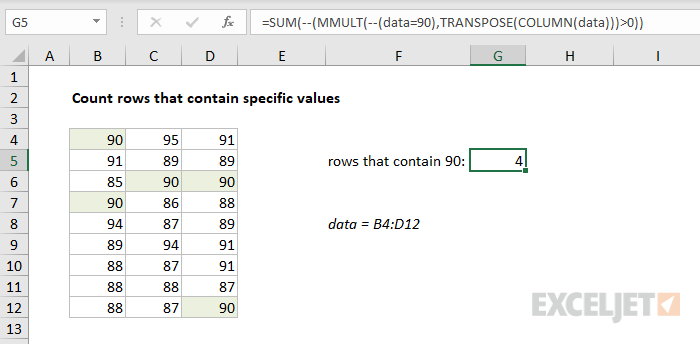
Read a detailed explanation here . See below for more examples.
Notes
- Arrays must contain numbers only.
- Columns in array1 must equal the rows in array2 .
- Array1 and array2 can be provided as cell ranges, array constants, or references.
- MMULT returns #VALUE! if any cells in array1 and array2 are not numbers
- MMULT returns #VALUE! if array1 columns do not equal array2 rows.
Purpose
Return value
Syntax
=MOD(number,divisor)
- number - The number to be divided.
- divisor - The number to divide with.
Using the MOD function
The MOD function returns the remainder after division. For example, MOD(3,2) returns 1, because 2 goes into 3 once, with a remainder of 1.
The MOD function takes two arguments: number and divisor. Number is the number to be divided, and divisor is the number used to divide. Both arguments are required. If either argument is not numeric, the MOD function returns #VALUE!.
Equation
The result from the MOD function is calculated with an equation like this:
=n-d*INT(n/d)
where n is number , d is divisor , and INT is the INT function. This can create some unexpected results because of the way that the INT function rounds negative numbers down, way from zero:
=MOD(7,3) // returns 1
=MOD(7,-3) // returns -2
MOD with negative numbers is implemented differently in different languages.
Examples
Below are some examples of the MOD function with hardcoded values:
=MOD(12,3) // returns 0
=MOD(12,5) // returns 2
=MOD(100,33) // returns 1
=MOD(6.25,1) // returns 0.25
Negative numbers
The result from MOD carries the same sign as divisor . If divisor is positive, the result from MOD is positive, if divisor is negative, the result from MOD is negative:
=MOD(-3,2) // returns 1
=MOD(3,-2) // returns -1
=MOD(-3,-2) // returns -1
Time from datetime
The MOD function can be used to extract the time value from an Excel date that includes time (sometimes called a datetime ). With a datetime in A1, the formula below returns the time only:
=MOD(A1,1) // return time only
Detailed explanation here .
Large numbers
With very large numbers, you may see the MOD function return a #NUM error. In that case, you can try an alternative version based on the INT function:
=number-(INT(number/divisor)*divisor)
Notes
- MOD is often seen in formulas that deal with “every nth” value
- MOD is useful for extracting the time from a date
- MOD always returns a result in the same sign as the divisor .
- MOD will return a #DIV/0! error if divisor is zero
- To discard the remainder and keep the integer, see the QUOTIENT function .
