A number format in Excel is a special code that controls how a number is displayed on the worksheet. For example, the number 0.51 can be displayed as 51% with the number format:
0.0%
The date January 1, 2021 can be displayed as “1-Jan-20” with the number format:
d-mmm-yy
The most important thing to understand about number formats is that they control the display of numbers only – number formats have no effect on underling numeric values. There are quite a few number formats built into Excel, including:
- General format
- Currency format
- Percentage format
- Scientific format
- Date format
- Time format
- Custom formats
You can apply number formats from the Home tab of the ribbon:
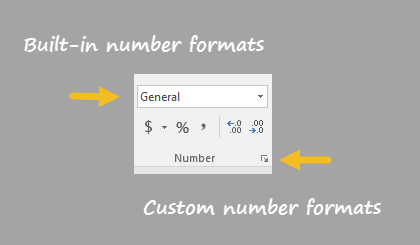
Excel also allows custom number formats . For a more complete description of custom number format codes see: Custom Number Formats .
When evaluating a formula, Excel follows a standard math protocol called “order of operations”. In general, Excel’s order of operation follows the acronym PEMDAS (Parentheses, Exponents, Multiplication, Division, Addition, Subtraction) but with some customization to handle the formula syntax in a spreadsheet.
First, any expressions in parentheses are evaluated. Parentheses essentially override the normal order of operations to ensure certain operations are performed first.
Next, Excel will resolve references. This involves replacing cell references like A1 with the value from the cell, as well as evaluating range references like A1:A5, which become arrays of values. Other range operations like union (comma) and intersection (space) also happen at this time.
Next, Excel will perform exponentiation, negation, and percent conversions (in that order), followed by multiplication and division, addition and subtraction, and concatenation . Finally, Excel will evaluate logical operators , if present.
In summary, Excel solves formulas in the following order:
- Parentheses
- Reference operators
- Exponents
- Negation
- Percent
- Multiplication and Division
- Addition and Subtraction
- Concatenation
- Logical operators
Note: If a formula contains multiple operators with the same priority (e.g. multiplication and division, or addition and subtraction), Excel will evaluate the operators from left to right.
