Purpose
Return value
Syntax
=OCT2BIN(number,[places])
- number - The octal number you want to convert.
- places - [optional] The number of characters to use. If omitted, the function uses the minimum number of characters necessary.
Using the OCT2BIN function
The OCT2BIN function is used to convert octal numbers (base 8) to binary numbers (base 2). This is useful when working with different number systems, especially in engineering and computer science applications.
Key features
- Converts octal numbers to binary numbers
- Supports optional padding with leading zeros
- Handles both positive and negative octal numbers (using two’s-complement for negatives)
- Returns a text string representing the binary number
To get the octal representation of a decimal number, use the DEC2OCT function.
- Example #1 - Basic conversion
- Example #2 - Padding with leading zeros
- Example #3 - Negative octal numbers
- Example #4 - Limits and range
- Error handling
Example #1 - Basic conversion
To convert the octal number 11 to binary, use the following formula:
=OCT2BIN(11) // returns 1001 (binary)
Example #2 - Padding with leading zeros
To convert the octal number 11 to binary, padded to 10 characters, use the following formula:
=OCT2BIN(11, 10) // returns 00000001001 (binary)
Example #3 - Negative octal numbers
Excel represents negative numbers in non-decimal bases (like octal and binary) using two’s complement notation with a fixed width of 10 characters. This means that when you use OCT2BIN with a negative octal number, Excel interprets the input as a two’s complement value and returns a 10-character binary string.
For example, to represent the decimal number -3 in octal, you would use the octal number 7777777775 . This is because the most significant digit is the sign bit, and the remaining 9 digits represent the magnitude.
=DEC2OCT(-3) // returns 7777777775
Then, when we convert the octal number to binary, we get the following result:
=OCT2BIN(7777777775) // returns 1111111101
This is because the most significant bit is the sign bit, and the remaining 9 digits represent the magnitude.
Example #4 - Limits and range
The OCT2BIN function is limited to binary numbers with a maximum of 10 digits. If you try to convert an octal number that would require more than 10 binary digits, OCT2BIN returns the #NUM! error.
The table below shows what happens at the boundaries:

The largest positive number you can convert is octal 777 (decimal 511). The smallest negative number you can convert is octal 7777777000 (decimal -512). Any value outside this range returns a #NUM! error.
Error handling
- If the input is outside the allowed range (e.g., 7777776777 or 1000), OCT2BIN returns the #NUM! error value.
- If the input is non-numeric (e.g., Text), OCT2BIN returns the #NUM! error value.
- If the input is not a valid octal number (e.g., 80), OCT2BIN returns the #NUM! error value.
- If the input is not an integer (e.g., 10.5), OCT2BIN returns the #NUM! error value.
- If the input is negative (e.g., -4), OCT2BIN returns the #NUM! error value.
Purpose
Return value
Syntax
=OCT2DEC(number)
- number - The octal number you want to convert.
Using the OCT2DEC function
The OCT2DEC function is used to convert octal numbers (base 8) to decimal numbers (base 10). This is useful when working with different number systems, especially in engineering and computer science applications.
Key features
- Converts octal numbers to decimal numbers
- Handles both positive and negative octal numbers (using two’s-complement for negatives)
- Returns a decimal number (as a number, not text)
To get the octal representation of a decimal number, use the DEC2OCT function.
- Example #1 - Basic conversion
- Example #2 - Negative octal numbers
- Example #3 - Error conditions
Example #1 - Basic conversion
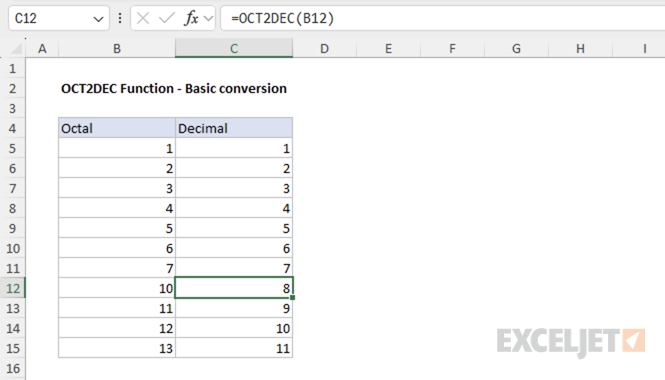
To convert the octal number 10 to decimal, use the following formula:
=OCT2DEC(10) // returns 8
The spreadsheet below shows some basic conversions of octal numbers to decimal numbers:
Example #2 - Negative octal numbers
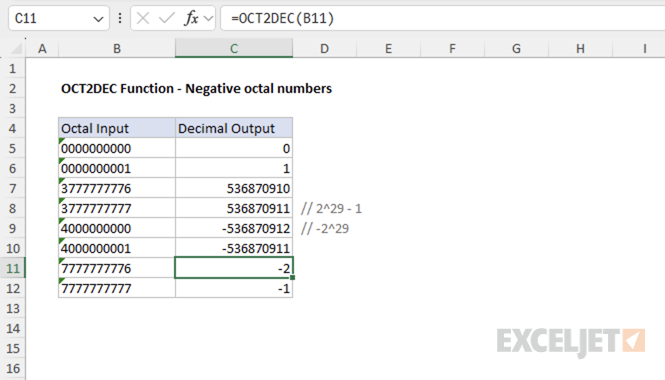
Excel represents negative numbers in non-decimal bases (like octal) using two’s complement notation with a fixed width of 10 characters. For example, the decimal number -2 is represented as the octal number 7777777776 .
=OCT2DEC(7777777776) // returns -2
This is because Excel represents the number using 30 bits, where the first bit is used for the sign, and the remaining 29 bits represent the value. Octal numbers from 0 to 3777777777 represent positive numbers, and octal numbers from 4000000000 to 7777777777 represent negative numbers.
In other words, the largest positive decimal number you can represent is 2^29 - 1 (536,870,911), and the smallest negative decimal number you can represent is -2^29 (-536,870,912). The spreadsheet below shows the octal numbers corresponding to positive and negative decimal numbers:
Example #3 - Error conditions
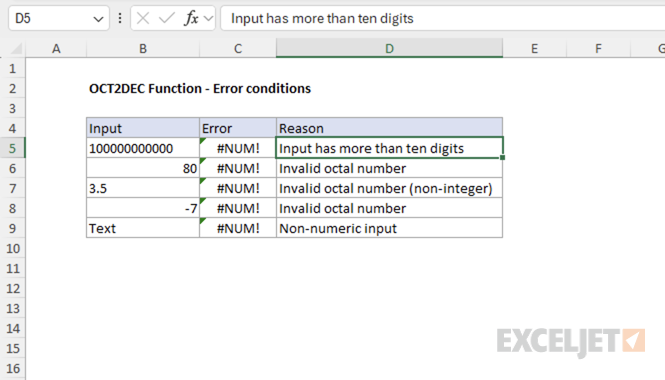
There are several error conditions that can occur when using the OCT2DEC function. For example, if the input contains more than 10 digits, OCT2DEC returns a #NUM! error. This behavior and other error conditions are shown in the example below: