Purpose
Return value
Syntax
=OCT2DEC(number)
- number - The octal number you want to convert.
Using the OCT2DEC function
The OCT2DEC function is used to convert octal numbers (base 8) to decimal numbers (base 10). This is useful when working with different number systems, especially in engineering and computer science applications.
Key features
- Converts octal numbers to decimal numbers
- Handles both positive and negative octal numbers (using two’s-complement for negatives)
- Returns a decimal number (as a number, not text)
To get the octal representation of a decimal number, use the DEC2OCT function.
- Example #1 - Basic conversion
- Example #2 - Negative octal numbers
- Example #3 - Error conditions
Example #1 - Basic conversion
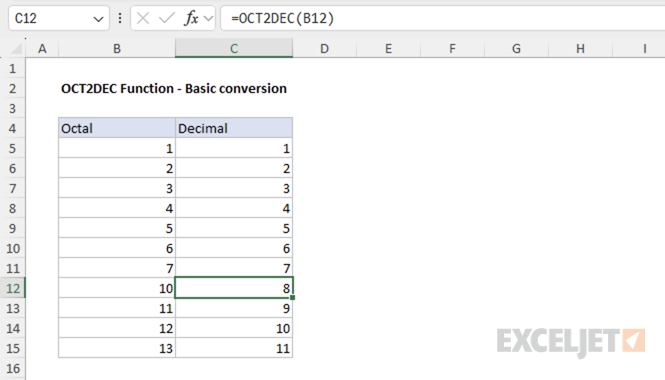
To convert the octal number 10 to decimal, use the following formula:
=OCT2DEC(10) // returns 8
The spreadsheet below shows some basic conversions of octal numbers to decimal numbers:
Example #2 - Negative octal numbers
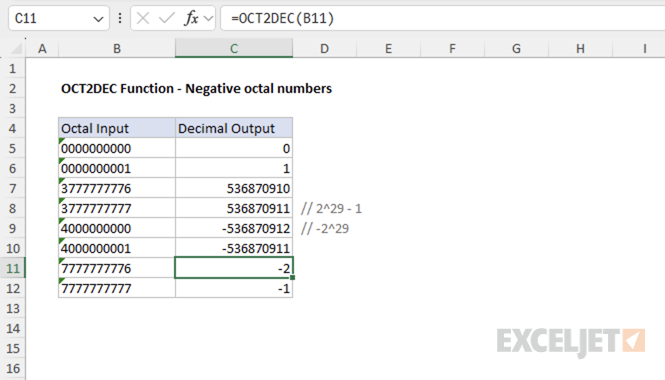
Excel represents negative numbers in non-decimal bases (like octal) using two’s complement notation with a fixed width of 10 characters. For example, the decimal number -2 is represented as the octal number 7777777776 .
=OCT2DEC(7777777776) // returns -2
This is because Excel represents the number using 30 bits, where the first bit is used for the sign, and the remaining 29 bits represent the value. Octal numbers from 0 to 3777777777 represent positive numbers, and octal numbers from 4000000000 to 7777777777 represent negative numbers.
In other words, the largest positive decimal number you can represent is 2^29 - 1 (536,870,911), and the smallest negative decimal number you can represent is -2^29 (-536,870,912). The spreadsheet below shows the octal numbers corresponding to positive and negative decimal numbers:
Example #3 - Error conditions
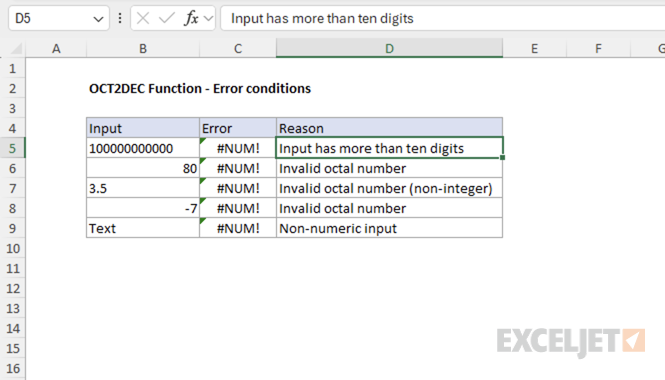
There are several error conditions that can occur when using the OCT2DEC function. For example, if the input contains more than 10 digits, OCT2DEC returns a #NUM! error. This behavior and other error conditions are shown in the example below:
Purpose
Return value
Syntax
=OCT2HEX(number,[places])
- number - The octal number you want to convert.
- places - [optional] The number of characters to use in the result. If omitted, uses the minimum number of characters necessary.
Using the OCT2HEX function
The OCT2HEX function is used to convert octal numbers (base 8) to hexadecimal numbers (base 16). This is useful when working with different number systems, especially in engineering and computer science applications.
Key features
- Converts octal numbers to hexadecimal numbers
- Handles both positive and negative octal numbers (using two’s-complement for negatives)
- Returns a hexadecimal number as text
To get the octal representation of a hexadecimal number, use the HEX2OCT function.
- Example #1 - Basic conversion
- Example #2 - Using the places argument
- Example #3 - Negative octal numbers
- Example #4 - Error conditions
Example #1 - Basic conversion
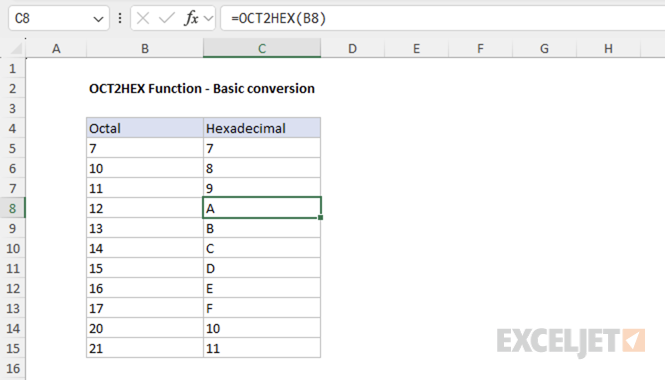
To convert the octal number 12 to hexadecimal, use the following formula:
=OCT2HEX(12) // returns A
The spreadsheet below shows some basic conversions of octal numbers to hexadecimal numbers:
Example #2 - Using the places argument
The places argument in the OCT2HEX function specifies the minimum number of characters to use in the result. When the converted hexadecimal number has fewer characters than the value specified for places , Excel pads the result with leading zeros. This is useful when you want all results to have a consistent length.
For example, to convert the octal number 12 to hexadecimal and pad the result to 3 characters, use:
=OCT2HEX(12, 3) // returns 00A
Places must be a number between 1 and 10, otherwise Excel will return a #NUM! error. If places is not an integer, Excel will truncate the decimal part. If the result is longer than the number specified in places , Excel will return a #NUM! error.
Example #3 - Negative octal numbers
Excel represents negative numbers in non-decimal bases (like octal) using two’s complement notation with a fixed width of 10 characters. This means octal numbers from 0 to 3777777777 represent positive numbers, and octal numbers from 4000000000 to 7777777777 represent negative numbers.
Shown below is a table of the octal numbers from 0 to 7777777777 and their corresponding hexadecimal and decimal numbers:
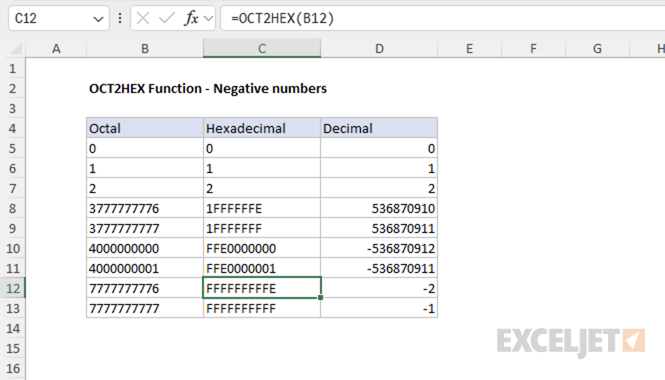
This means the octal numbers from 4000000000 to 7777777777 are mapped to different hexadecimal numbers, because Excel uses two’s complement notation to represent negative numbers. For example, the octal number 4000000000 is mapped to the hexadecimal number FFE0000000 instead of the hexadecimal number 0020000000 .
=OCT2HEX(0377777777, 10) // returns 0003FFFFFF
=OCT2HEX(0400000000, 10) // returns 0004000000
=OCT2HEX(3777777777, 10) // returns 001FFFFFFF
=OCT2HEX(4000000000, 10) // returns FFE0000000
Example #4 - Error conditions
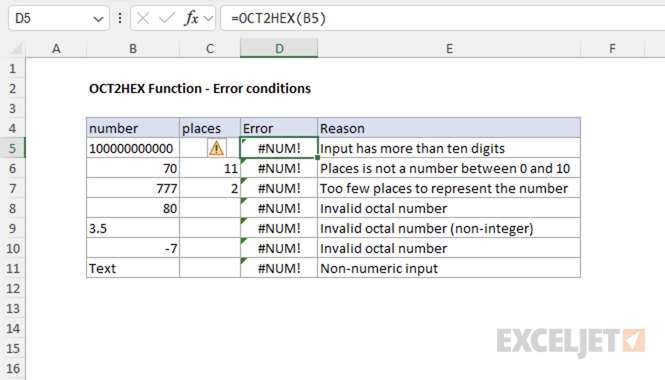
There are several error conditions that can occur when using the OCT2HEX function. For example, if the input contains more than 10 digits, OCT2HEX returns a #NUM! error. This behavior and other error conditions are shown in the example below: