Standard Pivot Tables have a simple feature for creating calculated fields. You can think of a calculated field as a virtual column in the source data. A calculated field will appear in the field list window, but will not take up space in the source data. In the example shown, a calculated field called “Unit Price” has been created with a formula that divides Sales by Quantity. The pivot table displays the calculated unit price for each product in the source data.
Note: data ends on row 18, so the calculation is as follows: $1,006.75 / 739 = $1.36
Fields
The source data contains three fields, Product, Quantity, and Sales. A fourth field called “Unit Price” is a calculated field.
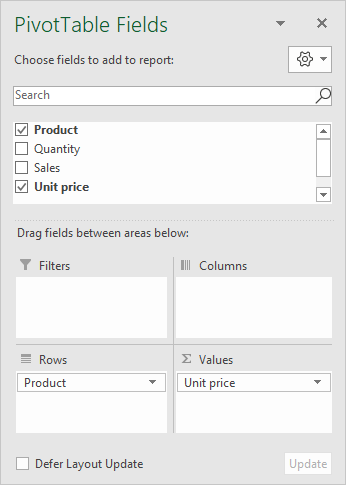
The calculated field was created by selecting “Insert Calculated Field” in the “Fields, Items, and Sets” menu on the ribbon:
<img loading=“lazy” src=“https://exceljet.net/sites/default/files/images/pivot/inline/pivot%20table%20calculated%20field%20ribbon%20menu.png" onerror=“this.onerror=null;this.src=‘https://blogger.googleusercontent.com/img/a/AVvXsEhe7F7TRXHtjiKvHb5vS7DmnxvpHiDyoYyYvm1nHB3Qp2_w3BnM6A2eq4v7FYxCC9bfZt3a9vIMtAYEKUiaDQbHMg-ViyGmRIj39MLp0bGFfgfYw1Dc9q_H-T0wiTm3l0Uq42dETrN9eC8aGJ9_IORZsxST1AcLR7np1koOfcc7tnHa4S8Mwz_xD9d0=s16000';" alt=“Select “Insert Calculated Field” from this menu - 2”>
The calculated field is named “Unit Price” and defined with the formula “=Sales/Quantity” as seen below:
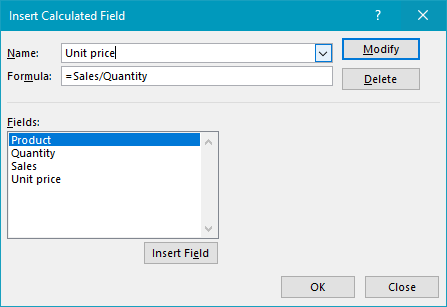
Note: Field names with spaces must be wrapped in single quotes (’). Excel will add these automatically when you click the Insert Field button, or double-click a field in the list.
The Unit Price field is renamed “Unit Price " (note the extra space) after it has been added to the Values area:
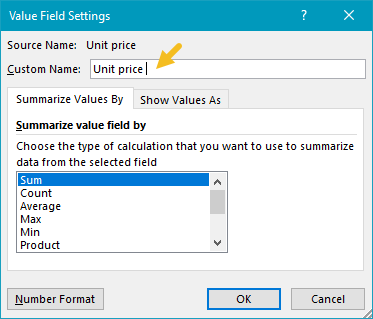
The extra space is required because Excel won’t allow you to use exactly the same field name that appears in the data in a pivot table.
Steps
- Create a pivot table
- Create the Calculated field “Unit Price”
- Add Unit Price to field to Values area Rename field “Unit Price " Set number format as desired
Standard Pivot Tables have a simple feature for creating calculated items. You can think of a calculated item as “virtual rows” in the source data. A calculated item will not appear in the field list window. Instead, it will appear as an item in the field for which it is defined. In the example shown, a calculated item called “Southeast” has been created with a formula that adds South to East. The pivot table displays the correct regional totals, including the new region “Southeast”.
Fields
The source data contains three fields: Date, Region, and Sales. Note the field list does not include the calculated item.
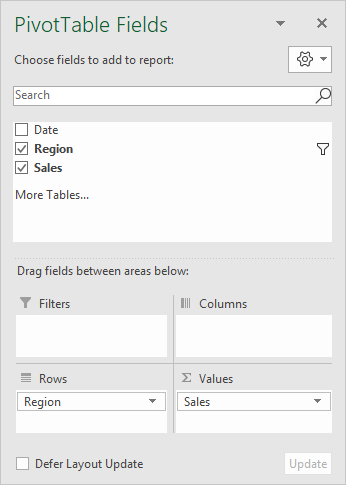
The calculated item was created by selecting “Insert Calculated Item” in the “Fields, Items, and Sets” menu on the ribbon:
<img loading=“lazy” src=“https://exceljet.net/sites/default/files/images/pivot/inline/pivot%20table%20calculated%20item%20ribbon%20menu.png" onerror=“this.onerror=null;this.src=‘https://blogger.googleusercontent.com/img/a/AVvXsEhe7F7TRXHtjiKvHb5vS7DmnxvpHiDyoYyYvm1nHB3Qp2_w3BnM6A2eq4v7FYxCC9bfZt3a9vIMtAYEKUiaDQbHMg-ViyGmRIj39MLp0bGFfgfYw1Dc9q_H-T0wiTm3l0Uq42dETrN9eC8aGJ9_IORZsxST1AcLR7np1koOfcc7tnHa4S8Mwz_xD9d0=s16000';" alt=“Select “Insert calculated Item” from this menu - 6”>
The calculated field is named “Southeast” and defined with the formula “=South + East” as seen below:
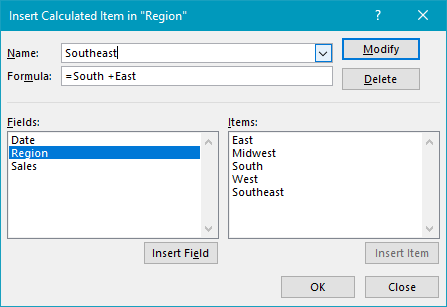
Note: Field names with spaces must be wrapped in single quotes (’). Excel will add these automatically when you click the Insert Field button or double-click a field in the list.
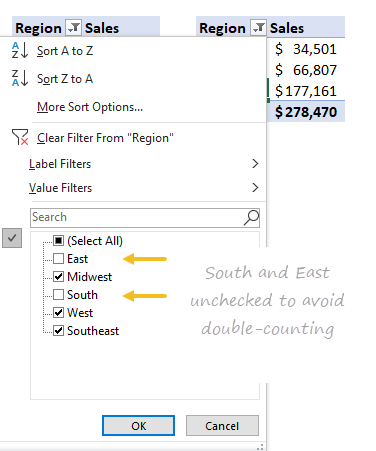
After the calculated item is created, the East and South regions must be excluded with a filter to avoid double-counting:
Steps
- Create a pivot table
- Add Region as a Row field
- Add Sales as a Value field
- Create the Calculated item “Southeast”
- Filter Region to exclude East and South


