To create a pivot table that shows the last 12 months of data (i.e. a rolling 12 months), you can add a helper column to the source data with a formula to flag records in the last 12 months, then use the helper column to filter the data in the pivot table. In the example shown, the current date is August 23, 2019, and the pivot table shows 12 months previous. When new data is added over time, the pivot table will continue to track the previous 12 months based on the current date.
Fields
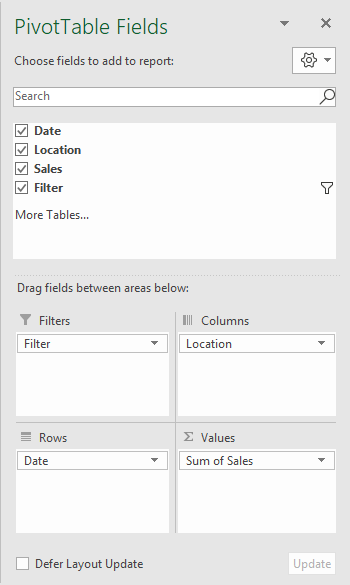
In the pivot table shown, there are three fields in the source data: Date, Sales, and Filter. Filter is a helper column with a formula flagging the last 12 months. The Date field has been grouped by Year and Month:
Formula
The formula used in E5, copied down, is:
=AND(B5>=EOMONTH(TODAY(),-13)+1,B5<EOMONTH(TODAY(),-1))
This formula returns TRUE when a date is greater than or equal to the first day of the month 12 months earlier and when the date is less than the last day of the previous month. The formula uses the AND, TODAY, and EOMONTH functions as explained here .
Steps
- Add helper column with formula to data as shown
- Create a pivot table
- Add Sales as a Value field
- Add Date as a Row field
- Group Date by Year and Month
- Disable subtotals for Year
- Add helper column as a Filter, filter on TRUE
To create a pivot table that shows the last 4 weeks of data (i.e. a rolling 4 weeks), you can add a helper column to the source data to flag records in the last 4 weeks, then use the helper column to filter the data in the pivot table. In the example shown, the current date is August 25, 2019, and the pivot table shows 4 complete previous. When new data is added over time, the pivot table will continue to track the previous 4 weeks based on the current date.
Fields
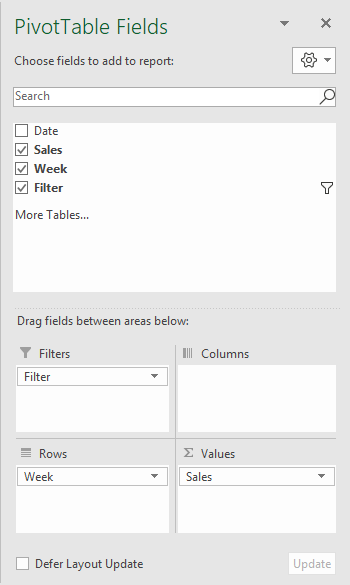
In the pivot table shown, there are four fields in the source data: Date, Sales, Week, and Filter. Filter is a helper column with a formula flagging the last 4 weeks. Week is a helper column that returns the Monday for any given date (for convenience only). Sales is the value field, and Week has been added as a Row field to group by week:
Formula
The formula used in D5 (Week), copied down, is:
=B5-WEEKDAY(B5,3)
This formula returns the Monday of week for any given date .
The formula used in E5 (Filter), copied down, is:
=AND(B5>=TODAY()-WEEKDAY(TODAY(),3)-28,B5<TODAY()-WEEKDAY(TODAY(),3))
This formula checks for dates in the last n weeks . It returns TRUE when a date is in the last 4 complete weeks, and FALSE if not. See the link for a full explanation.
Customizing week count
To customize the weeks displayed, adjust the Filter formula as needed to increase or decrease days. For example, to display the last 6 weeks (42 days), use:
=AND(B5>=TODAY()-WEEKDAY(TODAY(),3)-42,B5<TODAY()-WEEKDAY(TODAY(),3))
Steps
- Add helper column for Week with the formula above
- Add helper column for Filter with the formula above
- Create a pivot table
- Add Sales as a Value field
- Add Week as a Row field
- Set number formatting for Week as desired
- Add helper column as a Filter, filter on TRUE
