To create a pivot table that shows the last 7 days of data (or, more generally, the last n days) you can add a helper column to the source data with a formula to flag records in the last 7 days, then use the helper column to filter the data in the pivot table. In the example shown, the current date is August 16, 2019, and the pivot table shows the seven days previous.
Fields
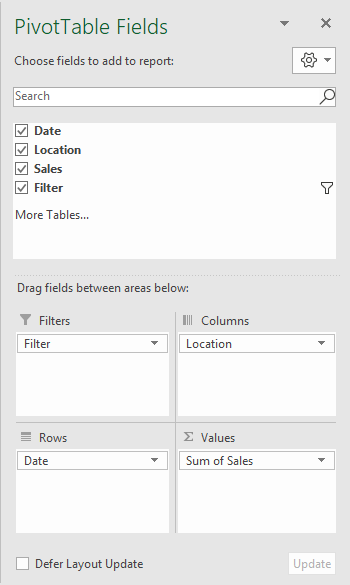
In the pivot table shown, there are four fields in use: Date, Location, Sales, and Filter. Location is a Column field, Date is a Row field, Sales is a Value field, and Filter (the helper column) is a Filter field, as seen below:
Formula
The formula used in E5, copied down, is:
=AND(B5>=(TODAY()-7),B5<TODAY())
This formula returns TRUE when a record date is greater than or equal to today’s date - 7, and also less than today’s date.
Steps
- Add helper column with formula to data as shown
- Create a pivot table
- Add fields to Row, Column, and Value areas
- Add helper column as a Filter, filter on TRUE
To build a pivot table that shows latest n values by date, you can add the date as a value field set to show maximum value, then (optionally) add a field as a row column and filter by value to show n values. In the example shown, Date is a value field set to Max, and Sales is a Row field filtered by value to show top 1 items.
Pivot Table Fields
In the pivot table shown, there are three fields, Name, Date, and Sales. Name is a Row field, Sales is a Row field filtered by value, and Date is a Value field set to Max.

The Date field settings are set as shown in below. Note the field has been renamed to “Latest” and set to Max:

The Sales field has a Value filter applied to show the top 1 item by Latest (Date):

Steps
- Create a pivot table
- Add Row field(s) as needed
- Add the Date field as a Value field and set to Max (rename if desired)
- Apply a Value filter to show Top 10 items and customize as needed
