To list and count the most frequently occurring values in a set of data, you can use a pivot table. In the example shown, the pivot table displays the top Wimbledon men’s singles champions since 1968 . The data itself does not have a count, so we use a pivot table to generate a count, and then filter on this value. The result is a pivot table that shows the top 3 players, sorted in descending order by how often they appear in the list.
Note: When there are ties in top or bottom values, Excel will display all tied records. In the example shown, the pivot table is filtered on top 3 but displays 4 players, because Borg and Djokovic are tied for third place.
Data
The source data contains three fields: Year, Country, and Champion. This data is contained in an Excel Table starting in cell B4. Excel Tables are dynamic and will automatically expand and contract as values are added or removed. This allows the Pivot Table to always show the latest list of unique values (after refresh).
Fields
In the pivot table itself, only the Champion field is used, once as a Row field, and once as a Value field (renamed “Count”).
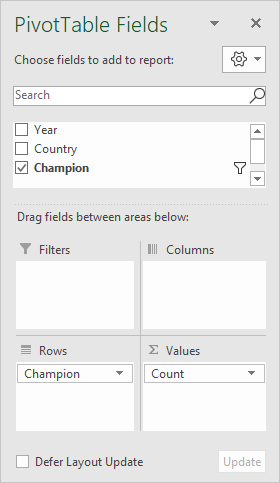
In the Values area, Champion is renamed “Count”. Because Champion is a text field, the value is summarized by Sum.
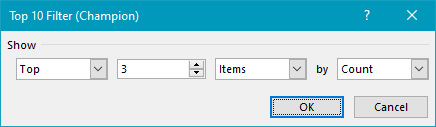
In the Rows area, the Champion field has a value filter applied, to show only the top 3 players by count (i.e. the number of times each player appears in the list):
In addition, the Champions field is sorted by Count, largest to smallest:

Steps
- Convert data to an Excel Table (optional)
- Create a Pivot Table (Insert > Pivot Table)
- Add the Champion field to the Rows area Rename to “Count” Filter on top 3 by count Sort largest to smallest (Z-A)
- Disable Grand Totals for rows and columns
- Change layout to Tabular (optional)
- When data is updated, Refresh the pivot Table for the latest list
A pivot table is a handy tool for estimating projects. As long as the data is well structured, a pivot table can easily handle hundreds or even thousands of line items. You can group these items by category, by phase, by contractor, and so on. Once the pivot table is created, you can easily adjust filters to show only parts of the project as needed. In the example shown, the source data is extremely basic, and a pivot table is used to group by area and display a sum plus a percentage of the total.
Fields
The source data in the example contains three fields: Area , Item , and Cost . The pivot table as shown uses only two of these fields: Area and Cost .
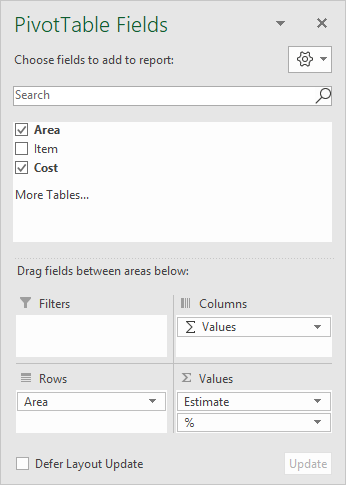
Area is a Row field, and Cost has been added twice as a Value field, once to show the total cost, and once to show a percentage breakdown. To show the total estimated cost, the Cost field is set to sum values and has been renamed “Estimate”:
<img loading=“lazy” src=“https://exceljet.net/sites/default/files/images/pivot/inline/pivot%20table%20project%20estimate%20cost%20value%20settings.png" onerror=“this.onerror=null;this.src=‘https://blogger.googleusercontent.com/img/a/AVvXsEhe7F7TRXHtjiKvHb5vS7DmnxvpHiDyoYyYvm1nHB3Qp2_w3BnM6A2eq4v7FYxCC9bfZt3a9vIMtAYEKUiaDQbHMg-ViyGmRIj39MLp0bGFfgfYw1Dc9q_H-T0wiTm3l0Uq42dETrN9eC8aGJ9_IORZsxST1AcLR7np1koOfcc7tnHa4S8Mwz_xD9d0=s16000';" alt=“Cost value settings, renamed “Estimate” - 5”>
To show a percentage breakdown, the Cost field is added again to the Value area and renamed “%”. Show Values As is set to a percentage of grand total:
<img loading=“lazy” src=“https://exceljet.net/sites/default/files/images/pivot/inline/pivot%20table%20project%20estimate%20percent%20value%20settings.png" onerror=“this.onerror=null;this.src=‘https://blogger.googleusercontent.com/img/a/AVvXsEhe7F7TRXHtjiKvHb5vS7DmnxvpHiDyoYyYvm1nHB3Qp2_w3BnM6A2eq4v7FYxCC9bfZt3a9vIMtAYEKUiaDQbHMg-ViyGmRIj39MLp0bGFfgfYw1Dc9q_H-T0wiTm3l0Uq42dETrN9eC8aGJ9_IORZsxST1AcLR7np1koOfcc7tnHa4S8Mwz_xD9d0=s16000';" alt=“Cost value settings for percentage, renamed “%” - 6”>
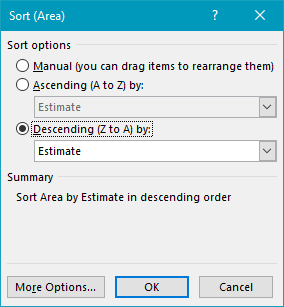
Finally, the Area field is sorted in descending order by Estimate (Cost):
Steps to create this pivot table
- Create a pivot table
- Add Area as a Row field
- Add Cost as a Value field Rename to “Estimate” Summarize by Sum Set number formatting to currency
- Add Cost as a Value field Rename to “%” Summarize by Sum Display Percent of Grand Total Set number formatting to percentage
- Sort Area by Estimate


