To build a pivot table to summarize data by month, you can use the date grouping feature. In the example shown, the pivot table is uses the Date field to automatically group sales data by month.
Pivot Table Fields
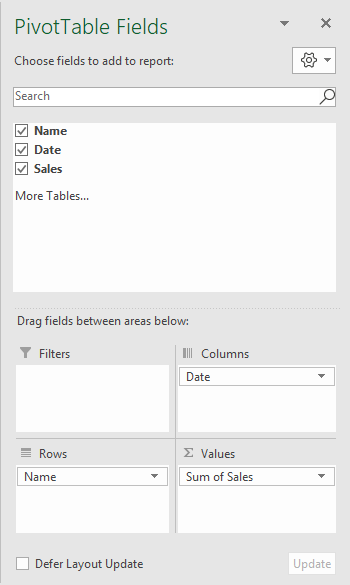
In the pivot table shown, there are three fields, Name, Date, and Sales. Name is a Row field, Date is a Column field grouped by month, and Sales is a Value field with the Accounting number format applied.
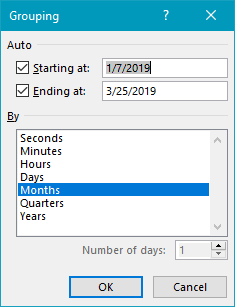
The Date field is grouped by Month, by right-clicking on a date value and selecting “Group”.
Steps
- Create a pivot table
- Add fields to Row, Column, and Value areas
- Right-click a Date field value and set “Group” setting as needed
Notes
- Number formatting doesn’t work on grouped dates because they behave like text.
- As a workaround, add helper column (s) to source data for Year and Month, then use those fields for grouping instead.
Pivot tables are an easy way to quickly average unique values in a data set, and can easily be adapted to perform a two-way average. In the example shown above, a pivot table is used to average Ratings for unique combinations of Age and Gender, based on data in the range B5:D16, defined as an Excel Table .
Fields
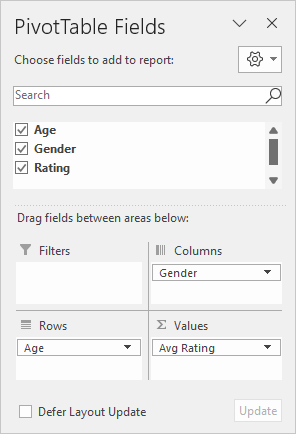
The pivot table shown is based on three fields: Age, Gender, and Rating. The Age field is added as a Row field, and the Gender field is added as a Column field. The Rating field is added as a Value field:
The Rating field in the Values area is renamed to “Avg Rating” and configured to Average:
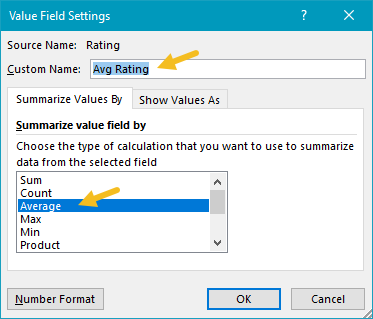
The custom name can be anything except an existing source field name (i.e. not “Age”, “Gender”, or “Rating”).
Steps
- Define data as an Excel Table (optional)
- Create a pivot table based on a table or data
- Add the Age field to the Rows area
- Add the Gender field to the Columns area
- Add the Rating field to the Values area
- Change Rating calculation to Average
- Rename Rating field (optional)
Notes
- When a numeric field is added as a Value field, Excel the field is automatically summed.
