Purpose
Return value
Syntax
=PROB(x_range,prob_range,lower_limit,[upper_limit])
- x_range - A range of numeric values representing the possible outcomes.
- prob_range - A range of probabilities corresponding to the values in x_range (must sum to 1).
- lower_limit - The lower bound for the probability calculation.
- upper_limit - [optional] The upper bound for the probability calculation. If omitted, PROB returns the probability that x equals lower_limit.
Using the PROB function
The PROB function calculates probabilities for discrete probability distributions by summing the probabilities of all values in the x_range that fall within the specified limits. When upper_limit is omitted, PROB returns probability of the lower_limit value. This function is useful for analyzing discrete data where you have known outcomes and their associated probabilities.
Key features
Works with discrete probability distributions
Requires probabilities in prob_range to sum to 1
Can calculate probability for a single value or a range of values
When upper_limit is omitted, returns probability of the lower_limit value
Returns #NUM! error if probabilities don’t sum to 1
Key features
Example #1 - Single value probability
Example #2 - Range probability
Example #3 - Error conditions
When to use PROB
Example #1 - Single value probability
In this example, we have a dataset showing quiz scores and their corresponding probabilities. To find the probability of getting exactly a score of 7, we pass in 7 for the value of lower_limit .

=PROB(B5:B15, C5:C15, E5)
This formula returns 0.20, meaning there is a 20% chance of getting exactly a score of 7.
The function works by: 1. Finding the value 7 in the x_range (B5:B15) 2. Returning the corresponding probability from prob_range (C5:C15) 3. Since 7 appears in the table, it returns the probability of 0.20
Example #2 - Range probability
To find the probability of getting a score between 5 and 8 (inclusive), we use both the lower_limit and upper_limit arguments:
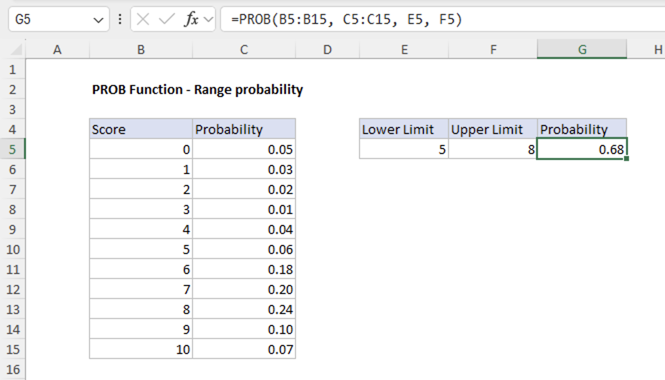
=PROB(B5:B15, C5:C15, E5, F5)
This formula returns 0.68, meaning there is a 68% chance of getting a score between 5 and 8 inclusive.
The function works by: 1. Finding all values in x_range that are >= 5 and <= 8 2. Summing the corresponding probabilities from prob_range 3. For scores 5, 6, 7, and 8: the probabilities sum to 0.68
Example #3 - Error conditions
The PROB function returns the following errors:
If the probabilities in prob_range don’t sum to 1, the function returns #NUM! error
=PROB({1,2,3},{0.2,0.3,0.4},2) // returns #NUM!
If x_range and prob_range have different numbers of values, the function returns #N/A error
=PROB({1,2,3},{0.2,0.3},2) // returns #N/A
If any argument is non-numeric or contains non-numeric values (e.g., text), the function returns #NUM! error
=PROB({"1",2,3},{0.2,0.3,0.5},2) // returns #NUM!
When to use PROB
The PROB function is ideal for analyzing discrete probability distributions like calculating probabilities for survey results. These are scenarios where you have a complete set of possible outcomes and their associated probabilities. For continuous probability distributions, Excel provides distribution functions like NORM.DIST , EXPON.DIST , or WEIBULL.DIST .
Purpose
Return value
Syntax
=QUARTILE(array,quart)
- array - A reference containing data to analyze.
- quart - The quartile value to return.
Using the QUARTILE function
Use the QUARTILE function to get the quartile for a given set of data. QUARTILE takes two arguments, the array containing numeric data to analyze, and quart , indicating which quartile value to return. The QUARTILE function accepts 5 values for the quart argument, as shown in the table below.
| Quart | Return value |
|---|---|
| 0 | Min value |
| 1 | First quartile – 25th percentile |
| 2 | Median value – 50th percentile |
| 3 | Third quartile – 75th percentile |
| 4 | Max value |
